Computer Set-up
Plan for about 20 minutes to install the necessary software for the workshop. This should be completed on your own before the workshop
Laptop Requirement: You must bring your own Windows or MacOS laptop with at least 4GB of RAM. Also bring a charging cord and a mouse if you like using one.
If any any point you get stuck or something is not working as expeceted take a screen shot or copy/paste the text you see into ChatGPT and ask for help troubleshooting. If something is still not working then send an email to strategy-program@byu.edu for assistance.
1. Sign-up for Claude Pro
Skip if you have already have a paid Claude account available.
2. Create a free GitHub Account
3. Create a free Supabase Account
4. Create a free Vercel Account
5. Install Visual Studio Code (VS Code)
6. Start-up Claude Code within VS Code
-
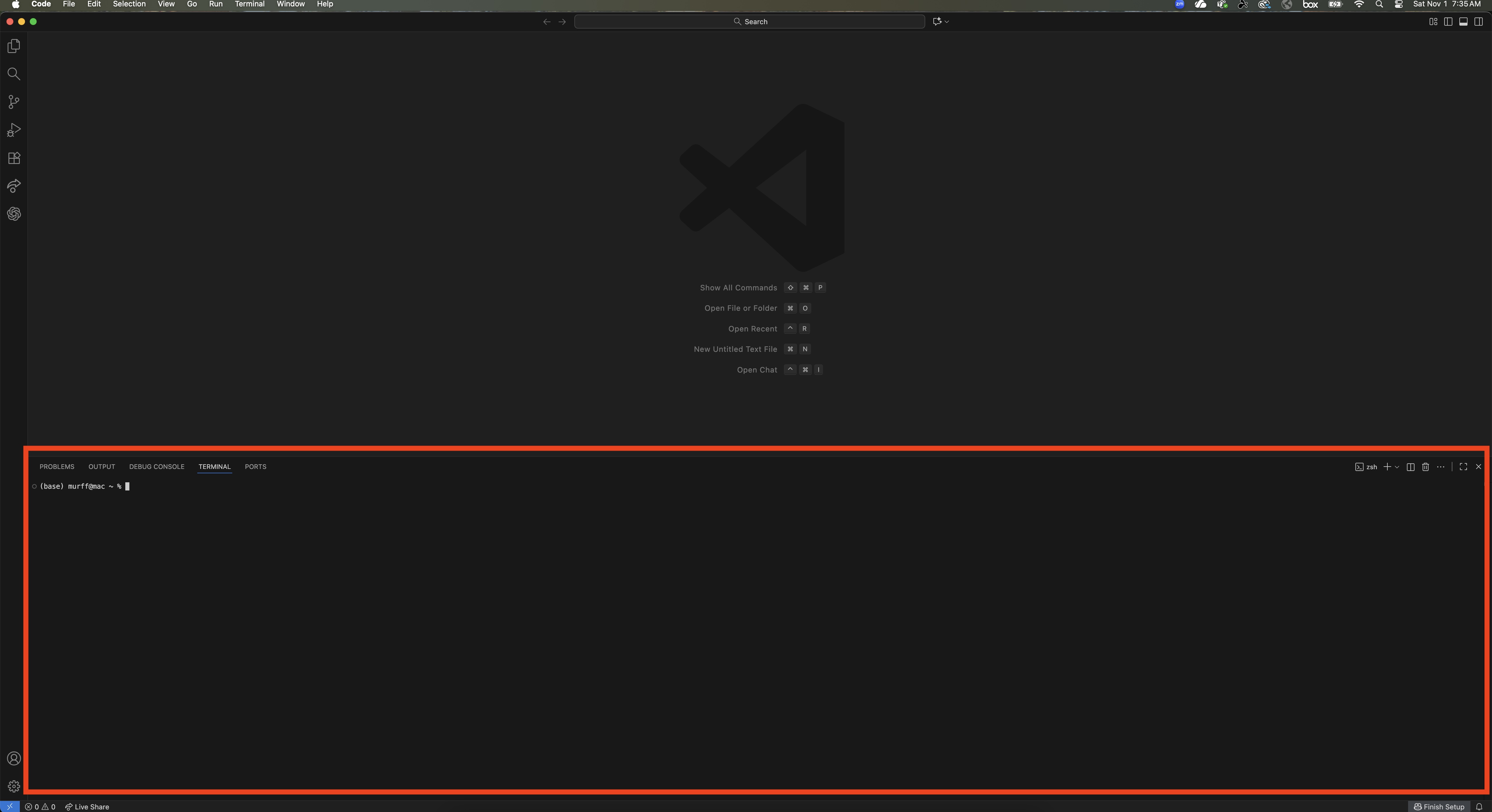
This opens the integrated terminal at the bottom of VS Code
The terminal is where you’ll run commands.
You should see something like:PS C:\Users\YourName> ← Windows or yourname@MacBook-Pro ~ % ← macOS
The terminal should appear as a new window pane within VS Code:
Install Claude Code from the Terminal
Now you’ll install the Claude Code CLI (command-line interface), this tool connects VS Code directly to Claude.
Run one of the following commands inside the VS Code terminal, depending on your operating system:
Troubleshooting tip: If at any point you get stuck or something is not working as expected, take a screenshot or copy/paste the error message and surrounding context into ChatGPT, Claude, or Gemini and ask for help troubleshooting. Follow the troubleshooting instructions and within 1 or 2 loops you should be unblocked. When errors arise, it’s often because dependencies are not installed so additional software needs to be installed prior to proceeding. AI chatbots will guide you through how to install these dependencies if needed.
On Windows
irm https://claude.ai/install.ps1 | iexOn macOS
curl -fsSL https://claude.ai/install.sh | bashclaude --version2.0.31 (Claude Code)claudeYou will be prompted to authenticate that you have a Claude Pro account and will routed to a web-brower tab where you will sign into Claude. Once complete, return to VS Code and you should see something like:

Congratulations! Now that you have Claude Code successfully installed, you now how a new superpower on your computer which we will use to help us install a number of other softwares we will need to build full-stack applications and get AI leverage on many other knowledge work tasks.
Let’s use this new superpower to install a number of other softwares we will need through out the workshop. Claude Code will help you complete the rest of the installations. Paste the following prompt into the terminal where Claude Code is active:
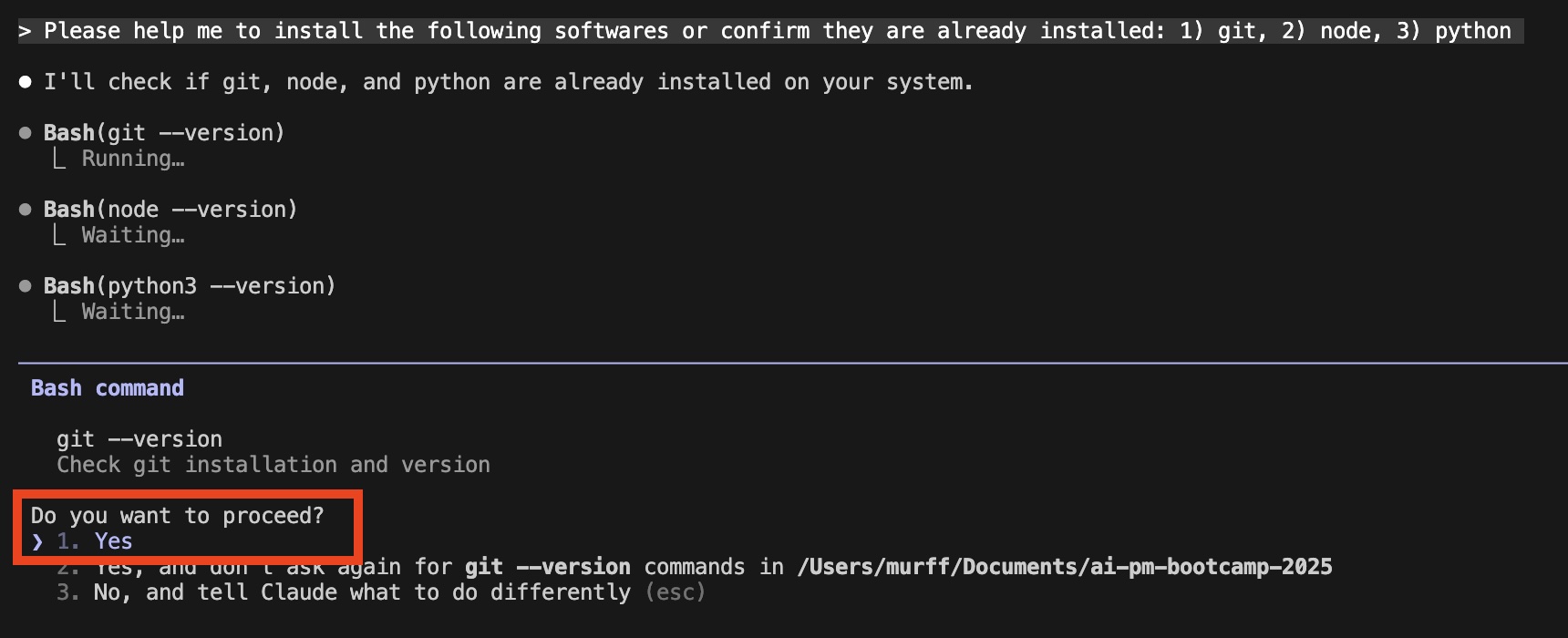
Please help me to install the following softwares or confirm they are already installed: 1) git, 2) node, 3) python
Press Enter to say “Yes” when asked to proceed. Claude Code functions basically like a normal chat bot and will make the remaining installations with your approval.
Note on Using the Terminal
The terminal isn’t quite like a normal text editor, you can’t click anywhere in a line to move your cursor or edit text.
Instead, use the arrow keys on your keyboard to move left and right within the command you’re typing.
If you make a mistake, you can use:
- Backspace (Windows) or Delete (Mac) to erase characters
- ↑ (up arrow) to recall your last command
- ↓ (down arrow) to move forward through your command history
You are now ready to begin the workshop! However, in addition to Claude Code, there are several other AI agents that you should install if you have accounts with other AI providers. The workshop instruction will be with Claude Code but we will refer to other AI agents as well and demonstrate how these can be used.
You may optionally run the following commands from a new terminal window or from within an active Claude Code terminal in which case Claude will ask you for permission and then execute these commands for you.
Gemini CLI from Google
npm install -g @google/gemini-cliGitHub Copilot from Microsoft
npm install -g @github/copilotCodex from OpenAI (ChatGPT) Copilot (Microsoft)
npm install -g @openai/codexAfter installation you can run the following commands to active each of these agents by running a terminal command within VS Code as you did for Claude Code.
gemini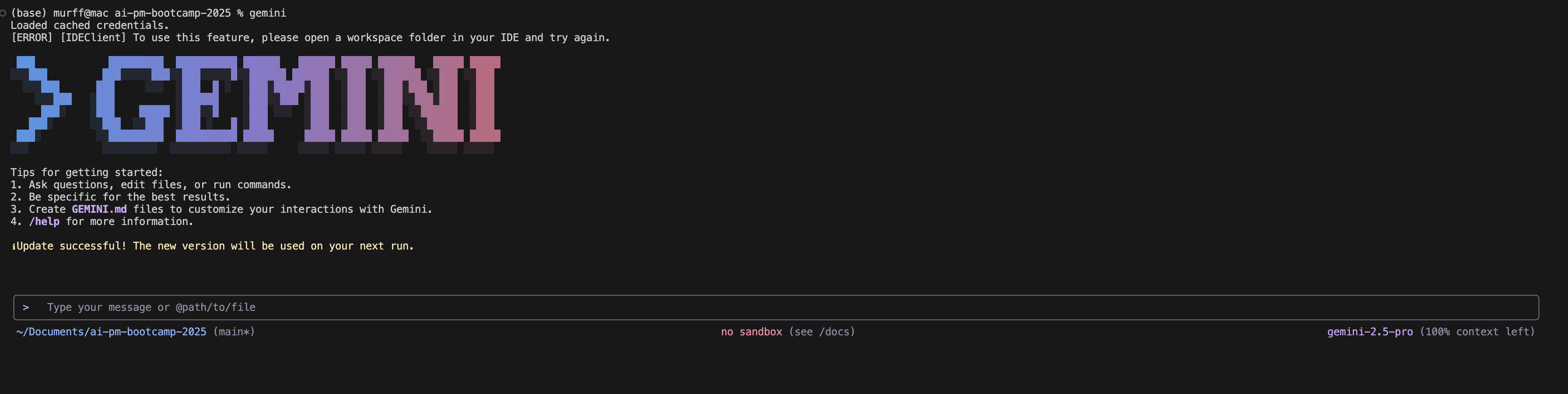
copilot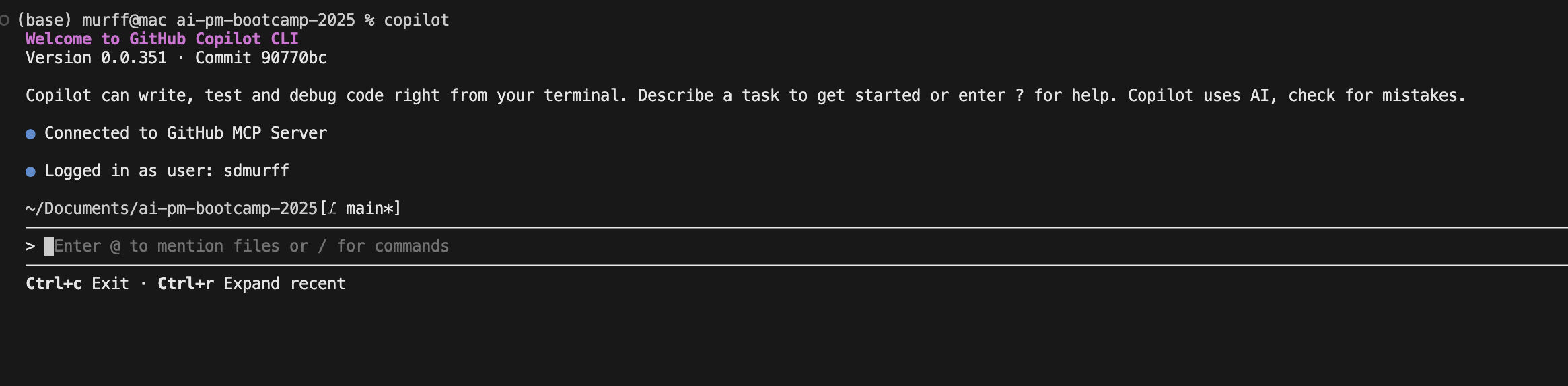
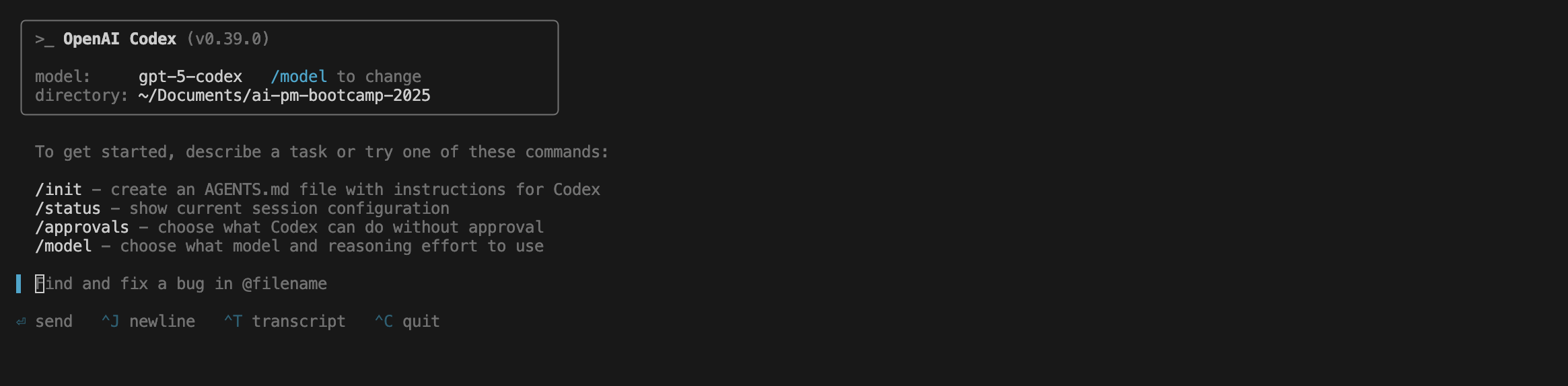
codex