
GitHub & Deployment
This page covers Git, GitHub, and deploying an app to a public URL with Vercel. Read it if you have not used Git before or have never deployed anything. Skip it if you already commit, push, and deploy from GitHub.
Git and GitHub are the standard tools developers use to keep versions of code and to collaborate on it. When an agent edits your code many times an hour, they are also how you undo its mistakes. You will rarely type Git commands yourself, because Claude Code commits and pushes when you ask, but you should know what each one does when you read its output.
Git & GitHub
The two names are often used interchangeably, but they are two different tools that work together.
Git is an open-source version control system you install on your computer. It tracks every change to the files in a folder (called a repository) and lets you return to any earlier version, see what changed, when, and who changed it. Think of it as a time machine plus parallel copies: every commit is a saved snapshot of the whole project you can return to, and every branch is a separate line of snapshots you can work on without touching the others.
Check that Git is installed by running this in a terminal:
git --versionIf it is not installed, ask Claude Code to install it for you.
GitHub is a website, owned by Microsoft, that stores Git repositories online so you can back them up, share them, and collaborate. Developers work with Git on their own computers and push their changes to GitHub when they are ready to share them. Product managers and other collaborators can then review, comment on, and track progress through the GitHub web interface. GitHub is also where a host such as Vercel picks up your code to deploy it.
If you do not have a GitHub account:
- Go to github.com and click Sign up (or Continue with Google).
- Follow the prompts to create your personal account.
To create a repository, click New on your GitHub dashboard (or the + menu in the top right, then New repository) and give it a name. You can also ask Claude Code to do it with the GitHub command-line tool: “Create a private GitHub repo for this folder and push it” runs gh repo create for you.

The Git and GitHub Workflow
The model: a change moves through four places: the files you edit, the staging area, a commit in your local history, and GitHub. Each move is a command you choose to run.
Changes move through four places: you edit files in your working directory, stage the ones you want to save, commit them as a snapshot, and push the snapshot to a remote repository on GitHub.
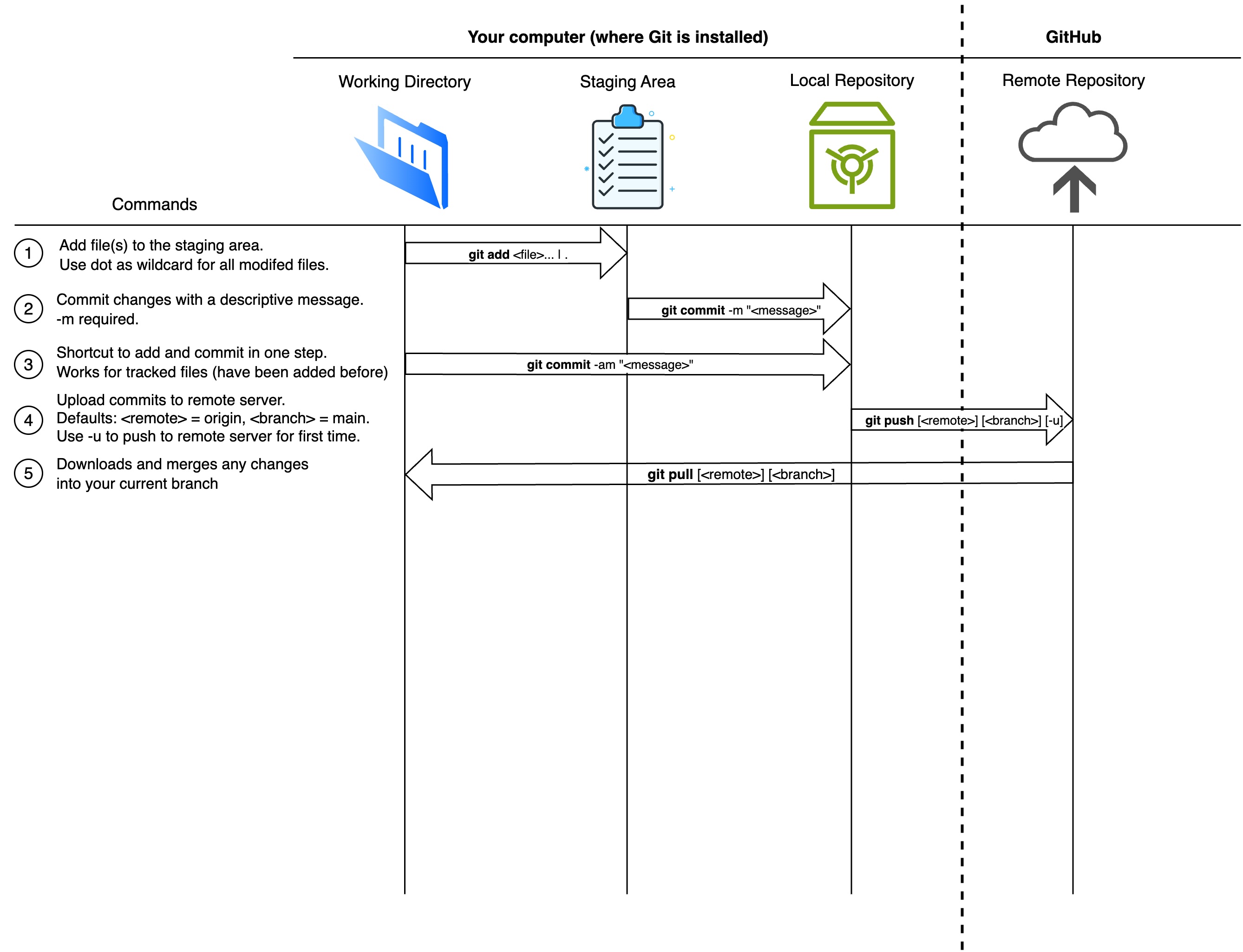
| Stage | What it is |
|---|---|
| Working Directory | The ordinary folder on your computer where you (and the agent) edit files |
| Staging Area | The list of changed files you want to include in your next commit. Git also calls it the index |
| Local Repository | Your project’s full history of commits, stored in a hidden .git folder inside the project |
| Remote Repository | A copy of the repository on GitHub, shared with others and kept in sync with yours |
A few notes on each:
- Staging lets you choose what goes into a commit. If you edited five files, you can commit three of them and leave the other two for later.
- The
.gitfolder holds every commit. Its files are not meant to be read directly; Git commands retrieve and restore any version in readable form. - The remote is what makes backup, collaboration, and deployment possible. Your local repository is your copy; the remote is the shared one.
Commit only the files you touched. When two Claude Code sessions work in one folder, git add . stages the other session’s half-finished files along with yours. Stage files by name instead (git add app/page.tsx). The Agent Team Kit builds this rule in.
The Hierarchy of a Git Project
| Level | Concept | Description |
|---|---|---|
| 1 | Files | The individual contents of your project |
| 2 | Commits | Snapshots of the project at specific points in time |
| 3 | Branches | Lines of commits used for parallel work |
| 4 | Repositories | The container for the whole project and its history |
Files. Usually plain text files containing code (.py, .html, .js), plus images (.png, .jpg) and data files (.csv, .json).
Commits. A commit is a snapshot of the whole project plus a message saying what changed and why. Each commit has a unique identifier called a hash, such as 9a3e6c2bd8c2fb4f09f7bbfe42f27f3853fccc60, usually shortened to seven characters (9a3e6c2). Small commits with clear messages are what make history useful: “Add rating to problems” is a point you can return to; “updates” is not.
Branches. A branch is a pointer to the latest commit in one line of work, and it moves forward as you add commits. Most repositories have a default branch called main, which usually holds the version that is live. To build a feature without touching main, you create a branch from it:
main → commit A → commit B → commit C
feature-login → commit B → commit D → commit E
main can keep moving on its own, and when the feature is ready you merge feature-login back into main. HEAD is a pointer to the branch (or commit) you currently have checked out; git status tells you where it is. When several agents work in one repo, The Agent Team Kit covers when to give each its own branch.
Repositories. A repository (repo) holds all the project’s files, commits, branches, and settings. It can live on your computer and on GitHub at the same time.
Common Git Commands
| Command | What it does |
|---|---|
git init |
Start a new repository in the current folder |
git clone <url> |
Copy a remote repository to your computer |
git status |
Show what has changed and what is staged |
git add <file> |
Stage a file (git add . stages every change; see the caution above) |
git restore --staged <file> |
Unstage a file |
git restore <file> |
Discard your changes to a file and return it to the last commit |
git commit -m "<message>" |
Save the staged changes as a commit |
git log --oneline |
Show the commit history, one line per commit |
git diff |
Show changes you have not staged yet (git diff --staged for staged ones) |
git switch -c <name> |
Create a branch and switch to it |
git switch <name> |
Switch to an existing branch |
git merge <branch> |
Merge a branch into the current one |
git push |
Upload your commits to GitHub |
git pull |
Download and merge changes from GitHub |
git stash |
Set uncommitted changes aside temporarily (git stash apply brings them back) |
git remote -v |
Show which GitHub repository this folder is connected to |
In a project with some history, ask Claude Code: “Show my last ten commits and, for each, one line on what it changed.” Pick one that is three or more commits back and ask what the app would lose if you returned to it. Could a teammate tell from the messages what happened?
Deploying from GitHub
There are many ways to deploy an application. One of the simplest is Vercel, a hosting platform that connects to GitHub. Once you connect a repository, Vercel builds and publishes your app, and it rebuilds and republishes it every time you push to main.
Deployment is taking code that runs on your computer and making it available to anyone at a public URL. It usually involves four steps:
- Build. The source code is turned into optimized files a server can run: dependencies are installed, JavaScript is bundled, images are compressed.
- Host. The built files are placed on a server, a computer that is always online.
- Serve. The server makes the app available at a public web address.
- Update. Each time you push new code to GitHub, the host rebuilds and redeploys the app, so the live site matches
main.
To deploy:
- Go to vercel.com and sign up, preferably with your GitHub account.
- Click Add New, then Project.
- Connect your GitHub account and import the repository that holds your app.
- Click Deploy, wait for the build to finish, and open the URL Vercel gives you.
Vercel works best with web frameworks such as Next.js, or with a plain HTML, CSS, and JavaScript site. A Python Streamlit app does not run on Vercel; deploy it to Streamlit Community Cloud instead, which also imports a GitHub repository. If you are not sure which host fits your app, ask Claude Code.
For the longer version, including pull requests, automated checks, environments, and rolling back a bad deploy, see Version Control, Environments, and Deploys in the Product Management book.