
How a Coding Agent Works
This page gives you the minimum model of a coding agent you need before the workshop: the loop it runs, the tools it uses, and enough of the command line to read what it is doing. Read it if you have used ChatGPT or Claude in a browser but not Claude Code. Skip it if you already know what a tool call is.
What Makes an Agent an Agent
The model: an agent is a model in a loop with tools. The model is a large language model (LLM), such as Claude: a program that takes in text and images and writes text back. Every way of using Claude runs the same models; they differ in how far they let the model reach, which One Engine, Many Surfaces compares.
A chatbot can write you a PRD. An agent can read your repo (short for repository, the folder that holds your project’s code), write the code, run it, watch it fail, fix it, and deploy the result. That difference is why the workshop runs in a terminal instead of a browser tab.
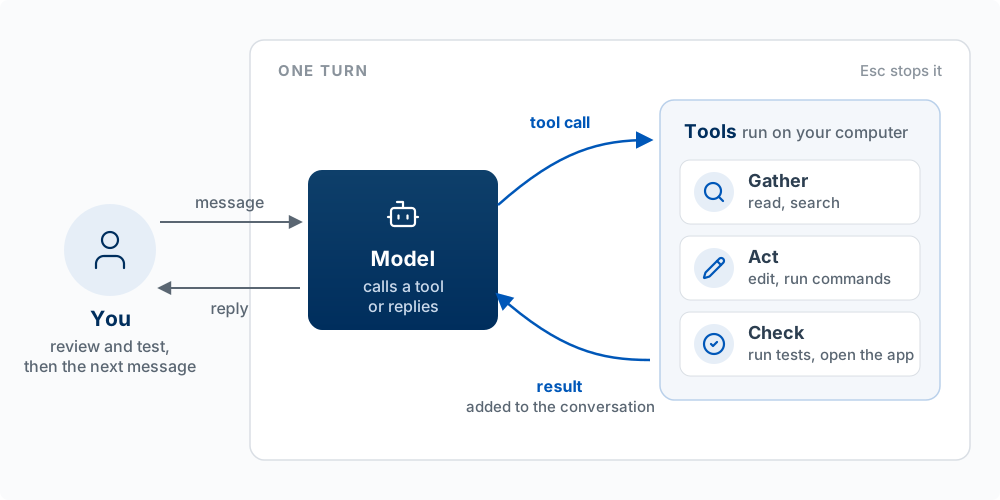
The agent loop: gather context, act, check
Every agent turn has three phases. Claude Code’s documentation names them gather context, take action, and verify results, and the loop repeats until the task is done or you interrupt.
| Phase | What the agent does | The tools it uses | What goes wrong here |
|---|---|---|---|
| Gather context | Reads files, searches the code, reads your instructions | Read, search, CLAUDE.md, web fetch | It never looked at the file that mattered, or your instruction was not in front of it |
| Act | Changes something | Edit, Write, Bash (run a command) | It edited the wrong file, or ran a command you did not want |
| Check | Looks at the result of its action | Run the tests, run the app, read the error output | It skipped the check, or the check could not detect the problem |
Worked example. You tell Claude Code: “The delete button on my to-do app doesn’t work.” A good run looks like this:
- Context: it reads
app.py(the app’s code), finds the delete handler (the code that runs when the button is clicked), and readstodos.json(the file where the to-dos are saved). - Act: it notices the handler removes the item from the list but never saves the file, and adds the save.
- Check: it runs the app (or a small test, a short program that checks one behavior automatically), deletes an item, reloads, and confirms the item is gone.
- The check passes, so it stops and reports.
Now three bad runs, one per phase. It “fixes” the wrong button because it never opened app.py (context). It rewrites the whole file and breaks the add feature (act). It announces “Fixed!” without ever reloading the app (check). When a result is wrong, ask which phase failed. Did it lack context, take the wrong action, or skip the check? Each has a different fix: give it the file or the rule, narrow the request, or give it a way to verify.
You are part of the loop too. You can interrupt at any point (press Esc), add context, or redirect. Treat the agent like a fast, capable new hire with no memory who takes you literally: brief it well, check its work, and do not assume it knows what you did not tell it. The comparison fails in one place: unlike a new hire, the agent does not learn from yesterday unless the lesson is written down where it will read it, in CLAUDE.md (see Directing the Agent).
Tools: how the agent acts on your computer
The model only writes text. Every file it reads, every edit, and every command happens because Claude Code ran a tool the model asked for. A tool is a function Claude Code offers the model: a name, a description of what it does, and the inputs it takes. Read takes a file path. Edit takes a file path, the text to replace, and the new text. Bash takes a command.
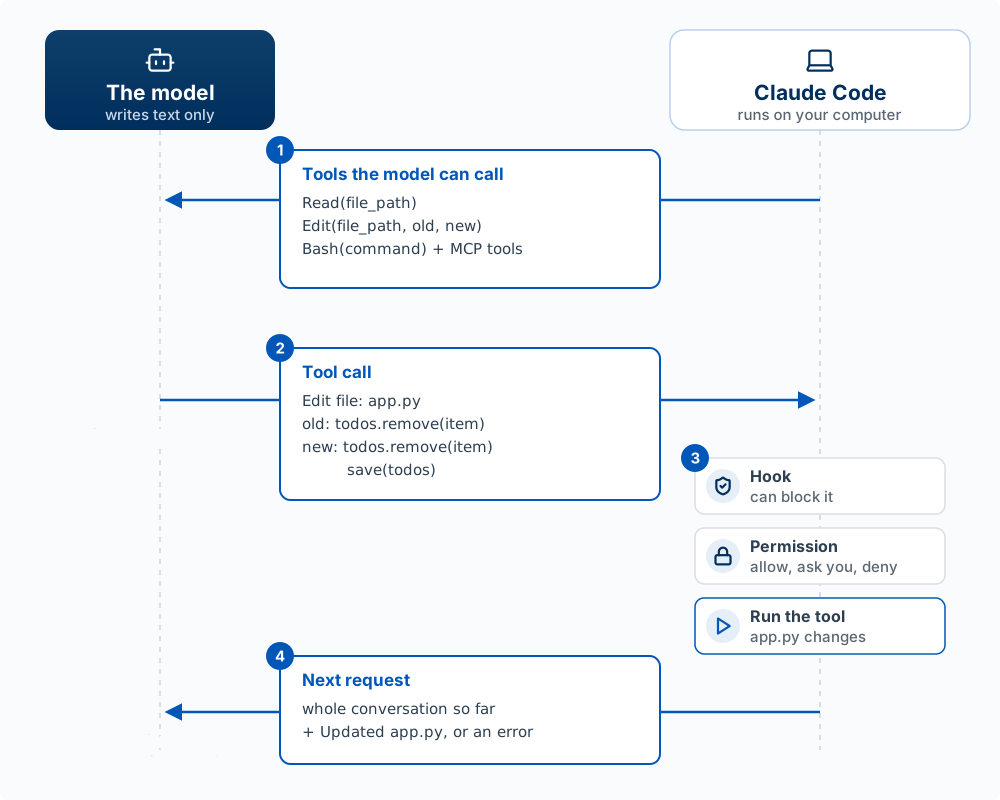
One tool call, step by step, using the delete-button fix above:
- The list. With every request, Claude Code sends the model the tools it can call and what each one takes. The model can only use what is on this list.
- The call. The model writes a tool call: text in a fixed format naming the tool and its inputs (
Edit, the fileapp.py, the old line, the new lines). Its reply ends there. Nothing has changed on your computer yet. - The checks, then the run. Claude Code, the program running on your computer, receives the call and runs the tool-call check. A hook can block it, and a permission rule either allows it, asks you, or denies it. Only then does Claude Code run the tool, and the file changes. Understanding the Harness covers hooks and permissions.
- The next request. What the tool returned (a file’s contents, a command’s output, or an error message) is added to the conversation as text, and Claude Code sends a new request: the whole conversation so far, plus the result. The model keeps nothing between requests, so it rereads everything and decides the next step: another tool call, or a reply to you. The loop ends when the model replies without a tool call.
The tools you will see most often:
| Tool | What it does | Asks permission by default |
|---|---|---|
Read |
Reads a file | No |
Edit |
Replaces specific text in a file | Yes |
Write |
Creates a file, or overwrites one | Yes |
Bash |
Runs a terminal command: tests, installs, git, searches | Yes |
WebFetch, WebSearch |
Reads a web page; searches the web | Yes |
Agent |
Starts a subagent with its own context window | No |
Skill |
Runs a skill | Yes |
Source: the Claude Code tools reference. Four things follow from this mechanism:
- You can see and control every action. Each tool call appears in the transcript, and permissions and hooks act on tool calls, so they can stop any action before it runs.
- The model knows only what tool results put in front of it. If it never called
Readon the file that mattered, it is guessing about that file. - More tools means more ability. An MCP server, a small program that connects Claude Code to another system, adds tools to the list. Connect the Playwright server and the model gains tools that open a browser and click.
- Your own product can work the same way. When you give a model tools through the API (the interface your own code uses to send requests to a model), your code plays Claude Code’s part: it receives the call, decides whether to run it, and sends the result back.
Ask Claude Code to make a small change in a project, then watch the transcript instead of the result. Label each step it takes as context, action, or check. Did it check its own work before saying it was done? If not, what check would you have asked for?
The harness
The program around the model, which builds each request and runs the tool calls, is called the harness. Part of it is built in: the context window, the tool-call check, and the tools. The rest is your harness, which you shape yourself with files such as CLAUDE.md and settings. The workshop maps both on Understanding the Harness.
The Command Line
The model: the terminal is only a window; the shell runs the commands. Claude Code sends commands to the same shell, and asks you before it runs one, so reading a command is how you decide.
Most of what a coding agent does happens on the command line: a text-based way to control your computer by typing commands instead of clicking. The program that shows it is a terminal: Terminal on macOS; PowerShell or Git Bash on Windows; or the terminal panel built into VS Code.
The terminal is only the window. The program that runs the commands is the shell (zsh is the default on a Mac; Bash is the default on Linux and in Git Bash on Windows). When you type git status, the terminal passes the line to the shell and the shell runs the git program. Claude Code sends commands to the same shell directly, with no window, through its Bash tool.
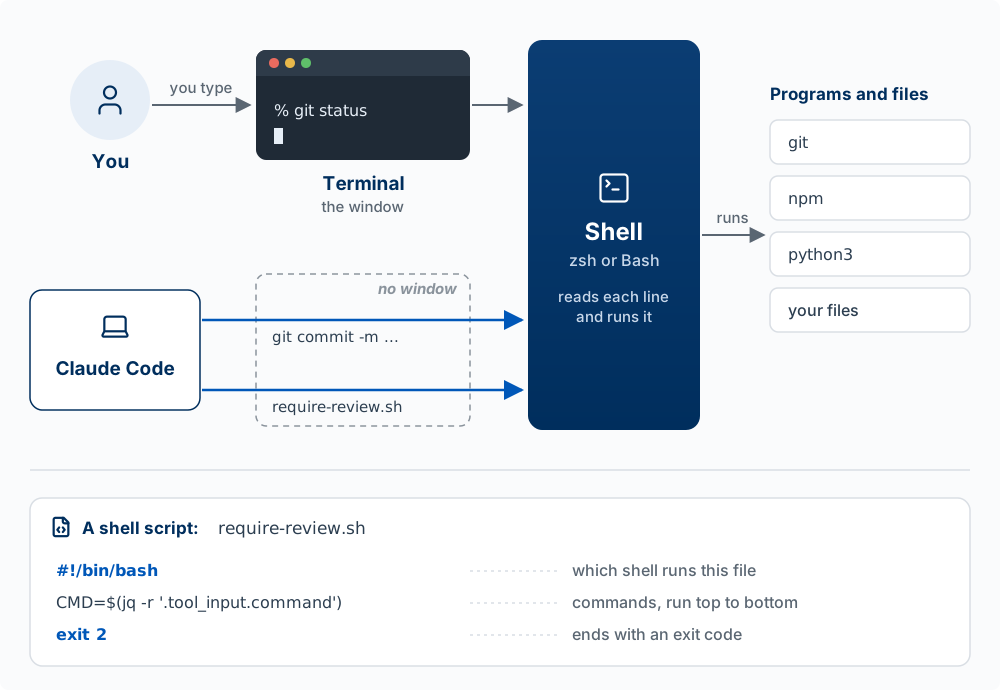
When Claude Code wants to run a command, it shows you the command and asks first. Approving well means reading it and knowing roughly what it touches. Most commands fall into one of three groups:
| What it does | Commands you will see | When to approve |
|---|---|---|
| Looks around | ls, cat, grep, git status, git diff, git log |
Freely. They read and change nothing |
| Changes files on your laptop | mkdir, cp, mv, npm install, git add, git commit |
When it matches what you asked for. Git can undo a committed change |
| Deletes, or leaves your laptop | rm -rf, git reset --hard, git push, vercel deploy, supabase db push, curl ... \| sh |
Only after reading the whole line. These are hard or impossible to undo, and rm skips the Trash |
To move around yourself: cd folder goes into a folder, cd .. goes up one level, and ls shows what is there. Two things trip people up: a path with spaces needs quotes (cd "My Folder"), and macOS and Linux treat File.txt and file.txt as different files while Windows does not.
A package manager installs software from the command line, so you type one command instead of clicking through an installer. On macOS the standard one is Homebrew; on Windows 10 and 11, winget comes pre-installed. When Claude Code installs git, node, or python for you, it is calling one of these.
In a VS Code terminal, run winget install --id Git.Git -e --source winget, then confirm with git --version. In VS Code press Ctrl + Shift + P, choose Terminal: Select Default Profile, pick Git Bash, and open a new terminal (Ctrl + ~). It should start with bash$ or MINGW64 instead of PS. The commands above then work as on macOS.
Next
Setup installs VS Code and Claude Code, and Your First Build walks through a first session, including the approval prompt Claude shows before it runs a command.
For the longer version of this material, including the history of command-line and graphical interfaces, see Building with AI Agents in the Product Management book.