
One Engine, Many Surfaces
This segment uses the three layers to compare the places you can run Claude Code: the terminal, the VS Code extension, the desktop app, and a cloud session at claude.ai/code. The model and the built-in harness are the same on all four. What changes is the window, a few features, and how much of your harness each surface can reach. It ends with other coding agents and Claude in Chrome.
Checked on October 10, 2026 against Anthropic’s desktop app documentation, CLI reference, commands reference, and VS Code page, and against the vendors’ docs linked in each section. These products change every few weeks. When this page and the docs disagree, the docs are right.
One engine, many surfaces
The model: every Claude Code surface runs the same model and the same built-in harness. The context window, the tool-call check, and the tools work the same way in each. The surfaces differ in the window you see and in which parts of your harness they can read.
| Surface | What it is | Pick it when |
|---|---|---|
| Terminal (CLI) | claude typed in any terminal, including VS Code’s |
You want every feature, scripting (claude -p), or a terminal workflow. The docs call it the most complete surface |
| VS Code extension | A chat panel in the editor, opened from the Spark icon | You want inline diffs next to your code and to stay in the editor |
| Desktop app | The Code tab in the Claude desktop app | You want a visual diff viewer, an app preview, and several sessions side by side |
| Cloud session (claude.ai/code, formerly Claude Code on the web) | A session that runs in Anthropic’s cloud on a fresh clone of your GitHub repo | A long task that should keep running after you close the laptop |
Your harness carries across the local surfaces. The terminal, the VS Code extension, and the desktop app read the same files on your disk: the “read by the model” sector (CLAUDE.md, auto memory, skills, rules), the “applied by the harness” sector (settings.json with its permission rules and hooks), and the “adds tools” sector (MCP connections, subagents) (shared configuration). Build your harness once and all three use it.
A cloud session gets only the parts of your harness you pushed. It runs on another computer, from a clone of your GitHub repo. It sees the project CLAUDE.md, .claude/settings.json, and .claude/skills/ if you committed and pushed them. It does not see what lives only on your laptop: ~/.claude/settings.json, .claude/settings.local.json, auto memory, and your .env file.
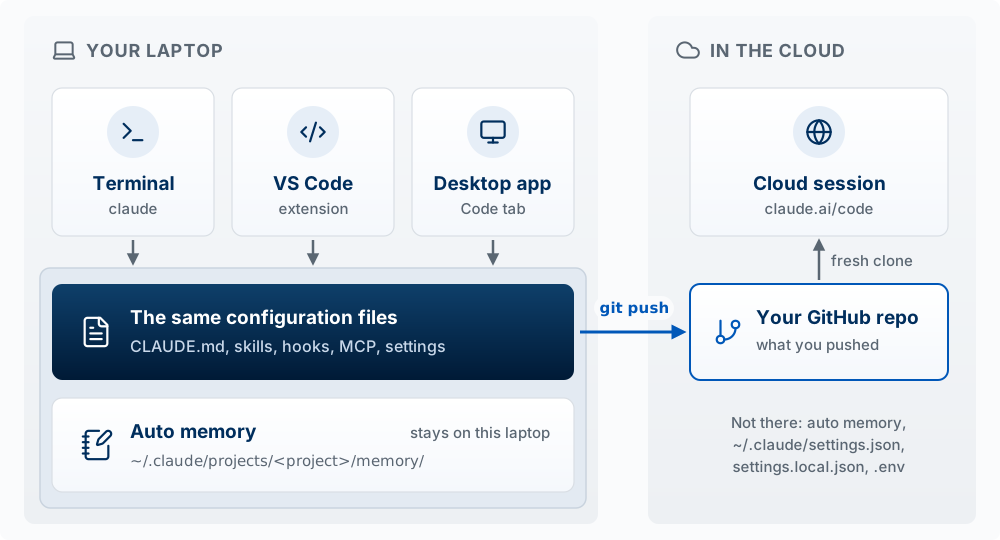
Predict, then check: you add a line to your project’s CLAUDE.md while working in the terminal. Will a session in the VS Code extension see it? Will a cloud session at claude.ai/code see it if you have not committed and pushed the file? (Yes; no.)
The CLI in VS Code or the desktop app?
The model: both setups run the same model and the same harness. VS Code is better when you work on the code yourself; the desktop app is better when you direct and review the agent.
Most people end up choosing between two setups: the Claude Code CLI in VS Code’s terminal and the Claude desktop app’s Code tab. Both run the same inner two layers and read the same harness files, so the choice is about the window.
| What you need to do | Claude Code CLI in VS Code | Claude desktop app (Code tab) |
|---|---|---|
| Find and open files | 2: Explorer, Cmd+P search, and Cmd-click any file path in the terminal to open it at that line |
1: click a path in the chat or diff to open it in a file pane; Open in sends it to your editor; no file search documented |
| Edit code yourself | 2: full editor | 1: small edits in the file pane |
| Review what the agent changed | 1: diffs open in VS Code’s diff viewer; you can’t send line comments back | 2: diff view with line comments Claude acts on, and a code review card |
| See the running app, and let the agent check it | 1: you open it in your browser; Claude can drive Chrome with claude --chrome or an MCP server |
2: Browser pane; Claude checks its own work after each edit |
| Preview other files (HTML, PDF, images) | 1: Markdown and images; other types need extensions | 2: HTML, PDF, image, and video files open in the Browser pane |
| Feed the agent your editor’s context | 2: your selection, the open file, and the Problems panel | 1: @ mentions and attachments; no editor connection |
| Run several agents at once | 1: one terminal per session; claude -w for a worktree; claude agents for background sessions |
2: sidebar of sessions, a worktree checkbox, split view |
| Have sessions work together | 2: messages between local sessions, and agent teams with a shared task list | 1: messages between app sessions only; no agent teams |
| Work across several folders | 2: --add-dir and /add-dir, which also load each folder’s skills |
1: a settings file you edit by hand or through Claude; file access only, no screen for it |
| Every command, scripts, and CI | 2: all commands and flags, claude -p |
1: a subset; no -p; panel commands such as /permissions don’t open |
| Set safety rules | 2: /permissions and /hooks panels, plus the settings files |
1: the same settings files, edited by hand; mode menu |
| Use editor extensions | 2: the whole VS Code marketplace | 0: none |
| Keep work going when you step away | 1: /remote-control, claude --cloud, /schedule |
2: all of those, plus notifications, PR auto-fix, scheduled tasks, Dispatch from your phone |
| Setup | 1: VS Code, the CLI, and the extension | 2: one download |
| Total (of 28) | 22 | 19 |
Scores are 2 (does this well), 1 (does it partly, or with extra setup), or 0 (cannot). They are Scott’s judgment from what each product’s documentation says it does; no timed tests were run. Each row is worth the same, which may not match how you work: weight the rows you do most. The full version is in the Claude Code CLI and Desktop appendix.
What the scores show. VS Code is better when you work on the code yourself: finding files, editing, extensions, editor context, every command, and work across several folders or coordinating sessions. The app is better when you direct and review the agent: line comments on diffs, the Browser pane, file previews, and parallel sessions. Many product managers spend most of their time directing and reviewing. You do not have to pick one: both read the same harness files, /desktop moves a session from the terminal to the app, and Open in sends any file from the app to VS Code. The documentation’s own advice: “use Desktop when you want to manage parallel sessions in one window, arrange panes side by side, or review changes visually. Use the CLI when you need scripting, automation, or prefer a terminal workflow” (Coming from the CLI). This workshop shows commands in the terminal because they are shorter to write down; each has an app equivalent unless the tables below say otherwise.
The CLI in VS Code’s terminal
Running claude in VS Code’s integrated terminal gives you every terminal feature, connected to the editor through a small local MCP server (Run CLI in VS Code). Diffs open in VS Code’s diff viewer, your selection and open file go with each prompt, and Claude can read the Problems panel, so it sees a broken type or lint rule without running a build. /ide connects a terminal outside VS Code the same way.
What the app adds, and what only the terminal does
| The app adds | What it does |
|---|---|
| Diff view and code review card | Click the +12 -1 indicator to see every changed file, comment on a line, and send the comments with Cmd+Enter. /code-review shows findings by file with Fix this one and Apply fixes |
| Browser pane | Claude starts your dev server and opens the app in a built-in browser. With auto-verify on (the default), it clicks through the app after each edit to check its own work. Settings are saved in .claude/launch.json |
| Parallel sessions | Cmd+N for a new session, listed in the sidebar. Check worktree to give it its own copy of the project (Agent Team Kit covers why) |
| Pull request status | A status bar shows CI checks; Claude can fix failing checks or merge once they pass. Requires the GitHub CLI (gh) |
| Connectors | + then Connectors adds Slack, GitHub, Linear, and others. A connector is an MCP connection, in the “adds tools” sector, added without editing a file |
| Also | An integrated terminal, a file pane, scheduled tasks, and notifications |
| Only the terminal | Why it matters |
|---|---|
claude -p and --output-format |
Run Claude from a script or CI. The app is interactive only |
dontAsk permission mode |
Runs only pre-approved tools and refuses the rest |
Commands that open a panel, such as /permissions and /hooks |
The app replies isn't available in this environment; edit the settings file instead. /config opens the app’s Settings |
Background sessions (claude --bg, claude agents) |
Sessions that keep running while you use the terminal for something else |
| Agent teams, and messaging across surfaces | Subagents work everywhere. Sessions in the app can message only other app sessions; the terminal reaches your other local sessions, plus cloud ones while Remote Control is connected. Run sessions that must coordinate on one surface (Agent Team Kit) |
--add-dir for several folders |
See below |
| Amazon Bedrock and other cloud providers without extra setup | Matters if your company buys Claude through a cloud provider |
Everyday controls map one to one (CLI flag equivalents): Shift+Tab in the terminal is the mode menu in the app (Cmd+Shift+M), and /model and /effort are dropdowns. Bypass permissions is hidden in the app until you turn it on in Settings.
Working across several folders
claude --add-dir <path> and /add-dir give a session another folder and load that folder’s skills and subagents. The app has no equivalent for local sessions. What the app does read is permissions.additionalDirectories in a settings file, which grants file access only (additional directories); the app has no screen for it, so ask Claude to add it (the built-in /update-config skill does this). An added folder’s CLAUDE.md does not load by default on any surface; import it from your project’s CLAUDE.md with a line such as @../notes/CLAUDE.md. For a project that spans many folders, the Agent Team Kit’s hub-and-spokes setup is built on --add-dir, so it runs from the terminal.
Moving a session between surfaces
Sources: Coming from the CLI, Continue in another surface.
| From | To | How |
|---|---|---|
| Terminal | Desktop app | Type /desktop (alias /app). Claude saves the session, opens it in the app, and exits the terminal. From the shell, claude --desktop --continue opens your most recent session in the app |
| Desktop app | Terminal | claude --resume finds the session, because the app continued the same session instead of making a copy |
| Desktop app | Cloud | Session menu, then Open in, then Cloud. The conversation carries over as a summary |
| Cloud | Terminal | claude --teleport, or /teleport in a session, fetches the cloud session’s branch and conversation |
/desktop needs a Claude subscription sign-in; it does not work with an API key. A session moved to the cloud leaves behind the parts of your harness that live only on your laptop.
Gotchas
From the troubleshooting and VS Code pages:
- The app and the extension each run their own copy of Claude Code. Their versions can differ from the
claudecommand in your terminal, and updating one does not update the others./statusshows which version a session runs. Installing only the extension does not let you typeclaudein a terminal; that needs the standalone install from Setup. - The app does not read all of your shell setup. On macOS, an app opened from the Dock reads
PATHfrom~/.zshrcbut not other variables you export there. If Claude cannot findnpmornode, check that they work in your terminal, then restart the app. For other variables, use the local environment editor (the gear icon next to Local). - The CLI in VS Code sends selected text from any file. The extension’s chat panel holds back selections from gitignored files; the CLI in VS Code’s terminal does not, so a line you highlight in
.envreaches Claude. ARead(./.env)deny rule insettings.jsonstops it, which is an example of the “applied by the harness” sector doing what advice cannot (Advice versus enforcement). - Worktrees start without your ignored files. Files in
.gitignore, such as.env, are not copied into a worktree; list them in a.worktreeincludefile to have them copied.
Other coding agents
The model: Codex, Copilot CLI, and Antigravity CLI run the same agent loop with a different model inside a different built-in harness. The ideas transfer completely; of your harness files, the markdown ones transfer best and settings transfer least.
Some of you use Codex or GitHub Copilot at work. Three other coding agents run in the terminal on the same agent loop (How Agents Work): OpenAI’s Codex, GitHub’s Copilot CLI, and Google’s Antigravity CLI (which replaced Gemini CLI for individual users). In terms of the three layers, each is a different model inside a different built-in harness. Your harness files partly transfer: the ideas all do, and some of the files do.
Every cell below was checked against the vendors’ documentation on October 10, 2026: Claude Code, Codex, Copilot CLI, and Antigravity CLI. “Not listed” means the reference does not mention it. Every command, tool, and key is in the Claude Code and Other Coding Agents appendix.
The ideas from Directing the Agent and The Harness apply to all four; the tables change only the names.
Which one can you use?
| Claude Code | Codex | Copilot CLI | Antigravity CLI | |
|---|---|---|---|---|
| Sign in with | Claude account | ChatGPT account | GitHub account | Google account |
| Free option | None; needs Pro, Max, Team, or Enterprise, or an API key | ChatGPT Free (pricing) | Copilot Free (plans) | Personal Google account, with a weekly quota (plans) |
| Can it use Claude models? | Yes | No | Yes, on paid plans | Yes, on Google AI Pro, Ultra, and Enterprise (models) |
| Company billing | Claude Team or Enterprise, or Google Cloud or Microsoft Foundry | ChatGPT Business or Enterprise | GitHub Copilot Business or Enterprise | Gemini Enterprise |
If your company licenses Copilot Business or Enterprise, Copilot CLI is the closest substitute for Claude Code: it reads your CLAUDE.md and .claude/skills/ without changes. A Claude model inside another tool is still not Claude Code: you get the center layer inside that tool’s built-in harness.
How much built-in harness does each one have?
This score compares the built-in harnesses, the middle layer: what each vendor ships, before you add anything. Scott scored each against a checklist of 35 capabilities, grouped by the jobs the built-in harness does (How Agents Work). Each item is a yes or no from the vendors’ documentation.
| Built-in harness job | Items | Claude Code | Codex | Copilot CLI | Antigravity CLI |
|---|---|---|---|---|---|
| Build the request | 6 | 6 | 4 | 6 | 5 |
| Manage the context window | 3 | 3 | 1 | 2 | 1 |
| Check the call | 7 | 7 | 6 | 4 | 5 |
| Run the tools | 4 | 4 | 2 | 4 | 3 |
| Recover | 3 | 2 | 1 | 3 | 1 |
| Delegate | 4 | 4 | 1 | 4 | 1 |
| Reach beyond your laptop | 5 | 5 | 5 | 5 | 4 |
| Run from scripts | 3 | 3 | 3 | 2 | 3 |
| Total | 35 | 34 | 23 | 30 | 23 |
Claude Code misses one item, an undo that also reverses shell commands, which Copilot CLI has. Copilot CLI is weakest at checking calls (no rules file you can commit). Codex and Antigravity are weak at recovery, delegation, and context management; without a file undo, commit before the agent starts. The score counts capabilities. It does not measure how well each one works or how good the model is, and the checklist comes from a book that teaches with Claude Code.
Features
| What it is | Claude Code | Codex | Copilot CLI | Antigravity CLI |
|---|---|---|---|---|
| Start a session | claude |
codex |
copilot |
agy |
| Run a skill by name | /skill-name |
$skill-name |
/skill-name |
/skill-name |
| Saved allow, ask, and deny rules | permissions in settings.json |
prefix_rule in a .rules file (experimental) |
Not as a file; --allow-tool and --deny-tool at launch, or a hook |
allow, ask, deny lists in settings |
| Sandbox for shell commands | Off by default; /sandbox |
On by default | Off by default; /sandbox enable |
Off by default |
| Undo the agent’s file edits | /rewind (not shell commands) |
None; use git | /undo (edits and shell commands) |
Not documented; use git |
| Run one prompt from a script | claude -p |
codex exec |
copilot -p |
agy -p |
| Git worktree | claude -w |
Not listed for the CLI | copilot -w |
Not listed for the CLI |
Files
All four support hooks, subagents, and MCP. Project files, committed in the repo:
| What | Claude Code | Codex | Copilot CLI | Antigravity CLI |
|---|---|---|---|---|
| Instructions | CLAUDE.md, .claude/rules/ |
AGENTS.md |
AGENTS.md, CLAUDE.md, .github/copilot-instructions.md |
AGENTS.md, GEMINI.md |
| Skills | .claude/skills/ |
.agents/skills/ |
.github/skills/, .claude/skills/, .agents/skills/ |
.agents/skills/ |
| Settings and hooks | .claude/settings.json |
.codex/config.toml, .codex/hooks.json |
.github/copilot/settings.json, .github/hooks/ |
.agents/hooks.json |
| MCP servers | .mcp.json |
.codex/config.toml |
.mcp.json |
.agents/mcp_config.json |
Using one repo with all four
Copilot CLI reads Claude Code’s CLAUDE.md, .claude/skills/, hooks in .claude/settings.json, and .mcp.json on purpose (custom instructions, skills, hooks). Codex and Antigravity read none of them. Three steps cover most of the gap:
Put the shared rules in
AGENTS.md, and makeCLAUDE.mdone line that imports it (@AGENTS.md). The other three all readAGENTS.md.Link each skill into
.agents/skills/, which the other three all read. For Antigravity, check that/skillslists them, and copy the folders if it does not.mkdir -p .agents/skills ln -s ../../.claude/skills/my-skill .agents/skills/my-skillRewrite hooks for each tool. Each sends the hook the tool call as JSON, but the field names differ.
The “read by the model” sector transfers best, because it is markdown. The “applied by the harness” sector transfers least, because each built-in harness has its own settings format.
Claude in Chrome
Checked on October 10, 2026 against Use Claude Code with Chrome and the safety article.
Claude in Chrome is a browser extension from Anthropic that lets Claude read pages, click, type, and read the console and network requests in your own browser. It needs a paid Claude plan and the same account as Claude Code; it does not work on an API key or through a cloud provider. Start a session with claude --chrome, or run /chrome inside one. A repo’s .claude/settings.json cannot turn it on, so a repo you clone cannot connect Claude to your browser.
What to watch. It uses your logged-in browser, so it can reach any site you are signed in to. Web pages can contain text written to make Claude do something you did not ask (prompt injection); Anthropic screens for this and says the risk is not zero. Anthropic recommends a separate Chrome profile without your bank, health, or other sensitive accounts.
Browser pane or Chrome extension? The desktop app’s Browser pane uses a clean profile with no saved logins, which suits checking your own app on localhost. Use the Chrome extension when the task needs your sign-ins or a page you already have open (Choose between the Browser and the Chrome extension).