
Version Control, Environments, and Deploys
Why This Matters
If you cannot safely change your code, you no longer control your product. This chapter is about the practices that keep a product changeable while an agent edits it many times a day: version control so you can undo anything, pull requests and automated checks so you find out when something broke before users do, separate environments so you can try a change before users see it, a way back when a bad change ships anyway, and logs so you can see what users hit. Chapter 9b covers the tests those checks run and how to decide which messy code to clean up and which to leave alone.
Git: A Time Machine Plus Parallel Copies
The model: version control is a time machine plus parallel copies. Every commit is a saved snapshot of the whole project you can return to; every branch is a separate line of snapshots you can work on without touching the others.
Git tracks every change and GitHub stores a copy of the history online, for backup, sharing, and review. Changes move through four places:
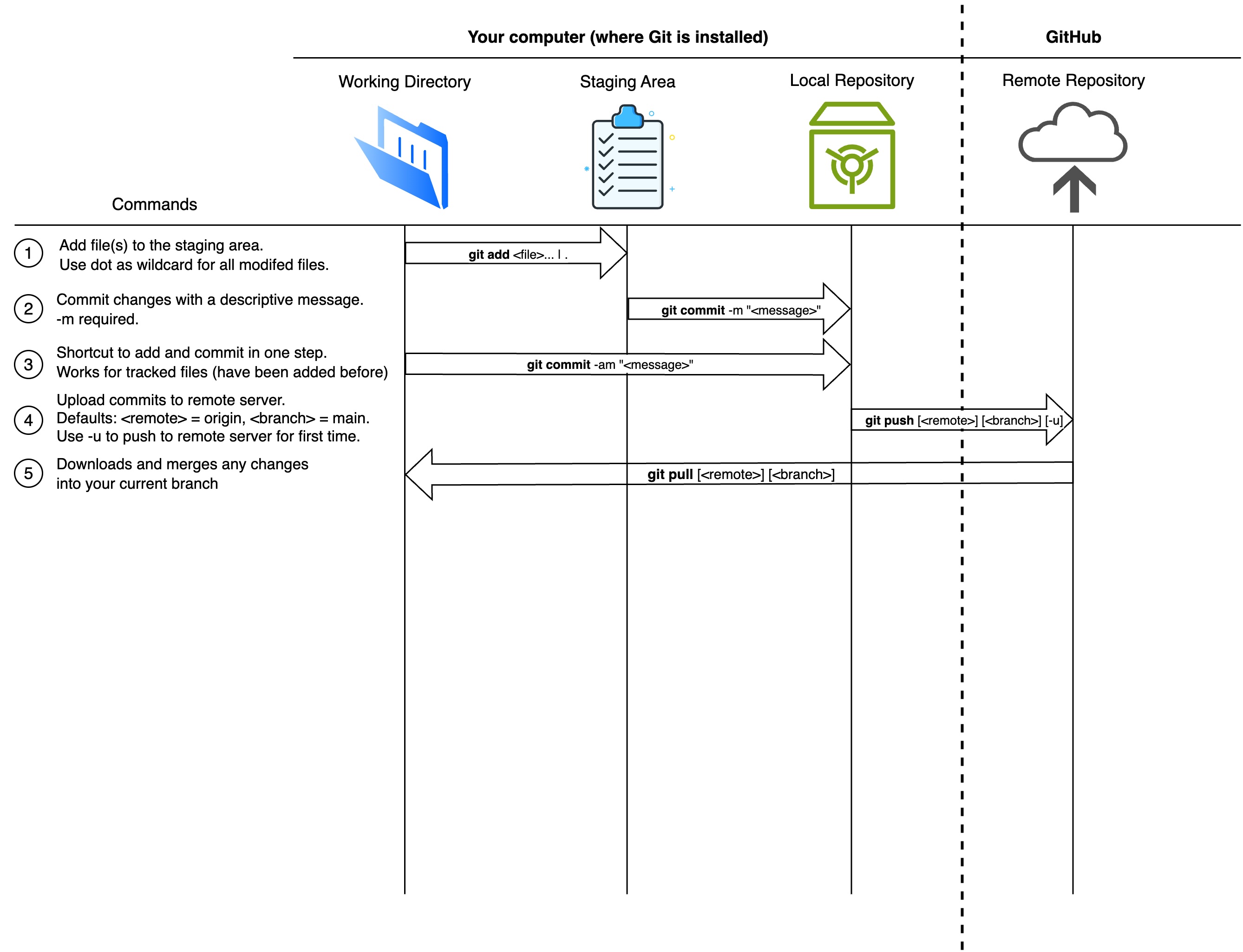
| Stage | What It Is |
|---|---|
| Working Directory | The folder on your computer where you (and the agent) edit files |
| Staging Area | A list of changes you want to include in your next save |
| Local Repository | Your project’s history, stored in a hidden .git folder |
| Remote Repository | A copy of your project on GitHub (or similar) |
A commit is one snapshot plus a message saying what changed and why. Small commits with clear messages are what make the time machine useful: “Add rating to problems” is a point you can return to; “updates” is not.
How you start. Your course repo was created from the builder template, so it already has git, a GitHub remote, and the course’s Claude Code skills. You will rarely type git commands yourself, because Claude Code commits and pushes when you ask, but you should know what each one does when you read its output:
| Command | What It Does |
|---|---|
gh repo create <name> --template <template> --private --clone |
Make your own repo from a template and download it (done once, at the start) |
git status |
See what’s changed since last commit |
git add . |
Stage all changes for commit (when another session shares the folder, stage files by name instead; see below) |
git commit -m "message" |
Save staged changes with a description |
git log --oneline |
View commit history |
git push |
Upload commits to GitHub |
git pull |
Download changes from GitHub |
For a project outside the course, start the same way on GitHub: create a repository, then clone it.

Commit only the files you touched. When two Claude Code sessions share one folder, git add -A or git add . stages the other session’s half-finished files along with yours. Stage files by name (git add app/page.tsx). VS Code has the same problem: clicking Commit with nothing staged commits every changed file. Click the + on your file’s row first, or turn off git.enableSmartCommit in Settings. The Agent Team Kit’s hands-on edits guide covers both.
Two more rules from the kit apply when sessions share a folder. Format only the files you changed. A command that formats the whole repo, such as npx prettier --write ., changes the spacing in files nobody worked on, buries your change in a long diff, and can pull the other session’s edits into your commit (format only touched files). Do not let an agent fix its last commit with git commit --amend or a rebase. Both act on whatever commit is newest. If the other session committed in between, the amend rewrites that session’s commit. Make a new commit instead (never amend on a shared branch).
Ask Claude Code: “Show my last ten commits and, for each, one line on what it changed.” Pick one that is three or more commits back and ask what the app would lose if you returned to it. Then look at the messages: could a teammate tell from them what happened this week?
Pull Requests: The Review Gate
The model: a branch is a separate line of commits where a change can be built and tested without touching main. A pull request (PR) is a request, made on GitHub, to merge that branch into main. While the pull request is open, automated checks test the change, Vercel builds a preview of it, and a reviewer reads it. Nothing reaches main, or your live site, until someone merges the pull request.
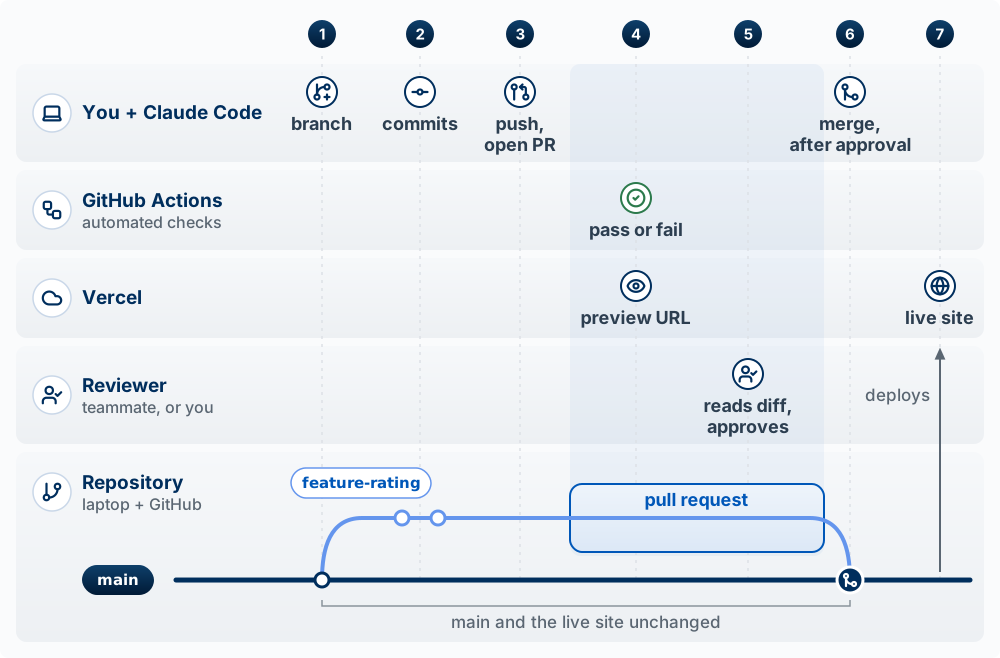
Five participants take part. You and Claude Code work on your laptop: the agent writes the code and runs the git commands, and you decide what to build and when to merge. GitHub stores the repository online and shows the pull request as a web page. GitHub Actions is GitHub’s service for running commands on GitHub’s computers; here it runs your automated checks. Vercel builds and hosts your app. The reviewer is a teammate, or you when you work alone. One change, start to finish, with the numbers from Figure 15.1:
- Branch. Claude Code creates a branch named
feature-ratingon your laptop. - Commits. The agent adds a
ratingcolumn and a star widget and saves the work as commits on the branch.mainand the live site are untouched. - Push and open the pull request.
git pushcopies the branch from your laptop to GitHub, andgh pr createopens the pull request. Its page shows the diff: every line added, removed, or changed, compared withmain. - Checks and preview. Both start on their own when the branch reaches GitHub. GitHub Actions runs the checks the repo defines (tests, lint, a type check, a build; see Automated Checks below) and marks the pull request with a green check or a red X. Vercel builds the branch and posts a preview URL on the pull request: a working copy of the app with this change, at its own address, separate from the live site.
- Review. The reviewer reads the diff and clicks through the preview, then approves or leaves comments. GitHub does not let you approve your own pull request, so when you work alone, the review is you reading the diff and the preview before you merge. Ask a second Claude Code session to review the diff too; it catches more than the session that wrote it. A comment or a red check sends the work back to step 2: the agent fixes the problem, commits, and pushes to the same branch, and the checks, the preview, and the diff on the pull request update.
- Merge. You click Merge pull request on GitHub, or have Claude Code run
gh pr merge. The branch’s commits joinmain. A red check does not block this button unless the repo is set to require passing checks, so look before you click. Who clicks it is a team convention. GitHub lets anyone with write access to the repo merge, once any approvals the repo requires are in. Often the author merges after the reviewer approves, since the author knows when the change is ready to go live; some teams have the reviewer merge instead. In a solo project or a pair, the author usually merges. - Deploy. Vercel sees the new commit on
mainand deploys it to the live site.
git switch -c feature-rating     # 1. create and switch to a new branch
git add . && git commit -m "Add rating system for problems"   # 2. commit
git push -u origin feature-rating                              # 3. copy the branch to GitHub
gh pr create --fill              # 3. open the pull request
gh pr merge                      # 6. merge, after the checks and the review
Worked example. In step 5 of this change, the preview shows the stars work. The diff also shows that the agent changed the row-level security policy on problems to USING (true) to fix an error it hit along the way, which would let every user read every problem. That line is invisible in the running app and plain in the diff. The reviewer leaves a comment, the agent restores the policy in a new commit, and only then is the pull request merged. Without the pull request, the USING (true) line would have gone straight to main and the live site.
Words used in this section:
| Term | What it means |
|---|---|
main |
The branch your live site is built from; Vercel deploys every new commit on it |
| Branch | A separate line of commits that starts from main and does not change it |
| Commit | A saved snapshot of the project, with a message saying what changed |
| Push | Copying commits from your laptop to the repository on GitHub |
| Pull request (PR) | A page on GitHub that asks to merge one branch into another and holds the diff, checks, preview, and review |
| Diff | The list of every line added, removed, or changed, compared with main |
| Checks | Commands, such as tests and a build, that GitHub Actions runs on a pull request and marks pass or fail |
| Preview URL | The address of a separate copy of the app, built by Vercel from the branch |
| Review | A person reading the diff and the preview, then approving or leaving comments |
| Merge | Adding the branch’s commits to main, which starts a deploy to the live site |
For your next feature, ask Claude Code to do the work on a branch and open a pull request instead of committing to main. Before merging, open the preview URL and the diff. Write one sentence on what the change does and one on anything in the diff you did not expect.
Automated Checks: Tests, Types, and Lint
The model: automated checks catch the obvious, every time, without anyone remembering to look. They do not catch whether the feature is the right one or whether it works for a real user; that is still your job.
| Check | What it is, in plain words | What it catches |
|---|---|---|
| Test | A small program that runs a piece of your code with a known input and compares the output to the expected answer (see Tests: Code That Checks Your Code in Chapter 9b) | A change that broke something that used to work |
| Type check | TypeScript reading the code to confirm each value is the kind of data the code expects (a number where a number belongs) | Mismatched data, misspelled field names |
| Lint | A program that reads code without running it and flags likely mistakes and inconsistent style | Unused variables (named values the code never reads), a forgotten await (the word that makes code wait for an answer), risky patterns |
| Build | The same production build Vercel runs | Anything that would stop the site from deploying at all |
Tests run your code. The type check and lint read it without running it, so they are fast and catch a different class of mistake. The build is the last check: if it fails on a pull request, it would fail on Vercel. Run on every pull request, the four together mean a red mark appears on the PR before a user sees the problem.
You will not write lint configuration by hand either; the agent does. One caution: current ESLint (version 9 and later) uses a file named eslint.config.js (or .mjs); tutorials that set up .eslintrc.json or run npx eslint --init describe the older format. A project started with create-next-app comes with ESLint set up by default: an eslint.config.mjs file and a lint script in package.json. Since Next.js 16 you run it with npm run lint, because the old next lint command was removed and next build no longer runs the linter (Vercel 2026).
Ask Claude Code: “Which checks run on this repo, where are they defined, and do they run on pull requests?” If none do, ask it to add a GitHub Actions workflow that runs the tests, the build, and lint on every PR, then open a PR and watch the check appear.
Trunk-Based Development: Small Branches, Merged Often
The model: keep one shared line of work that could be released at any moment, and get every change into it within a day or two. This practice is called trunk-based development, and the shared line is called the trunk. In your repo, the trunk is main. Paul Hammant’s site Trunk Based Development (Hammant 2017) describes the practice in detail; this section follows it.
The site describes two ways to get work into the trunk. In the first, each developer commits straight to the trunk, with no branch: they pull the latest trunk, run the full build on their own computer, and push only if it passes. The site describes this as the style of very small teams whose members know what the others are working on. In the second, each change goes on a short-lived feature branch, worked on by one developer (or two when pair programming), that lasts no more than a couple of days and comes back to the trunk as a pull request, where a build server (a computer that runs the checks, such as GitHub Actions) runs them before the change is merged. The site says a team of 16 or more people is more productive with short-lived branches. Both styles are trunk-based: the trunk is the one place everyone’s work meets, and nothing stays away from it for long.
This course uses short-lived branches even when you work alone, because the pull request is where GitHub Actions runs the checks and Vercel builds the preview (Figure 15.1), and it gives you a diff to read before anything reaches the live site.
The alternative to both styles is a long-lived branch: a feature built on its own branch for more than a couple of days, often for weeks, and merged only when it is finished. While that branch is open, main keeps changing, so the two drift apart. When the branch finally comes back, the merge has to reconcile all the changes on both sides at once. Wherever both sides changed the same lines, git stops with a merge conflict, and someone has to decide by hand which version is right. With two long-lived branches open, each also has to be reconciled with the other, and problems that appear only when the two are combined show up together, at the end.
What it looks like solo
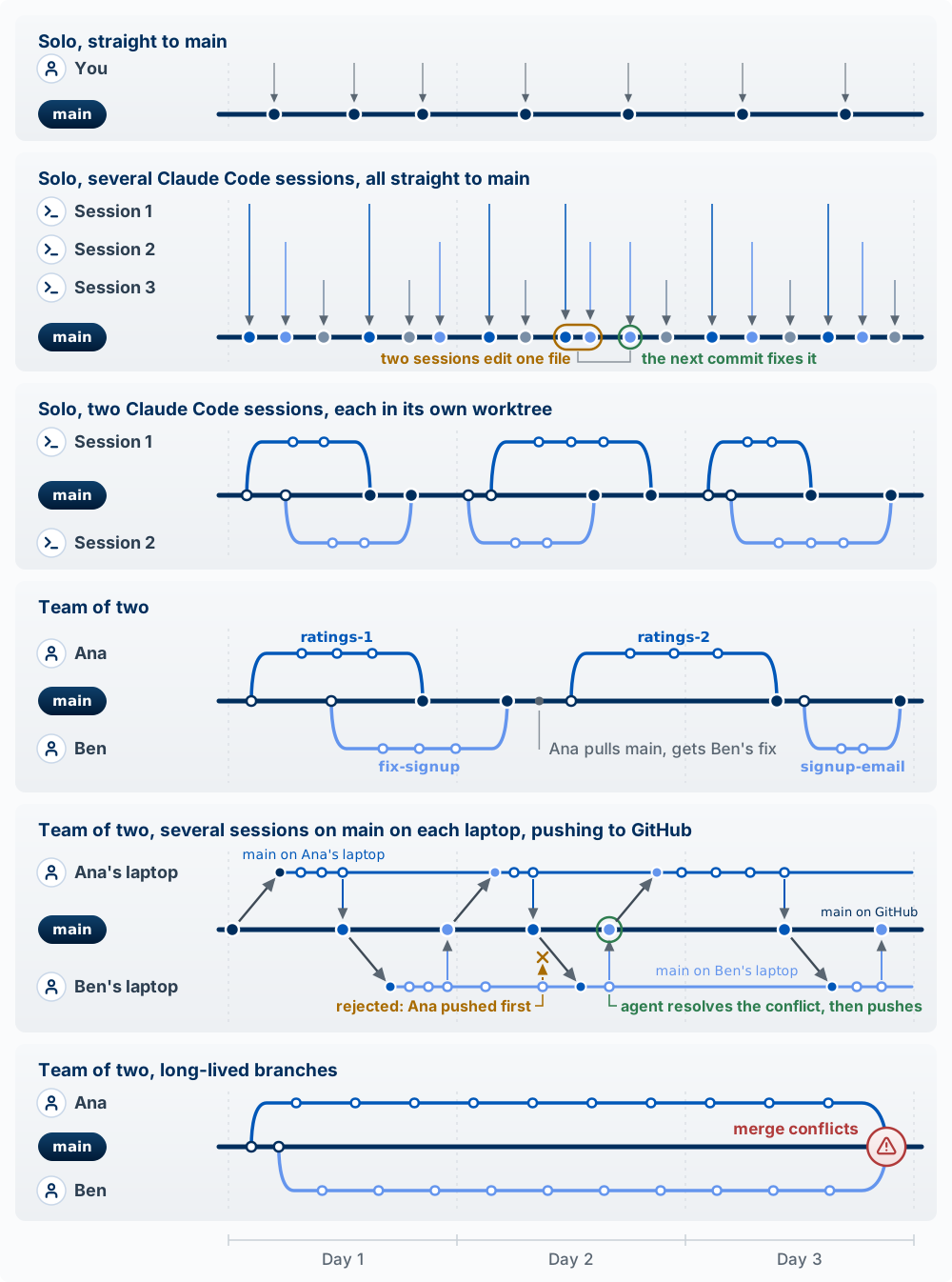
The top panel of Figure 15.2 is the simplest form: you, alone, committing to main. Each commit is pushed to GitHub, and Vercel deploys it to the live site.
The second panel has no branches at all. Several sessions share one folder and each commits straight to main when it finishes a unit of work, so their commits interleave on one line. This is the Agent Team Kit’s default, which it calls stay on main (design notes), and it is the one-shared-folder column of the table in Chapter 2. You keep the sessions apart by giving each a different part of the app: one works on the search page, one on the sign-up email, one on the tests. There is no merge step, and each session sees the others’ finished work as soon as it is committed.
Nothing in git stops two of those sessions from changing the same file. When it happens (the amber ring), the second session usually finds out right away: its build fails, a test fails, or git status shows a change it did not make. It reads the other session’s commit and makes a new commit that fixes the clash (the green circle). Because the clash is one commit old, the fix is a few lines. The kit chooses this over worktrees on purpose: worktrees separate files, but the collisions that cause the most problems in its experience are in the dev server ports and the shared database, which every session shares either way, and each worktree branch adds a merge.
Sessions sharing one main follow the rules from earlier in this chapter: stage and commit only the files you changed, format only those files, and never amend or rebase, because the newest commit may belong to another session. The kit’s hooks block the most damaging commands (git add -A, git reset --hard, git stash) for every session (concurrent agents on main).
The third panel is how you will usually work alone in this course: one person with two Claude Code sessions, each in its own worktree (Chapter 2), and each working on its own branch. On Day 1, session 1 builds a search box on one branch while session 2 fixes the empty state of the home page on another. When a session finishes its task, it pushes the branch and opens a pull request; you read the diff and the preview and merge it, the same day. Before a session starts its next task, ask it to pull main from GitHub and create the new branch from it, so the new branch starts from a main that already holds both sessions’ merged work. A session that keeps one branch open for the whole week is a long-lived branch, even though nobody else is in the repo.
What it looks like on a team
The fourth panel is a team of two, Ana and Ben, sharing one repository on GitHub, each with a copy on their own laptop. Ana is adding ratings; Ben is fixing a bug in sign-up.
- Day 1. Ana creates
ratings-1and adds theratingcolumn and the code that saves a rating. She opens a pull request at the end of the day, Ben reads the diff, and Ana merges it. Midway through the day Ben createsfix-signupfor the sign-up bug. - Day 2. Ben opens his pull request in the morning, Ana reads it, and Ben merges it. Before starting her next task, Ana pulls
main: git copies the newest commits from GitHub to her laptop, so her copy now includes Ben’s fix. She createsratings-2from it, for the screen that shows each problem’s average rating, and merges it late in the day. - Day 3. Ben pulls
main, which now includes both of Ana’s branches, and createssignup-emailfrom it.
Every branch changed a few files and lasted a day or less, so the other person’s work was never more than a day old in anyone’s copy. When two branches do touch the same lines, the merge conflict is a few lines long, and the person merging can tell which version is right. The bottom panel is the same two people with one branch each, kept open for three days: neither sees the other’s work until both merge at the end of Day 3, and every place the two branches changed the same lines is a conflict to settle at once.
The fifth panel is the team version of the second. Ana and Ben each run several sessions that commit straight to main on their own laptop, with no branches, and each pushes to GitHub a few commits at a time. This is the first style on Hammant’s site, committing straight to the trunk, and the Agent Team Kit’s collaboration model (collaboration model). main on your laptop and main on GitHub are two copies, so each laptop gets its own line. A hollow dot is a commit made on that laptop; a filled dot is a commit that is on GitHub. A pull copies the newest commit on GitHub to the laptop (gray arrow), and a push copies the laptop’s newest commit to GitHub. Until you push, your commits work like a short branch that only you can see. A push sends every commit since your last push at once; the figure draws it as one dot on main, the same way the third and fourth panels draw a whole branch as the one dot where it merges.
GitHub accepts a push only if it builds on the newest main there, so you pull whenever the other person has pushed. On Day 2, Ben keeps working after his first push without pulling, which is fine because nothing new is on GitHub yet. Then Ana pushes before Ben does, so Ben’s push is rejected. The rejection only means his copy is out of date; it does not yet say whether anything conflicts. His agent runs git pull, which downloads Ana’s commits and merges them into Ben’s copy. Where both changed the same lines, git stops with a merge conflict. The agent reads both versions, resolves the conflict, runs the checks, commits the result (the new dot on Ben’s line), and pushes again. The kit uses git pull --rebase instead, which replays Ben’s commits on top of Ana’s rather than adding a merge commit; the conflict and its resolution are the same. The conflict is small for the same reason as in the fourth panel: neither side held work back for more than a few hours. The kit has one session on each laptop do the pulling and pushing, when the other sessions are idle, because a rebase changes files under any session still working.
Straight to main, or a short branch?
Committing straight to main by hand is reasonable when all three of these hold: you work alone; the change is small, such as fixing a typo in a page; and you run the checks on your laptop first (npm test and npm run build). Several sessions committing straight to main (the second panel) also works when you are at the keyboard watching them and each has its own part of the app, and a team can work that way on each laptop and push often (the fifth panel). Vercel deploys a commit on main as soon as it reaches GitHub, so there is no preview and nobody reads the diff before users see it.
The default in this course is a short branch with a pull request, for every change and even when you work alone. The pull request runs the checks on GitHub’s computers instead of relying on you to remember them, builds a preview you can click through, and shows the full diff, which is where a line like USING (true) gets caught. When a second person or a second Claude Code session works in the repo, use a short branch every time, unless you are deliberately running several sessions on main as in the second panel, watching them, and pushing only after the checks pass on your laptop.
The four rules
The practice has four rules:
- The trunk is always releasable.
mainshould be in a state you could deploy at any moment. In this course that is literal: Vercel deploys whatever is onmain. - Branches are short-lived. One branch per task, worked on by one person (or one agent session), merged within a day or two, then deleted. The site warns that a branch kept longer than two days risks becoming a long-lived branch, and it asks everyone to get work into the trunk at least once every 24 hours.
- Every merge still passes the gate. A short branch goes through the pull request and its checks like any other. Committing straight to
mainskips that gate, so keep it for the narrow case described above: alone, a small change, checks run on your laptop first. - Unfinished work merges behind a feature flag. A feature too large for one or two days is merged in small pieces, switched off. A feature flag is a setting the code checks before showing a feature (for example,
if (flags.ratings)). With the flag off, the new code is onmainand deployed, but users do not see it; turn the flag on when the last piece has merged. The site cautions that flags tend to be forgotten after a feature ships, so remove each flag, and the code path it switched off, once the feature is on for everyone.
Why it fits building with agents. An agent can write a thousand changed lines in a few minutes, and a thousand-line diff is too long to review line by line. The USING (true) line in the pull request example above is easy to see in a diff of thirty lines and easy to miss in a diff of a thousand. One task per branch keeps each diff small enough to read. The same holds for parallel sessions: two worktree sessions that each keep one branch for a week are two long-lived branches, and they end in the kind of merge shown in the bottom panel of Figure 15.2. Small merges also keep rollback (later in this chapter) simple: when a deploy breaks, it changed one thing, so you know which commit to git revert. Revert is for a change that broke something. The site is specific that code which is not ready should not be merged and then backed out; it belongs behind a flag.
Words used in this section:
| Term | What it means |
|---|---|
| Trunk | The one shared branch everyone’s work goes into; in your repo, main |
| Trunk-based development | Getting every change into the trunk within a day or two, by committing to it or by a short-lived branch |
| Commit straight to the trunk | Committing on main with no branch and no pull request |
| Short-lived feature branch | A branch for one task, made by one person or one session, merged through a pull request within a day or two |
| Long-lived branch | A branch kept open for more than a couple of days, often weeks, and merged only when the feature is finished |
Pull main |
Copying the newest commits on main from GitHub to your laptop (git pull), so a new branch starts from everyone’s latest work |
| Merge conflict | Two branches changed the same lines, and git stops until a person chooses which version to keep |
Ask Claude Code: “List every branch in this repo, on my laptop and on GitHub, with the date of its last commit and whether it has been merged into main.” For each unmerged branch older than two days, decide whether to finish and merge it now or split it into smaller pieces. Then, before your next feature, ask: “Split this feature into pull requests that can each be finished and merged within a day. For any piece that would show users something unfinished, explain how a feature flag would keep it hidden.” Build the first piece on its own branch, merge it, and delete the branch.
Environments: Where Your Code Runs and Which Data It Touches
The model: an environment is one running copy of your app. Three things define it: which code runs (which branch or commit), where it runs (your laptop or Vercel), and which settings it reads (its environment variables). The settings include the database address and keys, so the database an environment reads and writes is a separate choice from the code it runs. You make that choice in the settings, one environment at a time.
The three environments you already have
Vercel names three environments by default: Local Development, Preview, and Production (Vercel: Environments). You have been using all three since Chapter 7.
| Environment | Which code | Where and how it runs | Which settings it reads |
|---|---|---|---|
| Your laptop (local) | Whatever branch you have checked out, including edits you have not committed | npm run dev starts a development server on your machine at localhost:3000. Your pages and your server code both run on the laptop |
.env.local, a file in the project folder that git ignores |
| Preview | The latest commit on one branch or pull request | Vercel builds that commit and serves it at a preview URL. Every push to a branch other than main, and every pull request, gets one |
Vercel’s Preview environment variables |
| Production | main |
Vercel builds main and serves it at your domain |
Vercel’s Production environment variables |
Two details about Vercel matter here. Each preview has a URL for that branch, which always shows the branch’s latest commit, and a URL for each commit. And a change to an environment variable in the Vercel dashboard applies only to deployments made after the change, so after you change one, redeploy (Vercel: Environment variables).
A development server and a production build behave differently. npm run dev runs next dev, which compiles each page the first time you open it, updates the page in the browser when you save a file, and shows detailed error messages. Vercel runs next build instead, which compiles the whole app at once into an optimized production build; npm start (next start) runs that build on your laptop (Next.js CLI; local development). Some mistakes appear only in the build. next build stops on a TypeScript type error, for example, even when every page worked in the development server (Next.js: TypeScript). Values in variables that start with NEXT_PUBLIC_ are written into the browser code when the app is built, so a build keeps the values it was built with (Next.js: environment variables). Before you push, run npm run build on your laptop; that is the Build row in Automated Checks.
Which database? The settings decide
Your code reads the Supabase address and keys from environment variables (NEXT_PUBLIC_SUPABASE_URL, the publishable key, and on the server the secret key, from Chapter 7) and talks to whichever project those values name. That has one consequence that is easy to miss: if you copied your one Supabase project’s keys into .env.local and into Vercel’s Preview variables, your laptop and every preview read and write the production database. A test row you add on your laptop appears in front of real users. A seed script run on your laptop writes into the live tables. A preview of an unfinished branch, opened by a reviewer, changes real users’ rows. Your laptop often also holds the secret key, which skips row-level security, so a mistake there reaches every user’s data.
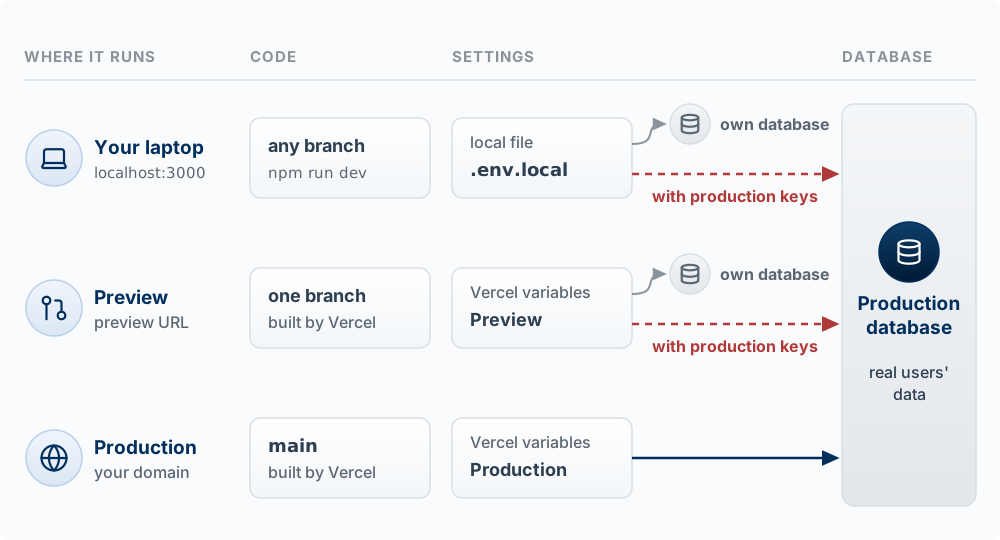
Chapter 8 gave the rule: once real people use your app, stop developing against its database. There are several ways to give the laptop and the previews a database of their own:
| Option | What it is | What to know | Good for |
|---|---|---|---|
| One project for everything | Laptop, previews, and production all use the production database | Nothing to set up | Only until the first real user signs up |
| A second Supabase project | A separate hosted project. You apply the same migrations to it, so it has the same tables, and fill it with made-up seed data | Supabase’s free plan allows two active projects; a free project is paused after a week without activity (Supabase pricing) | Your laptop and your previews; it can also serve as staging (below) |
| Local Supabase | supabase start runs Postgres, sign-in, and storage on your laptop. supabase db reset rebuilds the database from your migrations and loads the seed file supabase/seed.sql |
Needs Docker or a compatible container app. Previews on Vercel cannot reach a database on your laptop (Supabase local development) | Your laptop and your tests |
| Supabase branching | Supabase creates a separate database for each pull request from your migrations. It starts with no production data | Paid plans only, billed per branch per hour (Supabase branching) | A team on a paid plan that wants one database per preview |
Whichever you choose, put that project’s address and keys in .env.local and in Vercel’s Preview variables, and keep the production keys only in Vercel’s Production variables. Then ask the agent to confirm which project each environment points at (the Try it below).
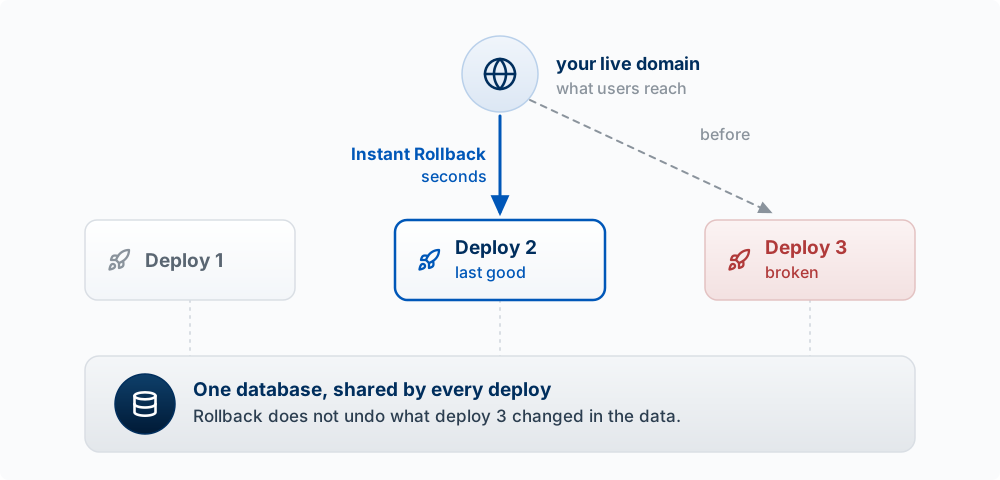
One more reason the database choice matters: rolling back code does not roll back data. All production deployments share one database, so after an Instant Rollback the old code runs against whatever the bad deploy wrote.
Staging: a copy of production for trying a change
Staging is an environment kept as close to production as you can make it, with its own data, where you try a change before any user sees it. (It has nothing to do with git’s staging area from the Git section, which is a list of changes waiting to be committed.) What makes it useful is how closely it matches production. It should run the same kind of build (built by Vercel, the way production is), with every setting production has (set to staging values), the same tables (the same migrations), and its own database. Each difference from production is a place where “it worked on staging” may not hold on your live site, so keep the differences few and written down: usually the database and its keys, plus anything that reaches people outside your team, such as email (sent only to your team’s addresses) and payments (in the payment provider’s test mode). Enforce those differences in one place: send every email, payment, and request to an outside service through one function that, on staging, lets through only your team’s addresses and the providers’ test modes. A check repeated in each place that sends email will be missing from the next feature that sends one (fence outward writes at one chokepoint). A staging site with old tables, missing settings, or demo accounts unlike any real account tells you little about production. The Agent Team Kit’s staging twin spec describes a full version, with a tool that compares the two environments’ settings before every staging deploy; the short form is in staging is a twin of production.
There are several ways to set it up on Vercel, and none is the one right answer:
- Previews pointed at a staging database. Set Vercel’s Preview variables to your second Supabase project. Every pull request’s preview is then a staging site for that one change. This costs nothing extra and works on every plan.
- A long-lived
stagingbranch with its own address. Create a branch namedstaging, assign a domain such asstaging.yourapp.comto that branch, and add Preview variables scoped to that branch; a branch-specific value replaces the general Preview value of the same name. Merge intostagingto try a change, then merge intomainto release it. Vercel’s docs list this for all plans, including the free Hobby plan (Vercel: Environments). - A custom environment named
staging. Vercel’s Pro and Enterprise plans let you create an environment beside Preview and Production, with its own branch, domain, and variables. The Pro plan allows one per project. - A staged production deployment. Vercel can build a production deployment without pointing your domain at it, so you can check it at its own URL and then promote it. It uses the Production variables, so it reads and writes the production database. It checks the build, and it gives no protection to the data.
What goes in the staging database: made-up seed data, or your own team’s accounts and what they own. Do not copy other users’ personal data into staging (Chapter 8, Secrets and Sensitive Data). When a change passes staging, release the same commit you tried. On a busy main, later commits may have arrived since you tested, and they would go to production untried (promote the staged commit).
Feature flags: one deploy, and a setting for who sees it
A feature flag (the trunk-based rule 4 above, and the release flag of Chapter 12) is a value the code checks before it shows new behavior. The new code is deployed to production for everyone, and the flag decides, for each request, whether this user gets the new behavior. Turning the flag on for someone is a release; it needs no new deploy. Turning it off stops the new behavior at the next request.
Three ways to build one, from simplest to most capable:
| Where the flag’s value is kept | How it works | Changing it |
|---|---|---|
An environment variable, such as FEATURE_RATINGS=on |
On or off for everyone in one environment. You can have it on in Preview and off in Production | Change the variable in Vercel and redeploy |
A table in your database, such as feature_flags with a flag name and the users or groups it is on for |
Your server reads the table on each request, so the flag can be on for you, then for twenty beta users, then for everyone | Edit a row; the next request sees it |
| A hosted flags service | The same idea with a dashboard, percentage rollouts, and a history of changes | Click in the dashboard |
A database table is enough for a student product; no service is required. Check the flag on the server as well as in the interface, because a hidden button over a working route can still be called (Chapter 12). Keep environment variables for switches meant to stay, such as one that turns off an expensive AI feature during an outage (environment flags are for what stays). Do not use a release flag for something permanent, such as what a paid plan includes or what an admin may see; those are permissions, and they belong in your data and row-level security (pick the lever by lifetime and owner). When the feature is on for everyone, remove the flag and the old code path, and check first that no other part of the code still runs with the flag off (removing a flag). The kit’s release flags spec covers the full design.
Chapter 12 shows how the same flag lets you release to one group of users at a time (Figure 20.3). One warning when you put an existing feature behind a new flag: a flag nobody has turned on is off, so the deploy that adds it hides the feature from everyone who was using it. Turn the flag on for current users before that deploy goes out (check before flagging a shipped feature).
Staging or a flag?
They answer different questions, about different people’s data.
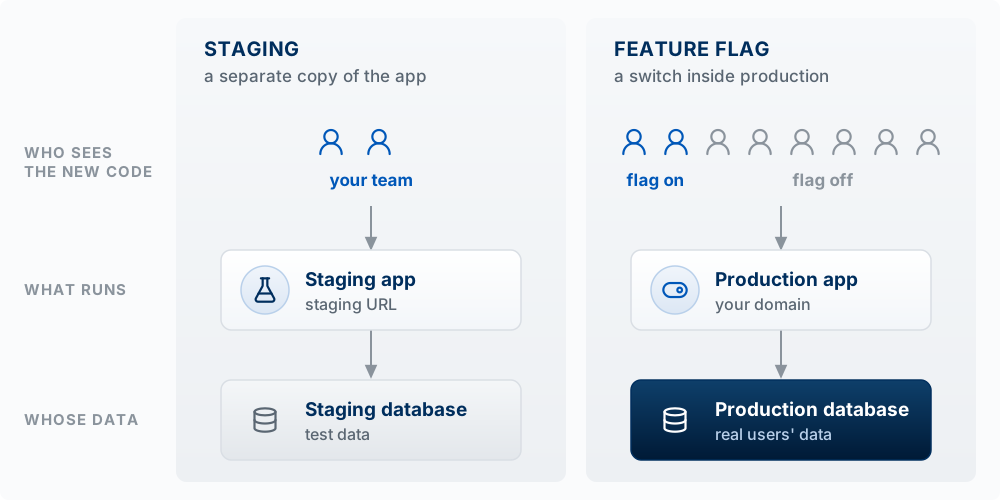
| Staging | Feature flag | |
|---|---|---|
| Where the new code runs | A separate copy of the app | Production |
| Whose data it reads and writes | Test data, or your team’s own accounts | Real users’ data |
| Who sees it | Your team | The users the flag is on for |
| What it can tell you | Whether the change works in a production-like setup before anyone uses it, including changes a flag cannot hide | Whether real users can use it and want it, with real data and real traffic |
| How you undo it | Nothing reached production; fix it and try again | Turn the flag off. New use stops at the next request; rows already written and emails already sent stay |
To choose, ask two questions about the change (flag or staging is whose data):
- Does it take effect for everyone the moment it deploys? A migration, a dependency upgrade, a changed environment variable, or an edit to code every page uses runs before any flag is checked, so a flag cannot hide it. Try it on staging first.
- If the first people who get it hit the worst case, whose data is harmed, and can it be undone? If the harm is limited to your own team’s data or can be reversed, a flag is enough: turn it on for yourself in production. If it could do something that cannot be undone to someone outside your team, such as email real users or charge a card, try it on staging first, then release it behind a flag.
A change that only renames or moves code needs tests; there is nothing to release. Many teams use both: staging for the deploy, a flag for the release.
Worked example: a ratings feature, from laptop to everyone
The problem tracker from Chapter 8 gets a 1 to 5 rating on each problem. The repo uses a second Supabase project as its staging database, and Vercel’s Preview variables point at it.
- Laptop. The agent creates the branch
feature-rating..env.localpoints at a local Supabase started withsupabase start. The agent writes a migration that adds aratingcolumn, andsupabase db resetapplies it and loads the seed data. The new star widget is wrapped in a check of aratingsflag, and the seed data turns that flag on for the test account. You click through withnpm run dev, then runnpm run build. - Preview, on the staging database. The agent applies the migration to the staging project (
supabase db pushwith that project linked), pushes the branch, and opens a pull request. Vercel builds the preview, which reads the Preview variables and so uses the staging database. The checks run; you click through the preview URL. Because the change includes a migration, this is the step where the migration first runs on a database with the same tables as production. - Production, flag off. The migration only adds a column, so the code already in production keeps working after it runs. Apply it to production, then merge. Vercel deploys
main. The flag is off for everyone except you, so users see no change. Sign in on your domain and check the feature with your own account. - Release. Add your twenty beta users to the
ratingsflag. Watch the Vercel and Supabase logs for a few days, then turn it on for everyone. - Clean up. In a small pull request, delete the flag check and the old path, and remove the flag’s row.
If step 3 breaks the live site, Instant Rollback returns the old code, and the new column stays in the database. The old code ignores a column it does not use, which is why migrations add before they remove.
Words used in this section:
| Term | What it means |
|---|---|
| Environment | One running copy of the app: which code, where it runs, which settings it reads |
| Local | Running on your own laptop |
| Development server | What npm run dev starts: compiles pages as you open them, updates on save, detailed errors |
| Build | What npm run build (next build) makes: the whole app compiled once for production; Vercel runs it on every deploy |
| Preview deployment | A copy of the app built by Vercel for one branch or pull request, at its own URL |
| Production | The copy at your domain that real users use, built from main |
| Environment variable | A setting the code reads at run time or build time, such as a database address or key, set per environment (.env.local on your laptop, Preview and Production in Vercel) |
| Staging | An environment kept as close to production as possible, with its own data, for trying a change before users see it |
| Feature flag | A value the code checks to decide which users get new behavior |
| Release | Turning a deployed feature on for some or all users |
| Rollback | Pointing your domain back at an earlier deployment; it changes code and leaves data as it is |
| Seed data | Made-up rows loaded into a development or staging database so the app has something to show |
Ask Claude Code: “Which Supabase project does my .env.local point at? Compare its project reference with the one in Vercel’s Production variables and tell me whether my laptop uses the production database. Do not print any key.” Then: “List my Vercel environment variables for Development, Preview, and Production (names only, no values) and tell me which database each environment uses.” If the laptop or the previews use production, pick one option from the database table above and ask the agent to set it up. For your next feature, decide before you build it whether it needs staging, a flag, or both, using the two questions above.
Rolling Back a Bad Deploy
The model: every deploy needs a way back. Fixing forward under pressure, with users hitting the bug, is slow and error-prone; returning to the last good version first, then fixing calmly, is fast.
You have two ways back:
| Way back | What it does | When to use it |
|---|---|---|
| Vercel Instant Rollback | Points your live domain back at an earlier production deployment, in seconds. The code in git does not change | First step when the live site is broken. On the free Hobby plan you can roll back to the immediately previous deployment |
git revert <commit> |
Makes a new commit that undoes an earlier one, keeping the history. Pushing it to main deploys the undo |
To make the undo permanent in your code |
One Vercel detail matters: after an Instant Rollback, Vercel stops sending new pushes to production until you promote a deployment again, so the next merge will not go live on its own. Undo the rollback (promote a good deployment) once the fix is in.
What rollback cannot undo: data. Rolling back code does not roll back the database. If the bad deploy ran a migration that dropped a column, or wrote wrong values into a thousand rows, the old code now runs against changed data. This is one more reason the schema deserves care (Chapter 8): make migrations that add things before ones that remove them, and back up before a migration that deletes.
This is also why a migration should run on your development copy of the database before the live one (Chapter 8, Design the Data Model First).
On a preview or a throwaway change: merge something harmless, then roll it back in the Vercel dashboard and confirm the live site changed back. Then ask Claude Code to git revert the same commit, and explain the difference between what the two did.
See What Is Happening: Logs and Error Reports
The model: logs and error reports are how you find out what users hit. You cannot fix what you cannot see, and most users who hit an error leave without telling you.
A log is a line of text your code writes when something happens (“save failed for user 42: 403”). An error report is a record of a crash with its context (which page, which browser, the chain of calls that led to it), collected automatically. Each of the three places from Chapter 7 keeps its own:
| Where it ran | Where to look | What you find | Limitation |
|---|---|---|---|
| Browser | The console and Network panels in the browser’s developer tools (Developer Tools) | Errors in frontend code, failed requests | Only on the machine in front of you; you see a user’s console errors only if you reproduce the problem or use an error reporter |
| Your server | Vercel runtime logs (project, then Logs) | Errors and console.log output from route handlers and server code |
Kept for one hour on the Hobby plan, so look soon |
| Database | Supabase logs (dashboard, Logs) | Rejected queries, auth failures, RLS denials | Separate from Vercel; check both |
| All of the above, from real users | An error reporter such as Sentry | Every crash, grouped and counted, with an email alert | Takes a few minutes to set up; free tier is enough for a student product |
Google’s site reliability engineers suggest watching what users experience (requests that fail, requests that are slow) before anything internal (Beyer et al. 2016). At student scale that means: know when a request fails, and know which one.
What a useful log line holds: what happened, where, and an id to trace it (“POST /api/problems, user 42, 403 from database”). What it must not hold: personal or client data, passwords, tokens, or full request bodies. Server logs are stored by your hosting provider and readable by anyone on the project (Chapter 8, Secrets and Sensitive Data).
On a branch, ask Claude Code to make one API route throw an error on purpose. Open the preview, trigger it, and find the error in the Vercel logs within the hour. Copy the log line into Claude Code and ask it to explain the cause from the log alone. Then remove the deliberate error. Do it once now, so the first time you need the logs is not during a real outage.
Key Concepts
- Commit: a saved snapshot of the whole project, with a message saying what changed and why. Small commits with clear messages are points you can return to.
- Stage only your own files: when two sessions share a folder,
git add .stages the other session’s work too. Stage files by name, format only the files you changed, and make a new commit instead of--amend. - Branch: a separate line of commits where a change is built without touching
main. - Pull request: a request on GitHub to merge a branch into
main. While it is open, the checks run, Vercel builds a preview, and a reviewer reads the diff; nothing reachesmainor the live site until the merge. - Diff: every line a change adds, removes, or edits, compared with
main. Some problems, such as a weakened row-level security policy, are invisible in the running app and plain in the diff. - Automated checks: tests, type check, lint, and build, run on every pull request. Tests run the code; the type check and lint read it without running it; the build fails here if it would fail on Vercel.
- Trunk-based development: one shared
main(the trunk) that is always releasable, with every change merged into it within a day or two, by committing straight to it (solo, small changes, checks run first) or, the course default, through a short-lived branch and a pull request. - Long-lived branch and merge conflict: a branch kept open for more than a couple of days drifts from
main; where both changed the same lines, git stops with a merge conflict and a person has to choose. Short branches keep each diff small enough to review. - Pull
main: copy the newest commits onmainfrom GitHub to your laptop before creating a branch, so the branch starts from everyone’s latest work. - Environment: one running copy of the app, defined by which code runs, where it runs, and which settings (environment variables) it reads. You have three: your laptop, Preview, and Production.
- Development server vs. production build:
npm run devcompiles pages as you open them and shows detailed errors;npm run buildcompiles the whole app the way Vercel does, and can fail where the development server worked. - The settings decide the database: an environment uses whichever Supabase project its variables name. If your laptop or previews hold production’s keys, they read and write real users’ data.
- Staging: an environment kept as close to production as possible, with its own data, for trying a change before users see it. Each difference from production is a place where “it worked on staging” may not hold.
- Feature flag: a value the code checks to decide which users get new behavior. It lets unfinished work merge switched off, and it lets a deployed feature reach some users before others. Remove it once the feature is on for everyone.
- Release: turning a deployed feature on for some or all users, with a feature flag. It needs no new deploy.
- Staging or a flag: a change that takes effect for everyone the moment it deploys (a migration, an upgrade) goes to staging first; a change whose worst case harms only your team’s data, or can be undone, can go behind a flag in production.
- Seed data: made-up rows loaded into a development or staging database.
- Instant Rollback and
git revert: Instant Rollback points your domain back at an earlier deployment in seconds;git revertmakes a new commit that undoes an old one. Neither undoes data, so migrations add before they remove. - Logs and error reports: the browser console, Vercel runtime logs, Supabase logs, and an error reporter such as Sentry. A useful log line says what happened, where, and an id, never personal data or tokens.