
Interface and Flow
Why This Matters
Your product is only as good as the interface people use. An agent will generate a working application that nobody can figure out how to use, and it will not tell you that it has. Judgment about the surface is yours.
The model for this whole chapter fits in two sentences. Design is deciding where the user’s attention goes. Every screen should make the next step obvious, and most of what users experience happens off the happy path. The happy path is the run through the product where everything goes right; “off the happy path” is everything else, such as a first visit with no data, a slow load, or a failed save.
It helps to be precise about what “the surface” means. Dan Olsen’s UX iceberg splits it into four layers (Olsen 2015). Visual design (colors, fonts, spacing) is the only one above the waterline, and it is the one an agent is best at. The three underneath are where usable and unusable products actually diverge, and they are decided before a single style is chosen:
- Interaction design: what the user does on each screen and what the product does in return.
- Information architecture: how the content is organized and named, and how the user moves between screens to find it.
- Conceptual design: the basic idea of the product as the user understands it, such as “I post a shift, a coworker takes it, my manager approves.”
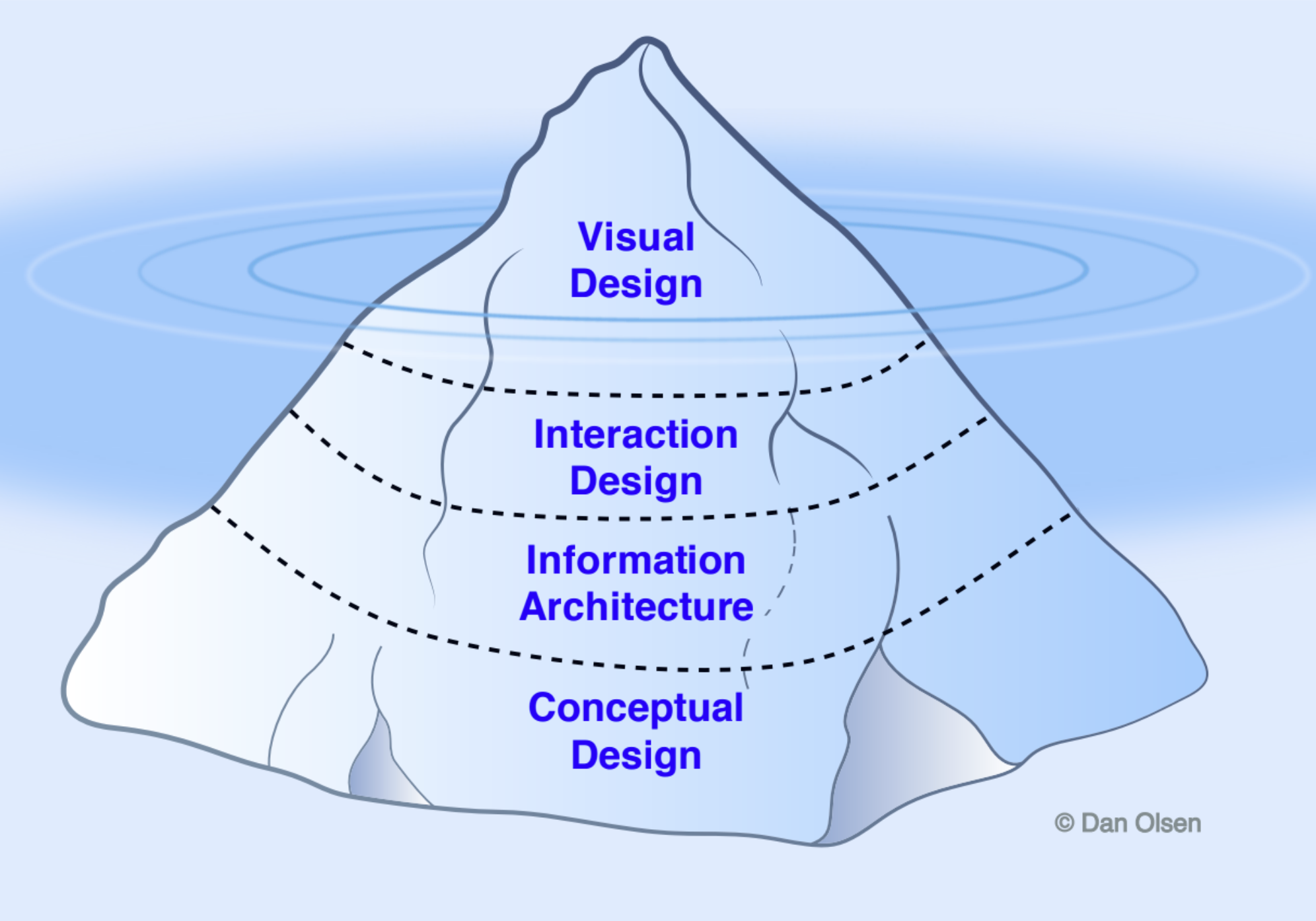
A polished screen built on a confused conceptual model is the most common way an AI-built application fails. This chapter works from the bottom of the iceberg up:
| Section | The idea you should leave with |
|---|---|
| Flows before screens | Map the steps of the user’s task first |
| Attention and hierarchy | One primary action per screen; size, spacing, and contrast rank everything else |
| Off the happy path | Empty, loading, error, and partial states are designed on purpose |
| Words are interface | Labels, buttons, and errors tell people what to do; specific beats clever |
| Decide once | A design system makes each decision one time; familiar patterns beat novel ones |
| Accessible by default | Contrast, keyboard, and screen readers are the baseline |
| Designing for an uncertain AI | When output can be wrong, show sources, allow edits and undo, have a person confirm costly actions |
| Directing an agent on design | Say exactly what to change, why, and with a reference |
The ninth design idea, watch, do not ask, is the subject of Testing the Design. The chapter closes with a short section on web versus mobile and a reference section on how the surface is built in code. If words such as HTML, CSS, Tailwind, React, or component are new to you, read that reference section, How the Surface Is Built, first; it is one short table.
The theory under these rules (UI versus UX versus product design, the Double Diamond, fidelity, Norman’s principles, information architecture, Gestalt, Fitts’s and Hick’s laws, visual design fundamentals, and Nielsen’s heuristics) is in Design Fundamentals.
ShiftSwap is an app for student employees at a campus job. A student who cannot work a shift posts it, a coworker picks it up, and the manager approves the trade. One AI feature: you photograph the paper schedule on the break-room wall and the app reads your shifts from it. The example is invented for teaching.
Flows Before Screens
The model: a flow is the sequence of steps a user takes to finish one task. Map the flow first, then design the screens it needs. A beautiful screen in the wrong flow is still wrong.
This is the interaction design and information architecture layer of the iceberg made concrete. Agents produce screens readily, so if you ask for “a dashboard,” you will get one, with whatever steps the agent guessed. The flow is where you decide what the product actually asks of a person.
The building blocks
| Block | What it is | Question it answers |
|---|---|---|
| Goal | The one job the user came to do | What does “done” look like for them? |
| Entry point | Where the flow starts: a link, a notification, the home screen | How do they arrive, and what do they already know? |
| Steps | Each screen or action in order | What is the one thing they do here? |
| Decisions | Points where the path branches | What choice do they make, and what does each choice lead to? |
| Exits | Every way the flow ends: success, cancel, error, giving up | Where do they end up, and can they get back? |
These combine in a simple way: a flow is a goal, reached from an entry point, through steps, split by decisions, and ending in exits. Count the steps and decisions; each one is a chance for someone to stop. Good flows remove steps the user does not care about and make every exit lead somewhere useful.
Worked example: posting a shift on ShiftSwap
GOAL: Get my Thursday 4-8 shift covered, approved by my manager.

ENTRY  Home screen ("My shifts")
 1.  Tap the Thursday shift
 2.  Tap "Give away this shift"
 3.  Optional note to coworkers ("Midterm that night")
 4.  Confirm  -> shift is posted, visible to eligible coworkers
       DECISION: someone picks it up within 48 hours?
         yes -> 5. Manager gets an approval request
                  DECISION: approve?
                    yes -> EXIT (success): both students notified, schedules updated
                    no  -> EXIT: shift returns to me, with the manager's reason
         no  -> EXIT: reminder to me 24 hours before the shift, with "Ask a specific coworker"
 CANCEL at any step before pickup -> shift returns to me, nothing sent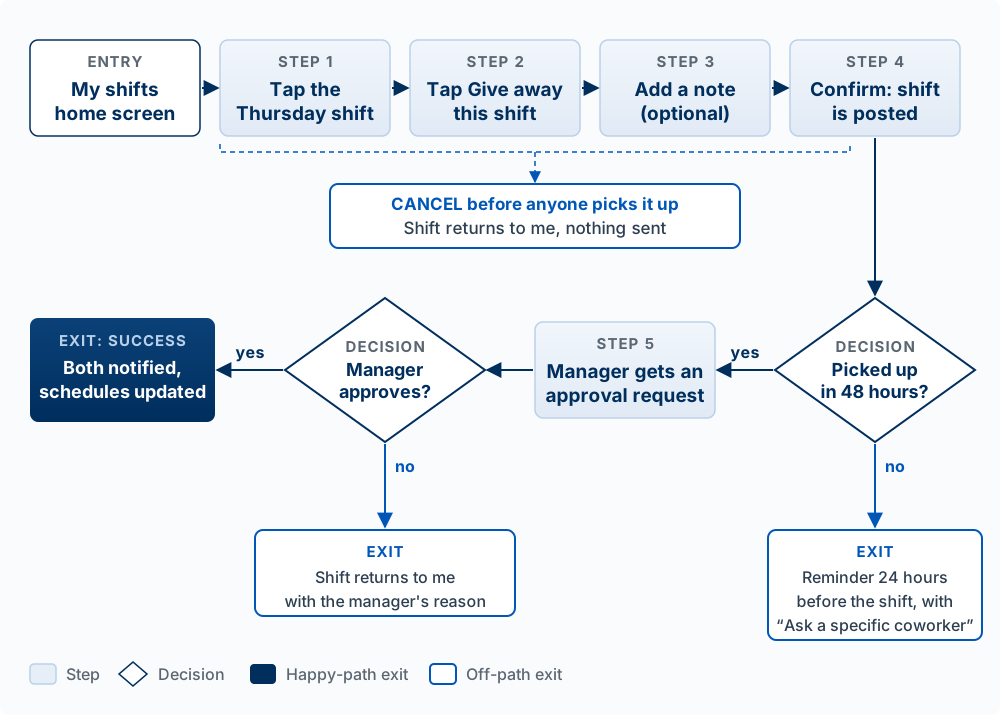
Mapping it this way surfaces questions a screen mockup hides. Who counts as an “eligible” coworker? What does the original student see while waiting for approval? What happens if two people tap “Pick up” at the same moment? Each of those is a design decision, and each one an agent would otherwise make for you silently.
Write the flow for the single most important task in your own product in the format above: goal, entry, numbered steps, decisions, and every exit. Then count. If the core task has more than six steps or any exit that leaves the user with no next step, mark the step you would remove or fix first. Do this before you ask Claude Code for any new screen in Sprint 3, and paste the flow into the prompt.
Attention and Hierarchy
The model: each screen gets one primary action. Size, weight, spacing, and contrast tell people what matters before they read a word, so use them to rank everything on the screen.
People do not read a screen top to bottom. They scan it, and their eyes go to whatever stands out. If everything stands out equally, nothing does, and the user has to read every label to find the next step. Adam Wathan and Steve Schoger’s Refactoring UI, the start-here resource for this axis, is built around that point: hierarchy is the main thing that makes an interface look designed, and you create it as much by de-emphasizing the secondary items as by emphasizing the primary one.
The building blocks
| Property | Draws attention when | Common mistake |
|---|---|---|
| Size | Larger than its neighbors | Making every heading big |
| Weight | Bolder text or a filled button | Bold everywhere, so bold means nothing |
| Contrast and color | Darker, more saturated, or the one colored element | Five colors competing; color as the only signal |
| Spacing | Surrounded by more white space | Cramming, so groups blur together |
| Position | Top, left, or where the eye goes after the last action | Burying the primary action below the fold (the part of the page you must scroll to see) |
Three principles from Jon Yablonski’s Laws of UX explain why the ranking matters:
- Hick’s Law: the more options shown at once, the longer the decision takes. One primary action shortens it.
- Fitts’s Law: the time to hit a target depends on its size and distance. The primary action should be big and close to where the user’s attention (or thumb) already is.
- Von Restorff effect: the item that differs from its neighbors is the one noticed and remembered. Make the primary action the one that differs.
Worked example: the ShiftSwap shift detail screen
The first version an agent produced showed four buttons in a row, all the same blue: Give away, Swap, Message manager, Add to calendar. Every user test began the same way: a pause while the person read all four.
The revision used these properties. “Give away this shift” became the one full-width filled button at the bottom, within thumb reach. “Swap for another shift” became an outlined button beneath it. “Message manager” and “Add to calendar” moved into a small text-link row at the top. Nothing was removed; the ranking changed, and the pause went away.
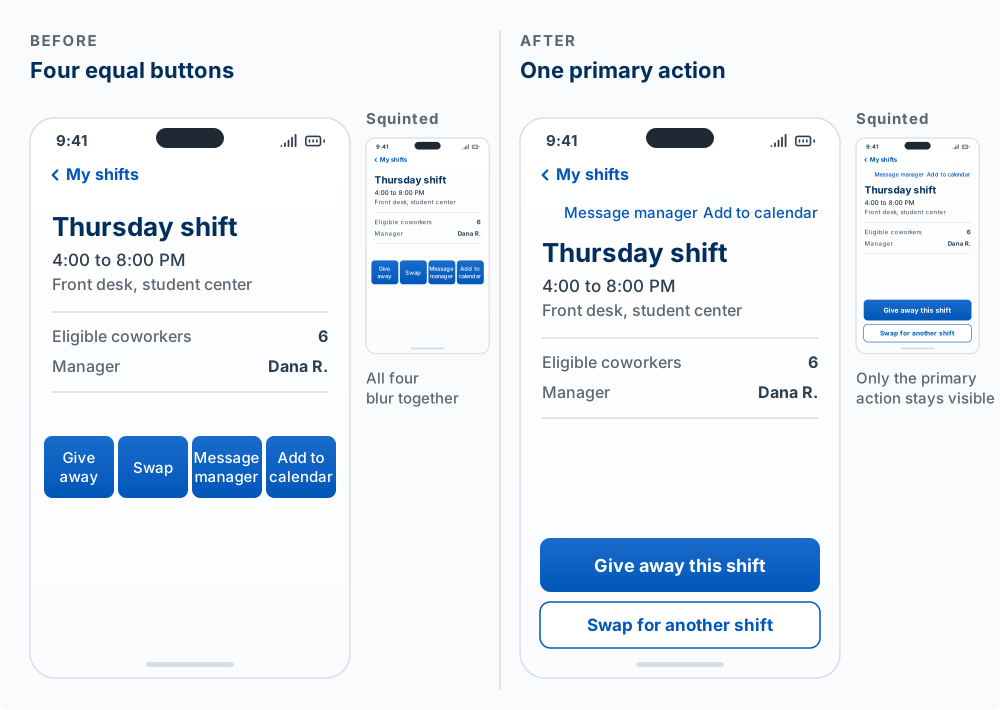
A quick check from the course’s deck rubric works on screens too: the squint test. Squint (or blur a screenshot) until you cannot read the words. Whatever is still visible is what users will see first. If that is not the primary action, the hierarchy is wrong.
Take a screenshot of your main screen. Before squinting, write down the one action you want a new user to take. Now squint. Predict what a first-time user clicks first, and explain which property (size, weight, contrast, spacing, position) draws them there. If the prediction and your intended action differ, list the two changes that would fix it. Refactoring UI’s advice to try the screen in grayscale first is a good second check: if the hierarchy only works because of color, it is fragile.
Off the Happy Path
The model: a screen is a picture of the app’s current state, and the app has more states than the one you demoed. Empty, loading, error, and partial states are where users get stuck. Design them on purpose.
The happy path is the flow when everything goes right: the data exists, the network is fast, the input is valid. An agent builds the happy path first because that is what the prompt described. Users spend a surprising amount of time elsewhere: the first visit before they have any data, the three seconds while something loads, the moment the save fails. Jakob Nielsen’s first usability heuristic, visibility of system status, says the interface should always tell people what is going on. These states are where it most often fails.
The building blocks
Think of each screen as a function of its state. In plain pseudocode:
screen(state):
  if loading         -> show what is coming (a skeleton: gray shapes where content will be, or a progress bar), keep the layout steady
  if error           -> say what happened, keep the user's input, offer the fix
  if no data yet     -> explain what goes here and offer the first action
  if some data failed -> show what loaded, mark what did not, offer retry for that part
otherwise -> the happy path| State | When it happens | What a good one does |
|---|---|---|
| Empty | First use, no search results, everything cleared | Explains what will appear here and gives one action to start |
| Loading | Waiting on the network, a database, or a model | Under a second: nothing needed. Several seconds: show progress. Long waits: say what is happening and let people keep working |
| Error | Validation fails, network drops, server breaks | Says what happened in plain words, keeps what the user typed, offers a next step |
| Partial | Some data loaded and some did not; a profile half filled in | Shows what exists, marks what is missing, lets the user fix just that part |
The loading row follows Nielsen’s long-standing response-time limits: about 0.1 second feels instant, about 1 second keeps the user’s train of thought, and past about 10 seconds people need progress feedback or they leave the task.
Buttons that change data need a loading state of their own. When you press Save, the app sends a request, a message to the server asking it to save, and waits for the reply. If a Save button shows no sign of being pressed while its request runs, people assume the click missed and click again, and the action runs twice: two posts, two charges, two emails. Give every button that saves, sends, or deletes two kinds of feedback: a visible change the moment it is pressed, and, while the request runs, a spinner in place of the label at the button’s original width (so nothing around it moves), with the button disabled until the request finishes. Build it once, in your shared Button component (a reusable piece of the screen, written once and used everywhere), so every screen gets it. The Agent Team Kit keeps this as a standing rule for the agents that build its apps (every mutating button gives feedback). Do the same for every sign that something is working. Define a small set of indicators once, as shared components: a plain spinner for saving or loading, and a different indicator, with a steady label and the seconds elapsed, used only while a model is working. A user who sees each one used the same way everywhere learns what it means. Turn the animation off for people who have set their device to reduce motion (one system for status motion).
Worked example: “My shifts” in four states
- Empty (new employee, schedule not loaded yet): “Your shifts will show up here. Add them from a photo of the posted schedule, or type them in.” Two buttons: Scan schedule, Add a shift.
- Loading: gray placeholder rows the shape of shift cards, so the screen does not jump when the real data arrives.
- Error (could not reach the server): “We couldn’t load your shifts. Check your connection and try again.” A Try again button. Shifts already on the phone stay visible, marked as possibly out of date.
- Partial (shifts loaded, but the manager’s approval status did not): the shifts show, and the pending trade shows “Approval status unavailable” with its own Refresh.
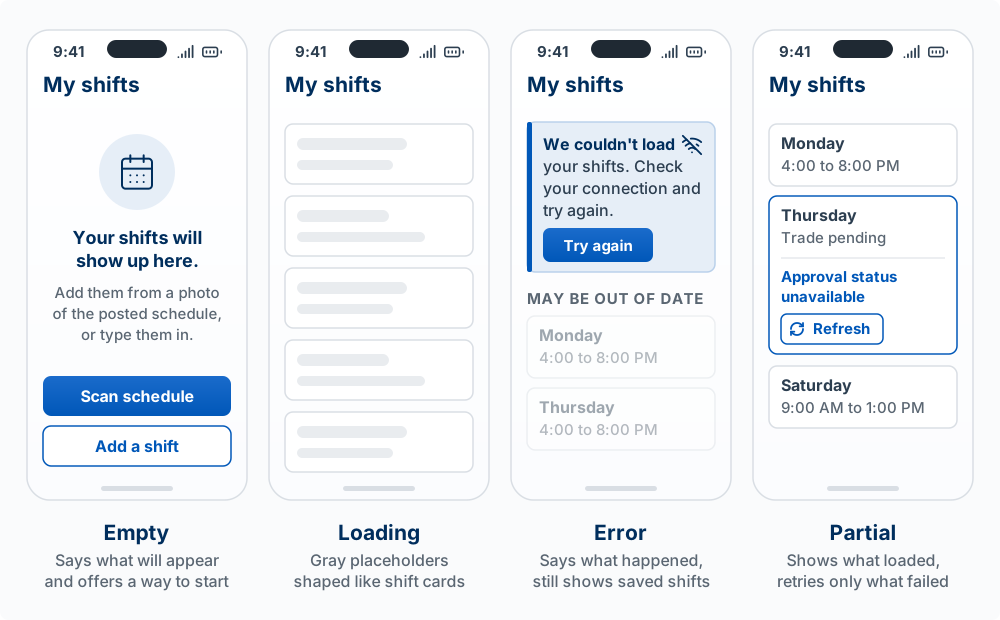
Each state answers the same two questions: what is true right now, and what can I do next?
List the four states for the main screen of your product and write one sentence of what the user sees in each. Then ask Claude Code to render each state with fake data so you can look at all four. Find the mistake: most agent-built apps show a blank white area for the empty state and the raw text of an exception for the error state. Find the worst of the four in your app and fix it this sprint.
Words Are Interface
The model: labels, buttons, and messages are the instructions for using your product. They tell people what will happen and what to do next. Specific beats clever.
Steve Krug’s Don’t Make Me Think (Krug 2014) puts the cost plainly: every word a user has to puzzle over slows them down. His third law of usability is to get rid of half the words on each page, then half of what is left. Nielsen’s heuristic of match between the system and the real world adds a second rule: use the user’s words for things, never the database’s.
The building blocks
| Text | Its job | Rule of thumb |
|---|---|---|
| Button and link labels | Say what happens when you press it | Verb plus object: “Post shift,” “Save draft” |
| Headings and labels | Name the thing in the user’s terms | “Shifts I’m covering,” never “Accepted transfers” |
| Error messages | Explain what went wrong and how to fix it | Plain words, specific cause, a way forward, no blame |
| Empty states and hints | Teach the next step at the moment it is needed | One sentence, one action |
| Confirmations | Show that the action happened | Say what changed and what happens next |
The Nielsen Norman Group (NN/g), the usability research firm Jakob Nielsen co-founded, publishes error-message guidelines (Neusesser and Sunwall, 2023) that make the error row concrete. Put the message next to the problem, say specifically what is wrong instead of “An error occurred,” offer a remedy, keep the user’s input so they do not start over, and do not blame the user.
Worked example: three rewrites
| Before | After | Why it is better |
|---|---|---|
| Button: Submit | Post shift to coworkers | Says what happens and who sees it |
| “Something went wrong.” | “Your manager’s approval didn’t go through because the shift starts in less than 2 hours. Call the front desk to cover it.” | Says what happened, why, and what to do |
| Empty list with no text | “No open shifts right now. We’ll notify you when a coworker posts one.” | Explains the emptiness and sets an expectation |
The same discipline shows up in slide writing, where an action title (“Late-night shifts are the hardest to cover”) beats a topic title (“Shift data”). The analogy holds for specificity. It breaks on length: a button label has two to four words to work with, so it names the action and nothing else.
Open your app and copy out every button label, every heading, and the text of one error message. Find the mistakes: circle each label that does not say what happens (“Submit,” “OK,” “Continue”) and each word that comes from your code instead of your user (“record,” “entity,” “null”). Rewrite the three worst. Then trigger an error on purpose and check whether the message says what happened and what to do.
Decide Once: Design Systems and Familiar Patterns
The model: a design system makes each design decision one time, so a button looks and behaves the same everywhere. Familiar patterns beat novel ones, because users bring their expectations from every other app they use.
Jakob’s Law (from Laws of UX) states the second half: users spend most of their time in other products, so they expect yours to work the same way. A trash-can icon deletes, a gear opens settings, swiping left on a list row reveals actions on a phone. Every place you invent a new convention, the user has to spend time learning it. The Apple Human Interface Guidelines are the canonical reference for what those conventions are on Apple platforms.
The building blocks
| Layer | What it holds | ShiftSwap example |
|---|---|---|
| Tokens | The raw choices: color palette, type scale, spacing scale, corner radius | Primary color, 4 text sizes, spacing in steps of 4px |
| Components | Reusable pieces built from tokens, each with defined variants and states | Button in three variants (primary: filled; secondary: outlined; ghost: text only) and four states (default, hover: the pointer is over it, disabled, loading) |
| Patterns | Components combined to solve a recurring problem | “Confirm before a destructive action,” “form with inline errors” |
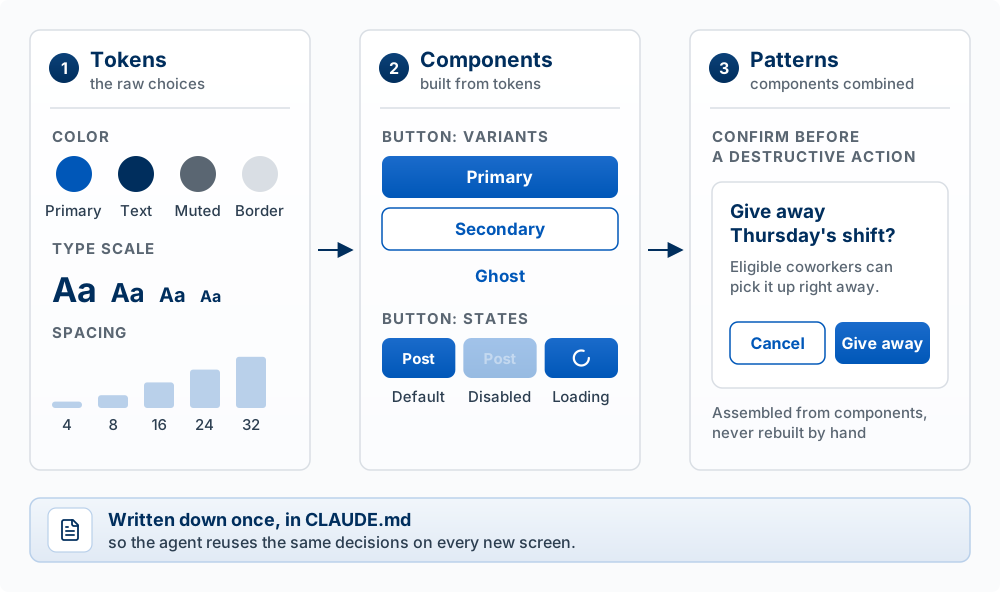
Refactoring UI’s advice to limit your choices is the same idea at small scale: pick a short spacing scale and type scale up front and use only those, so you never decide “14px or 15px?” again.
Why this matters more with an agent
An agent has no memory between sessions. Left alone, it will style each new screen from scratch, and after ten sessions you have five button styles. Two things fix that:
- Use a component system the agent already knows. shadcn/ui is the one this course recommends. It copies each component’s source code into your project, styled with Tailwind (a way of writing styles as short labels in the code, such as
p-4for padding) and built on components that already handle keyboard use and screen readers, so you and the agent can read and change it. Agents have seen a great deal of code written against it. - Write the decisions down where the agent will read them. A short design section in your
CLAUDE.md(see Directing the Agent) turns one-time decisions into standing instructions:
## Design rules
- Components come from shadcn/ui in components/ui. Do not hand-roll buttons, inputs, or dialogs.
- One primary (filled) button per screen. Everything else is secondary or ghost.
- Spacing uses the Tailwind scale only (p-2, p-4, p-6, p-8). No arbitrary pixel values.
- Every list screen has an empty state with one sentence and one action.
- Destructive actions use the confirm dialog pattern.
- Icons come from lucide-react, the icon set shadcn/ui uses. No emoji as icons.
The last rule is one the Agent Team Kit gives all its agents (real icons, not emoji). An emoji looks different on each device and does not take the size and color of the text around it, and agents tend to add emoji as placeholders while prototyping and leave them in.
An analogy: a design system is the house style guide a newspaper gives every reporter, so a hundred writers produce one paper. Where it breaks: a style guide is advice a reporter can ignore, while a component library makes the right choice the easiest one to type.
Open three screens of your app side by side. Find the inconsistencies: count how many different button styles, text sizes, and gray colors you see. Then write five design rules for your CLAUDE.md like the ones above, and ask Claude Code to change one screen to follow them.
Accessible by Default
The model: sufficient contrast, full keyboard use, and screen-reader support are the baseline, the same as the app not crashing. Building them in from the start makes the product better for everyone.
Most accessibility comes free if you use the right building blocks from the start, and costs a lot to retrofit. A screen reader is software that reads the screen aloud for people who cannot see it. Web pages are built from HTML elements, tags that say what each thing is: <button> is a button, <div> is a plain box with no meaning. A button made from a real <button> element is reachable by keyboard and announced as a button by a screen reader. A button faked from a clickable <div> is neither, and an agent will sometimes produce the fake.
The building blocks
The Web Content Accessibility Guidelines (WCAG) organize the requirements under four principles. The few that matter most for a student product:
| Principle | Baseline check | Why it helps everyone |
|---|---|---|
| Perceivable | Text contrast at least 4.5:1 against its background (3:1 for large text and for icons and input borders); never use color alone to carry meaning | Readable in sunlight, on cheap screens, by tired eyes |
| Operable | Every action works with the keyboard alone; focus (the outline that shows which element the keyboard will act on) is always visible; touch targets are large enough (Apple recommends at least 44 by 44 points) | Faster for power users; fewer mis-taps on phones |
| Understandable | Every input has a visible label; errors say what to fix (see Words Are Interface) | Fewer failed forms for every user |
| Robust | Real HTML elements for real things (buttons, links, headings, form labels) so assistive technology can read them | The same structure helps search engines and agents read your page |
An accurate analogy is the curb cut: the ramp cut into a sidewalk for wheelchair users is also used by people with strollers, suitcases, and bikes. Where it breaks: some accessibility needs conflict (a user with low vision may want larger text that a dense dashboard cannot fit), so the baseline is a minimum, and some users still need settings of their own.
- Put your mouse away. Starting from the home screen, complete your core flow with only Tab, Shift+Tab, Enter, and Space. Note every place you get stuck or lose track of where focus is.
- Run your primary button and your body text through a contrast checker (WebAIM’s is free).
- Zoom the browser to 200 percent and check whether anything overlaps or disappears.
Paste what you found into Claude Code with the instruction “fix these accessibility issues using semantic HTML and our existing components.” The full checklist is in the Engineering Checklist.
Designing for an Uncertain AI
The model: when your product’s output can be wrong, design for that. Set expectations, show where an answer came from, let people edit and undo, and have a person confirm the decisions that matter.
Ordinary software does the same thing every time; a model may not. Models in Your Product explains why a model can be confidently wrong and what that means for the engineering. This section is about what the user sees. Saleema Amershi and colleagues at Microsoft proposed eighteen guidelines for human-AI interaction and tested them against twenty AI products (Amershi et al. 2019); the building blocks below follow several of them.
The building blocks
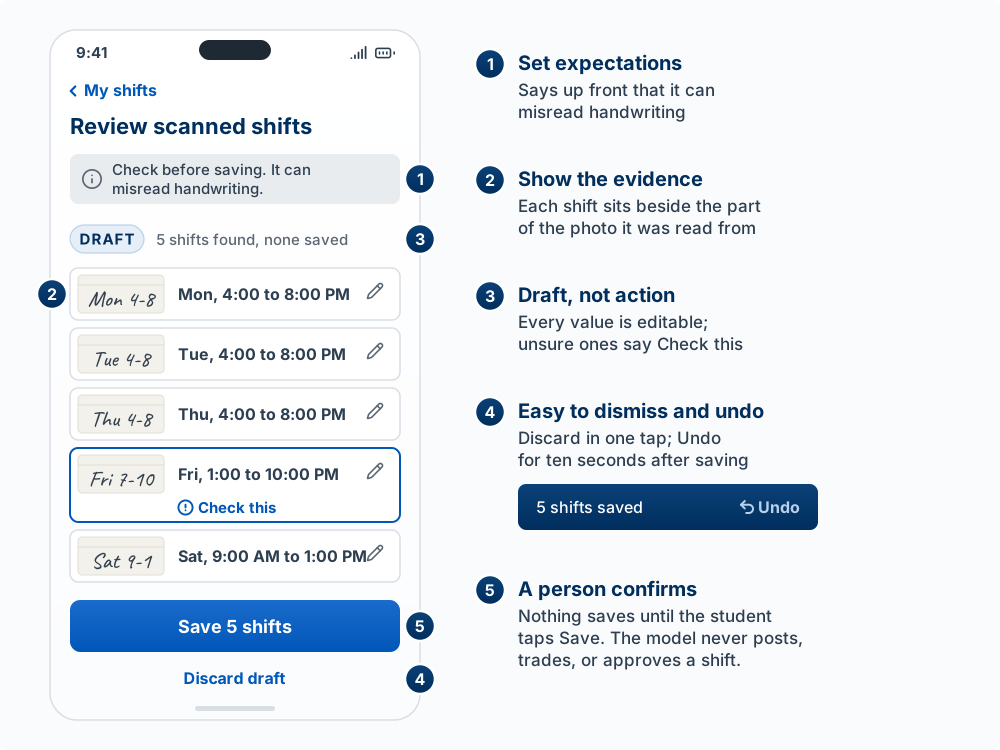
| Block | What it means on screen | Guideline it follows |
|---|---|---|
| Set expectations | Say what the feature does and how often it gets things wrong, in plain words, before people rely on it | Make clear what the system can do, and how well |
| Show the evidence | Show the source behind the answer: the quoted passage, the region of the image it read | Make clear why the system did what it did |
| Draft, not action | AI output arrives as an editable draft the user approves; it does not act on its own | Support efficient correction |
| Easy to dismiss and undo | One tap to reject a suggestion or undo what it did | Support efficient dismissal |
| A person confirms costly actions | The higher the cost of a mistake, the more explicit the human confirmation | Chapter 11: if a wrong answer is expensive, put a human in the path |
Streaming the answer as it is generated, covered in Chapter 11, is the loading state for AI: it shows progress during a wait that can run many seconds. Chapter 11 adds a Stop: every screen where a model works for the user needs a way to start it, a live sign that it is still working, and a way to cancel it.
Worked example: reading the schedule photo
ShiftSwap’s schedule scan uses a vision model to read a photo of the paper schedule. It will sometimes misread a handwritten 7 as a 1. The design:
- Before the scan: “Works best with a flat, well-lit photo. Check the shifts before saving; it can misread handwriting.”
- After the scan: the shifts appear as a draft list, each one next to a cropped image of the part of the photo it came from, so the student can compare at a glance.
- Each shift is editable in place. Shifts the model was unsure of are marked “Check this.”
- Nothing is added to the schedule until the student taps Save 5 shifts. After saving, an Undo appears for ten seconds.
- The model never posts, trades, or approves a shift. Those stay human actions.
Pick the AI feature in your product (or one you plan). Predict the most likely wrong output and what happens to the user if they do not catch it. Then check your current screen against the five blocks above. Which one is missing? Sketch, in words, the one change that would let a user catch the mistake before it costs them anything.
Directing an Agent on Design
The model: say exactly what to change and why, with a reference. Taste is knowing what is wrong and being able to say it precisely.
“Make it look better” or “improve the UX” gives the agent no specific problem to fix, so it changes things at random: new colors, a gradient, more shadows. The agent is good at the visual layer and will do exactly what you describe. What you describe determines the result.
The building blocks of a design instruction
| Block | What it supplies | Example |
|---|---|---|
| Where | The screen and element | “On the shift detail screen, the button row at the bottom” |
| What is wrong | The observed problem | “Four equal buttons, so users read all of them before acting” |
| Why (the principle) | The reason a designer would accept | “One primary action per screen” |
| What to change | The specific fix | “Make Give away the only filled button, full width; Swap outlined; move the other two to text links at the top” |
| Reference | Something concrete to match | A screenshot, a named shadcn/ui component, or “like the checkout button in the Uber Eats app” |
Claude Code accepts images, so a screenshot of your current screen, or of an app that does it well, is often the best reference you can give.
| Vague | Precise |
|---|---|
| “Improve the UX of the shifts page.” | “The shifts page has no empty state; a new user sees a blank white area. Add an empty state: one sentence, ‘Your shifts will show up here,’ and two buttons, Scan schedule (primary) and Add a shift (secondary), using our Button component.” |
| “Make the errors better.” | “When the save fails, we show the raw error text. Show ‘Couldn’t save your shift. Check your connection and try again,’ next to the Save button, keep the form values, and add a Try again button.” |
| “Redesign settings as one page.” | “Replace the four settings tabs with one page in three sections. Before you build it, list every component, link, and label from the tabbed version that the new page no longer needs, including the tab bar, and delete them in the same change. Show me the list first.” |
The last row matters because agents add more readily than they remove. A redesign built on top of the old screen often keeps pieces of the old design that no longer have a purpose, and you find them one screenshot at a time. Asking first for the list of what the redesign removes (the Agent Team Kit calls it a subtraction audit) catches them before the build.
Taste is a skill
As building becomes cheap, several design leaders argue that taste becomes the scarce part. Figma’s CEO and Tony Fadell, who led the iPod and founded Nest, make that case in the podcasts on the Builder Resources page. Jenny Wen, who leads design for Claude at Anthropic, argues that the classic discover, mock, iterate design process is obsolete, and asks what taste means when prototyping is nearly free. Julie Zhuo, former VP of product design at Facebook, writes in The Looking Glass about critique as a practiced skill. The practical version for you: you build taste by naming specific problems, over and over, against principles you can state.
Ask Claude Code to build a new screen for your product with no design guidance at all. Before you prompt again, write three sentences of critique, each with the form: “[Element] is [problem], which breaks [principle from this chapter].” For example: “The four buttons are the same weight, which breaks one primary action per screen.” Then turn the three sentences into one precise prompt using the table above, and compare the result to what “make it better” produces.
Web, Mobile, or Both
The model: most student products should start as a responsive web app (a website that adjusts its layout to any screen size). Go to the app stores only when the product needs something the web cannot do well, such as reliable device hardware, frequent brief use, or store discovery in a category people actively search.
A native app is one built for a single platform, iPhone or Android, and installed from that platform’s app store. Ask these questions before choosing:
| Question | If Yes | If No |
|---|---|---|
| Do users need this when away from computers? | Consider mobile | Web is fine |
| Does it need device hardware (camera, GPS, sensors)? | Consider mobile | Web is fine |
| Is your core user flow < 30 seconds? | Mobile-friendly matters | Desktop-first okay |
| Do competitors have apps? | Understand why | May not need one |
| Will users install another app? | Maybe mobile | Probably web |
The tradeoff in one line each:
- Distribution. The web gives instant access by URL, search traffic (people finding you through Google, which is what SEO, search engine optimization, works on), and instant updates. App stores give home-screen presence, more reliable push notifications, and better retention for the people who install. Store discovery is hard outside categories people search for, so you usually need the web to bring people in anyway.
- Cost. Every native platform is another codebase (a separate set of code) to build and maintain, and every feature and bug exists once per platform.
- Behavior. Mobile fits frequent, brief use, location, the camera, offline use, and push notifications. The web fits focused work, heavy typing, desk use, file handling, and SEO.
There is also a spectrum between “web only” and “native”:
Web → Responsive Web → PWA → Capacitor/Ionic → React Native → Native
<---------------- Easier ----------------->
<---------------- More "native" ---------->- A progressive web app (PWA) is a web app that can be installed to the home screen. It needs HTTPS, a web app manifest (name, icons, colors), and, for offline use, a service worker (a script that sits between the app and the network and can serve cached files). On iPhone, web push notifications work only after the user adds the app to the Home Screen (iOS 16.4 and later).
- Capacitor wraps your existing web app in a native shell so it can ship to the App Store and Google Play and use phone features such as the camera through the phone’s own programming interfaces (native APIs), from one codebase. It does not automatically look like a native app.
- React Native and fully native (Swift, Kotlin) give the most native feel and performance, at the most cost. If you are asking “should I go native?”, the answer is probably no.
| Factor | Web Only | Web + Mobile |
|---|---|---|
| Initial build time | 1x | 2-3x |
| Ongoing maintenance | 1 codebase | 2-3 codebases |
| Feature parity | N/A | Constant challenge |
| Team size needed | Smaller | Larger |
| Bug surface area | Smaller | Much larger |
| Approach | Effort | Native Feel | Store Distribution |
|---|---|---|---|
| Responsive Web | Low | Low | No |
| PWA | Medium | Medium | Limited |
| Capacitor | Medium | Medium-High | Yes |
| React Native | High | High | Yes |
| Native (Swift/Kotlin) | Highest | Highest | Yes |
| Your Situation | Recommendation |
|---|---|
| Pre-product-market fit | Stay web only |
| B2B / productivity | Responsive web + PWA |
| Consumer, frequent use | PWA → Capacitor |
| Hardware-dependent | Capacitor or native |
| Gaming / media-heavy | Native or React Native |
A common path: build responsive web while you validate; add PWA install and better mobile behavior as usage grows; wrap with Capacitor for the app stores only if users need it, or stay on the web if it is working.
When to consider fully native: performance is critical (games, video, AR), complex gestures and animation are core, deep OS integration is required, or competitors have set native expectations, and you have the team to support it. React Native fits when you need native performance and your team already knows JavaScript and React.
Making Your App Mobile-Responsive
The model: design for the small screen first, then let the layout expand at set widths (breakpoints). A phone layout forces the hierarchy decision, because there is room for only one primary action.
Mobile-first means the default layout is the phone layout, and wider screens add columns and space. In Tailwind, the prefixes sm: (640px), md: (768px), lg: (1024px), and xl: (1280px) mean “from this width up.” Reading one line is enough to see the model:
<div className="flex flex-col md:flex-row"> {/* stacked on phones, side by side from 768px */}Mobile UX essentials
- Touch targets: at least 44 by 44 points for anything tappable (Apple’s guideline).
- Form inputs: use a font size of at least 16px in inputs. Smaller, and iOS Safari zooms the page when the field gets focus. (This applies to inputs, not all text.)
- Input types: use the right type (
type="email",type="tel") so phones show the right keyboard. - Viewport (the visible area of the page on the screen): the page needs
<meta name="viewport" content="width=device-width, initial-scale=1">or phones render it as a shrunken desktop page. Next.js adds this for you. - Thumb reach: put the primary action near the bottom of the screen, where a thumb can reach it (Fitts’s Law again).
Open your app in the browser’s device toolbar at 375px wide (an iPhone-sized screen). Find the mistakes: anything cut off, any tap target smaller than a fingertip, any input that zooms the page when tapped. Fix the worst one with a precise prompt.
How the Surface Is Built (Reference)
You will not write much of this by hand, but you should know the parts so you can read what the agent wrote and catch it when something is off.
| Building block | What it does | Analogy (and where it breaks) |
|---|---|---|
| HTML | Structure: headings, paragraphs, links, buttons, inputs, containers (<h1>, <p>, <a>, <button>, <input>, <div>) |
The frame of a house. Breaks: HTML also carries meaning, a <button> is announced as a button, so the right element matters for accessibility |
| CSS | Styling: color, size, spacing, layout, and responsive rules (@media queries) |
Paint and furniture placement |
| Tailwind CSS | CSS as short utility classes in the markup (bg-green-500 px-4 py-2 rounded) |
|
| JavaScript | Behavior: responds to clicks and typing, talks to the server | The wiring |
| React | Builds the UI from reusable components, functions that return UI. Components take props (inputs) and hold state (data that changes) | |
| Next.js | The React framework this course uses: routing, server rendering, deployment |
Chapter 7 reads a React component line by line, including how a change in state makes React draw the screen again, which is why loading, empty, and error are each a state you design: see How the Code Works.
Key Concepts
- The chapter’s model: design is deciding where the user’s attention goes. Every screen should make the next step obvious, and most of what users experience happens off the happy path.
- Happy path: the run through the product where everything goes right.
- UX iceberg (Dan Olsen): visual design above the waterline; interaction design, information architecture, and conceptual design underneath, where usable and unusable products diverge.
- Flow: the sequence of steps a user takes to finish one task: a goal, an entry point, steps, decisions, and exits. Map it before designing screens, and count the steps and decisions.
- Visual hierarchy: size, weight, contrast, spacing, and position rank what is on the screen. Give each screen one primary action, and de-emphasize the secondary items.
- Hick’s Law, Fitts’s Law, Von Restorff effect: more options take longer to decide among; big, close targets are faster to hit; the item that differs from its neighbors gets noticed.
- Squint test: blur the screen until you cannot read it. Whatever still stands out is what users see first, and it should be the primary action.
- Empty, loading, error, and partial states: the states off the happy path. Each one says what is true right now and what the user can do next.
- Visibility of system status (Nielsen): the interface always tells people what is going on.
- Feedback on buttons that change data: a visible change the moment it is pressed, then a spinner in place of the label and the button disabled until the request finishes, so nobody clicks twice. Build it once, in the shared Button component.
- Words are interface: labels, buttons, and messages tell people what will happen and what to do next. Buttons are verb plus object, errors say what happened and how to fix it, and names use the user’s words for things. Specific beats clever.
- Design system: tokens, components, and patterns that make each design decision one time. Use a component system the agent knows and write the rules in
CLAUDE.md, because an agent has no memory between sessions. - shadcn/ui: the component system this course recommends. It copies each component’s source into your project, styled with Tailwind and built on components that already handle keyboard use and screen readers.
- Jakob’s Law: users spend most of their time in other products, so they expect yours to work the same way. Familiar patterns beat novel ones.
- Accessibility baseline (WCAG): text contrast of at least 4.5:1, full keyboard use with visible focus, a visible label on every input, and real HTML elements for real things. It is the baseline, the same as the app not crashing, and it costs little when built in from the start.
- Designing for an uncertain AI: when output can be wrong, set expectations, show the evidence, deliver output as an editable draft, make it easy to dismiss and undo, and have a person confirm costly actions.
- Precise design direction: tell the agent where, what is wrong, why (the principle), what to change, and a reference. For a redesign, ask first for the list of what it removes (a subtraction audit).
- Taste is a skill: you build it by naming specific problems, over and over, against principles you can state.
- Web, mobile, or both: most student products should start as a responsive web app and go to the app stores only when they need something the web cannot do well. The web gives access by URL, search traffic, and instant updates; stores give home-screen presence, more reliable push notifications, and better retention, and every native platform is another codebase.
- Platform spectrum: Web, Responsive Web, PWA, Capacitor, React Native, Native, from easiest to most native.
- PWA, web app manifest, service worker: a web app that can be installed to the home screen; the file with its name, icons, and colors; the script that serves cached files for offline use.
- Capacitor: wraps your existing web app in a native shell so it can ship to the app stores and use phone features, from one codebase.
- Mobile-first and breakpoints: the phone layout is the default, and wider screens add columns and space at set widths (
sm:,md:,lg:,xl:in Tailwind). - HTML, CSS, JavaScript, React, Next.js: structure, styling, behavior, the library that builds the screen from components, and the React framework this course uses.
- Components, props, and state: React builds the screen from components that take props (inputs) and hold state (data that changes); a change in state redraws the screen, which is why each state is a screen to design.