
Directing the Agent
Why This Matters
You have a working app and almost no control over how it got built. This chapter is about control, and control comes down to three questions you answer for every agent you direct:
- What can it see? The agent knows only what is in its context window: all the text the model has in front of it at one moment.
- What may it do? Instructions advise; hooks and permission rules enforce; modes, sandboxes, and worktrees limit the damage. Each of these is defined in its own section below.
- How will you know it worked? Its own report is a claim. Your check is the evidence.
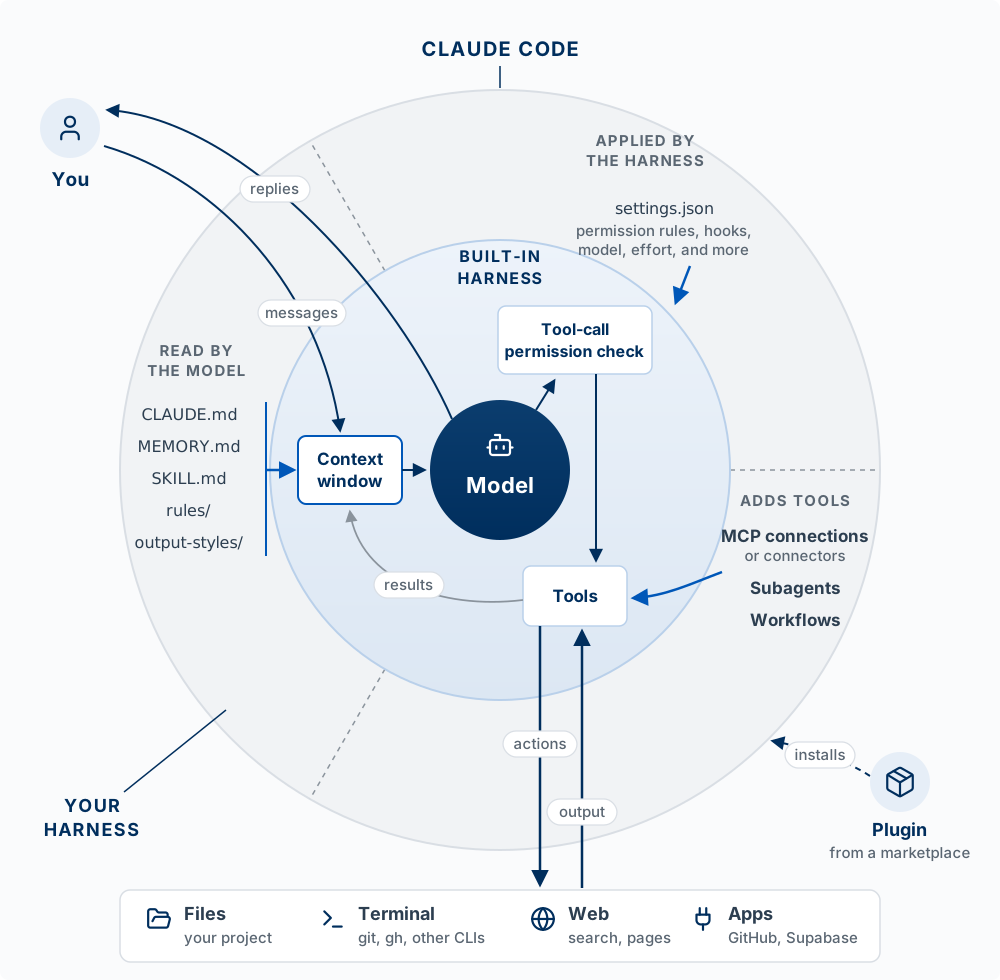
settings.json, holds whether or not the model agrees. Claude Code also ships its own skills and subagents (Explore, Plan); the outer layer shows the ones you add. A connector is the Claude app’s name for an MCP connection. A plugin is a package from a marketplace that installs several parts at once (the dashed arrow): skills, subagents, workflows, hooks, output styles, MCP connections, and CLI tools, but not CLAUDE.md, rules files, or permission rules. MCP servers and CLI tools both extend what Claude Code can reach. An MCP connection you add registers a server’s tools with the harness, while the server itself runs outside, on your computer or at a URL; a CLI tool such as gh adds nothing to either harness, because it is a program on your computer that the model runs through the Bash tool it already has. The tool-call permission check runs before any tool: your PreToolUse hooks, then your permission rules, then the permission mode or a prompt to you. Each item has its own section in this chapter.
All three get easier when you have written down what you want before anyone builds it. That written description is a spec, and it is the last step of design, so it has its own chapter in the Design part of the book: Specs.
Conversational Coding
AI-assisted coding works best when you think out loud. Instead of trying to write perfect prompts, have a conversation:
Less effective: > Build me a problem tracker app with all features
More effective: > I want to track problems I notice throughout the day. Let’s start simple, just a way to add a new problem with a title and description. We can add evaluation features later.
Then iterate: > That looks good. Can we add a timestamp so I know when I captured each problem?
Now I want to rate each problem on frequency (daily, weekly, monthly, rarely). Add a dropdown for that.
Each small request is one short cycle of the agent loop, and you check the result before the next one. Conversation is how you explore. Once you know what you want to keep, you write it down as a spec (Specs), so the next session, or the next agent, does not have to rediscover it from a chat log.
It Knows Only What It Can See
The agent can use only what is in its context window. Whatever is not in it does not exist for the agent: not the conversation you had yesterday, not the decision you made in your head, not the file it never opened. Every response is produced from what is in the window right now.
What fills the window
| Building block | When it enters | You control it with |
|---|---|---|
| Claude Code’s own system instructions | Every session | (fixed) |
| CLAUDE.md files | Start of every session, and again after /clear |
Editing the file |
| Skill names and descriptions | Start of every session; a skill’s full instructions load only when it is used | Writing skills |
| Your messages and Claude’s replies | As you talk | What you say |
| Tool results: files it read, command output, search results | Each time it uses a tool | What you ask it to read; subagents (below) |
The window is finite. As it fills, Claude Code clears old tool output and then summarizes the conversation automatically, and instructions from early in the conversation can get lost in the summary. That is the practical reason for CLAUDE.md: anything that must survive goes in a file the agent re-reads, not in a chat message.
The controls
| Command or file | What it does to the window |
|---|---|
CLAUDE.md |
Puts standing facts and rules in every session |
/context |
Shows what is filling the window right now |
/compact |
Summarizes the conversation so far to free space, and keeps going on the same task. /compact focus on the API changes tells it what to keep |
/clear |
Starts a new, empty conversation. CLAUDE.md still loads; everything you said does not |
| Skills | Keep procedures out of the window until they are needed |
| Subagents | Do noisy work (long logs, big searches) in a separate window and return only a summary |
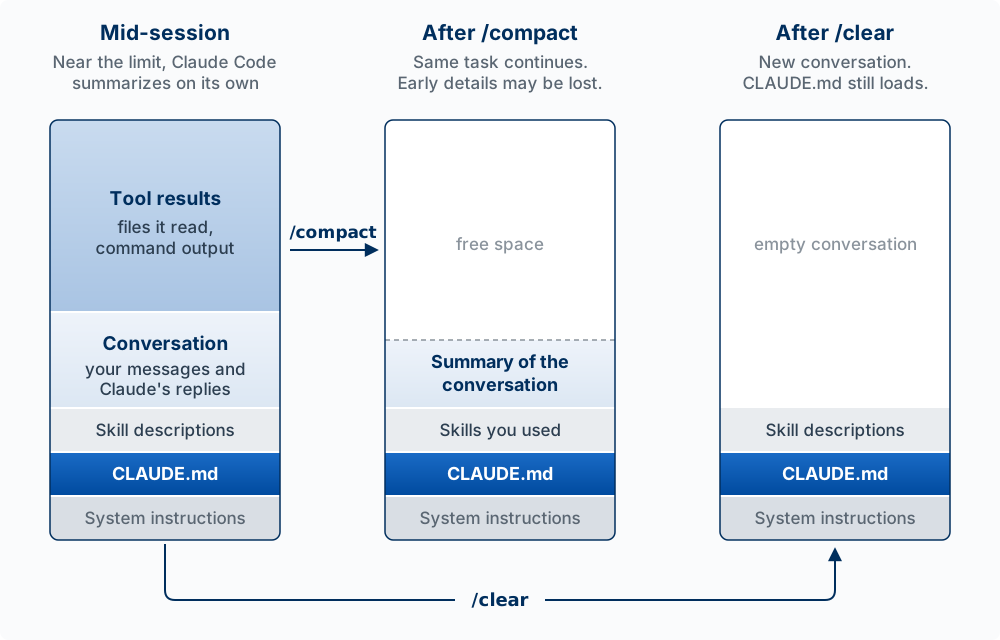
/compact keeps a summary and the task; /clear keeps nothing you said.
Worked example. On Monday you tell Claude, “Never use a database for this project; JSON files only.” On Wednesday you start a new session and ask for a search feature. Claude adds SQLite (a small database). It did not disobey you: Monday’s sentence was in Monday’s window, and Wednesday’s window never contained it. Put the rule in CLAUDE.md and every session starts with it. (Claude may also have saved the rule to its auto memory, described below, but only on that computer, and Claude decides what it saves. A rule you depend on belongs in CLAUDE.md, which you write and commit.)
CLAUDE.md: your project’s memory
CLAUDE.md is a Markdown file (plain text with simple marks, such as # for a heading and - for a bullet) that Claude Code reads automatically at the start of every session. It is where you write down what you would otherwise re-explain: what you are building, the tech stack, conventions, and commands. Ask Claude to write one:
Create a CLAUDE.md file that describes a problem tracking application I’m building to help me identify startup ideas
Claude will create something like:
# Problem Tracker

## Project Overview
A personal tool for capturing and evaluating problems that could become product opportunities.

## Tech Stack
- Python with Streamlit for the frontend
- JSON file for data persistence

## Development Notes
- Keep the UI simple since this is for personal use
- Focus on fast capture over elaborate analysis
/init generates a starter CLAUDE.md by reading your codebase, and /memory opens your CLAUDE.md files, turns auto memory on or off, and shows what Claude has saved. Keep it short: the docs suggest under 200 lines, because every line costs context on every turn and long files are followed less reliably.
What to write in it. Write what the agent cannot work out by reading the code: decisions, constraints, and traps. The code already shows which framework you use. It does not say why you chose one way of connecting to your database over another, which file breaks if it is edited carelessly, or which commands must never run without asking. The Agent Team Kit, a set of hooks, skills, and written practices from building production apps with several Claude Code agents at once, suggests these sections in its guide to writing CLAUDE.md:
| Section | What goes in it |
|---|---|
| What this repo is | One paragraph: the product and the stack |
| Commands | The dev, build, test, and database commands, one line each |
| Architecture | Where each kind of code goes, so new code lands in the right place |
| Conventions | Naming, styling, the words used in the interface |
| Definition of done | The checks that must pass before work counts as finished (see Done Means You Saw It Work, below) |
| Leave alone unless asked | Lines the agent must not cross on its own: pushing to GitHub, adding a new sign-in (auth) or database library, deleting (dropping) database tables |
Two habits keep it useful. When a convention changes, update CLAUDE.md in the same commit as the change, because an out-of-date file misdirects every session that reads it. And test it: read it as if you were an agent that just cloned the repo. Any wrong assumption you would still make about where code goes or what done means is the next thing to write.
Where CLAUDE.md files live
| Location | Scope | Use it for |
|---|---|---|
./CLAUDE.md (or ./.claude/CLAUDE.md) in the project root |
This project; commit it so your team shares it | Tech stack, conventions, build and test commands |
./CLAUDE.local.md |
This project, just you (keep it out of git) | Personal notes about this project |
~/.claude/CLAUDE.md |
All your projects | Your personal preferences and style |
All the files that apply are combined, not replaced: a project file adds to your personal one, and the more specific file is read last. Settings are a different thing and live in different files (.claude/settings.json and related files); you will meet them under permissions and hooks below.
Rules files
When CLAUDE.md grows long, you can split its instructions into topic files in .claude/rules/, such as testing.md or api-design.md. A rules file is the same kind of thing as CLAUDE.md: instructions the model reads. A file with nothing at the top loads at the start of every session, like CLAUDE.md. A file that lists paths at the top loads only when Claude reads or edits a file that matches:
---
paths:
  - "src/api/**/*.ts"
---

- Every API endpoint validates its input
- Errors use the standard error response format
That keeps the API conventions out of the context window until Claude works on the API. Rules files for all your projects go in ~/.claude/rules/.
A rules file is not a permission rule (see Advice Versus Enforcement, below). A rules file is advice the model reads and weighs. A permission rule is a line in a settings file that Claude Code checks before every tool call, whatever the model decides.
Output styles
An output style changes how Claude responds for a whole session: its tone, length, and format, or even its role. Claude Code ships four besides the default: Proactive, Concise, Explanatory, and Learning. Switch with /output-style concise, or write your own as a markdown file in .claude/output-styles/. Like CLAUDE.md, a style is instructions the model reads with every request, so it shapes what Claude does without guaranteeing it.
CLAUDE.md and auto memory
Claude Code also keeps auto memory: notes Claude writes for itself as it works, such as a build command it worked out or a correction you gave it. It is on by default. The two differ in who writes them and where they live:
| CLAUDE.md | Auto memory | |
|---|---|---|
| Who writes it | You (or Claude, when you ask) | Claude, when it decides something is worth keeping |
| Where it lives | In your project folder, so it is committed with the code | In your home folder, ~/.claude/projects/<project>/memory/ |
| What loads | The whole file, every session | An index file, MEMORY.md (its first 200 lines), every session; the rest when Claude needs it |
| Who else gets it | Anyone who clones the repo, and cloud sessions | Nobody. The terminal, VS Code, and the desktop app on the same computer share it; another computer, a teammate, or a cloud session does not |
Check what Claude has saved with /memory. When a saved note matters to the project, move it into CLAUDE.md so it reaches everyone who works on the code.
Run /context in a session and find your CLAUDE.md in the list. Then: (1) tell Claude a project rule in chat, run /clear, and ask it what the rule is. (If Claude remembers it anyway, check /memory: it may have saved the rule to auto memory.) (2) Put the rule in CLAUDE.md, run /clear, and ask again. Explain the difference in one sentence.
Claude Code: Slash Commands
A slash command is recognized at the start of a message; anything after it is its argument. Type / to see every command available to you. These are the ones to know by name, grouped by what you are doing:
| Command | What it does |
|---|---|
| Managing the conversation | |
/context |
Show what is filling the context window |
/compact |
Summarize the conversation so far to free up context, and keep going on the same task |
/clear |
Start a new conversation with empty context (CLAUDE.md still loads) |
/rewind |
Roll back Claude’s file edits and/or the conversation to an earlier point |
/resume |
Reopen an earlier conversation, by name or from a list |
/rename |
Give this session a name, so you can find it in /resume later and other sessions can message it |
/list-agents (or /peers) |
List the sessions Claude can send a message to |
/btw |
Ask a side question without adding it to the conversation |
/exit |
Leave Claude Code |
| Setting up | |
/init |
Write a starter CLAUDE.md for this project |
/memory |
Open your CLAUDE.md files, turn auto memory on or off, and browse what Claude has saved |
/config |
Open settings (theme, model, and other preferences) |
/model |
Switch the model, and save it as your default |
/effort |
Set how much the model reasons before it answers: low, medium, high, xhigh, max, or auto. Higher takes longer; you can also change it in /model |
/status |
Show version, model, and account |
/usage |
Show what the session has cost and how much of your plan’s usage limit you have used |
/add-dir |
Give Claude access to another folder for this session |
| Controlling what Claude can do | |
/plan |
Switch into plan mode (read-only planning; see Claude Code’s plan mode) |
/permissions |
Manage allow, ask, and deny rules |
/hooks |
Show every hook that is set up and where it came from |
/sandbox |
Turn the sandbox on or off |
| Extending Claude | |
/skills |
List the skills available to you |
/mcp |
Manage connections to outside tools (MCP servers), including sign-in |
/plugin |
Install and manage plugins |
| Working away from the keyboard | |
/remote-control (or /rc) |
Make this session reachable from the Claude mobile app or claude.ai/code, so you can follow it and reply from your phone while it keeps running on your computer (needs a Claude subscription) |
/voice |
Speak your prompts: hold Space (or tap it) and talk, and your words are typed into the prompt (needs a Claude account and a microphone) |
| Checking work | |
/diff |
Review the changes in your files, including Claude’s edits |
/help |
Show available commands |
Your phone and your voice. With Remote Control on, the Claude app on your phone (iOS or Android) shows the same session: you can read its progress, answer its questions, and send photos or files, while the code, your files, and your MCP servers stay on your computer. If the laptop sleeps or the network drops, the session reconnects when the computer is back online. /voice lets you talk instead of type, in the terminal or the VS Code extension; the audio is transcribed on Anthropic’s servers and does not count toward your usage limits. It works without a separate dictation app (Anthropic 2026b, 2026e).
Your own commands
You can also save a prompt you use often and run it by name. Claude Code now treats these as skills (next section): a file at .claude/commands/interview.md still works and creates /interview, but new ones should be skills. Text you type after the command replaces $ARGUMENTS in the file, so /interview [paste notes] runs your saved synthesis prompt on those notes. Files in ~/.claude/ (your home folder) are available in every project; files in the project’s .claude/ only there.
Useful ones for a PM: persona (a persona from interview data), jtbd (a problem restated as a job to be done), commit (a commit message for staged changes), review (a code review).
Claude Code: Skills
A skill is a reusable procedure you teach Claude once: a folder with a SKILL.md file of instructions, plus any reference files or scripts it needs. You run it with /skill-name, or Claude loads it on its own when your request matches the skill’s description.
Creating a Custom Skill
Each skill is a folder in .claude/skills/ in your project, with a file named SKILL.md inside it. The folder name becomes the command, so .claude/skills/test-synthesis/SKILL.md creates /test-synthesis.
The lines between the --- markers at the top are the skill’s settings. The description matters most: Claude reads it to decide when the skill applies, so a vague description means Claude never uses the skill on its own.
---
description: Synthesizes usability test notes into findings and recommendations. Use when the user shares test session notes.
---

# Test Synthesis Skill

From the usability test notes provided, produce: a one-paragraph summary,
key findings ordered by severity, prioritized recommendations, and notable quotes.

## Rules
- Focus on behavior, not opinions
- Prioritize by frequency (multiple users) and severity (blocks core task)
- Include what worked well

$ARGUMENTS
Now use it: /test-synthesis [paste your notes here].
Skills vs. Slash Commands
Claude Code has merged the two: a file at .claude/commands/deploy.md and a skill at .claude/skills/deploy/SKILL.md both create /deploy, and both work. Use a skill for anything new, because a skill is a folder and can carry more:
| Feature | Command file | Skill |
|---|---|---|
| Location | .claude/commands/name.md |
.claude/skills/name/SKILL.md |
| Supporting files (reference docs, scripts) | No | Yes, in the same folder |
| Claude can use it on its own when the description matches | Yes | Yes |
| You can stop Claude using it on its own | Yes | Yes (disable-model-invocation: true) |
| Shareable | Copy the file | Copy the folder, or package as a plugin |
Why a skill instead of putting the same instructions in CLAUDE.md: CLAUDE.md is read on every turn, so every line costs context all the time. A skill’s full instructions load only when it is used. The rule of thumb: standing facts go in CLAUDE.md; a procedure you need sometimes goes in a skill.
Skills worth creating: feedback-synthesis (synthesize several interviews or test sessions), component-review (review a React component), api-design (design an endpoint), test-generator (test cases for a component). To use a skill in every project, copy its folder to ~/.claude/skills/. A plugin is a package that bundles skills, hooks, subagents, and MCP servers so others can install them with /plugin.
The Agent Team Kit’s skills guide gives two tests for when a procedure should become a skill. If you have explained the same careful procedure to an agent twice, write it down once as a skill. If an action is expensive to get wrong (a release, a database migration), write a skill that fixes the safe order of steps, so the agent does not improvise it. The kit’s own skills are worked examples to copy and adapt:
| Skill | What it does |
|---|---|
regression-check |
Before a change to shared code is finished, lists every caller of what changed and the features behind them, then adds a test of each affected feature’s user-facing behavior |
fix-bug |
Loads a bug report and requires the agent to reproduce the bug before changing code, keeping what the user saw separate from the user’s guess at the cause |
spec and build-spec |
Write a spec and stop for approval, then build it; see Specs |
ux-critique |
Uses the app in a browser through one flow; at each step predicts what a user would expect, acts, and records where the result differs |
push |
Turns “ship it” into a fixed sequence: release notes, version bump, commit only those files, then push |
You have three things to tell Claude: “We use Supabase for the database,” “To publish a release: bump the version, write notes, tag, push,” and “Never commit to main.” Decide which goes in CLAUDE.md, which in a skill, and which belongs in neither (hint: the next section).
Advice Versus Enforcement
An instruction is advice the agent usually follows. A hook or a permission rule runs every time. The Claude Code docs say it directly: CLAUDE.md is context, not enforced configuration. If a rule must hold every single time (never edit .env, always format after an edit, never finish with failing tests), it cannot live only in CLAUDE.md. It needs one of two enforcement mechanisms:
| Mechanism | What it is | Good for |
|---|---|---|
| Permission rule | An allow, ask, or deny entry in a settings file, checked before a tool runs | Blocking or pre-approving a specific tool, file, or command |
| Hook | Your own script that Claude Code runs automatically at a point in the loop | Anything that needs logic: check the branch, run the formatter, run the tests |
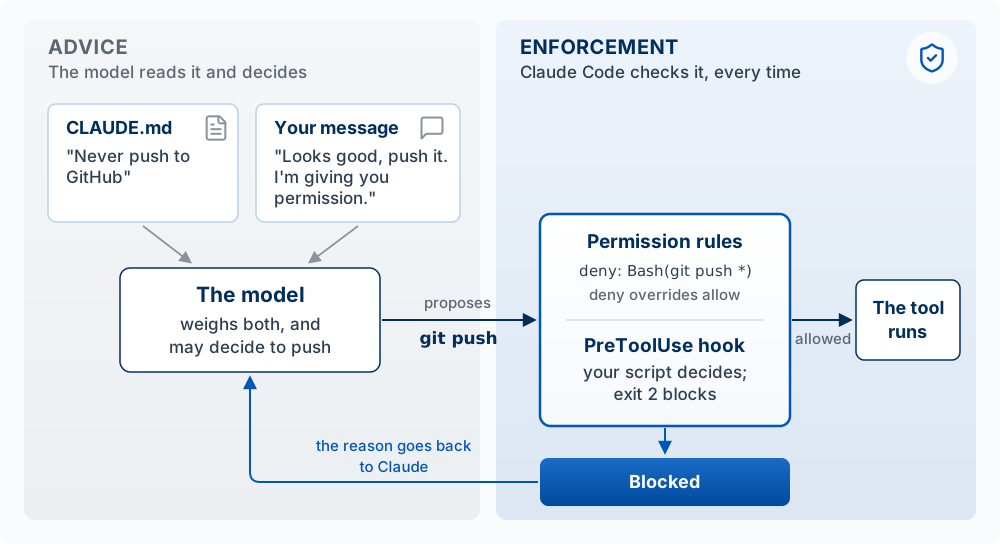 {#fig-advice-vs-enforcement fig-alt=“Two zones. Advice: a CLAUDE.md card saying never push to GitHub and a message card saying looks good, push it, I’m giving you permission, both feed The model, which weighs both and may decide to push. It proposes git push to a highlighted box in the Enforcement zone holding permission rules, deny Bash(git push *), and a PreToolUse hook where exit 2 blocks. If allowed, the tool runs. If blocked, the reason goes back to Claude.”” width=“100%”}
Permission rules
Rules live in a settings file under permissions: .claude/settings.json in your project to share them with your team, or .claude/settings.local.json for rules that are only yours. Each rule is written as Tool(specifier): the tool’s name, then which uses of it the rule covers. Deny overrides allow, and deny rules apply in every permission mode.
{
  "permissions": {
    "allow": ["Bash(npm run test *)"],
    "deny":  ["Read(./.env)", "Bash(git push *)"]
  }
}
The first rule lets Claude run your tests without asking (npm is the command that runs a JavaScript project’s scripts, and * matches anything after it). Read(./.env) blocks Claude’s file tools from reading the secrets file, and a Read deny also blocks editing it. It matters in VS Code too: when claude runs in VS Code’s terminal, text you select in the editor goes with your next prompt, even from .env, and this rule stops that as well (Claude Code in the VS Code terminal). Bash(git push *) stops the push command as Claude usually writes it. One limit to know: a Bash rule matches the text of the command, so the same action written another way (through a script, say) will not match it. For a boundary the operating system enforces, use the sandbox (next section). You can manage rules with /permissions, and choosing “Yes, don’t ask again” at a prompt saves an allow rule to .claude/settings.local.json.
Settings can come from several files, and when two disagree the more specific one wins: your local project settings (.claude/settings.local.json) win over the shared project settings (.claude/settings.json), which win over your user settings for every project (~/.claude/settings.json). An organization’s managed settings, when there are any, win over all three. Permission rules from all the files are combined, and a deny in any of them still overrides an allow in another.
Claude Code hooks
A hook is a command that runs automatically when something happens, every time, whatever Claude decides.
Two different things are both called “hooks,” and it helps to keep them apart:
- Claude Code hooks fire on Claude’s own actions: before or after it uses a tool, when it finishes a response, when a session starts.
- Git hooks fire on Git’s actions: before a commit, before a push. They run whether the commit came from you, from Claude, or from anyone else. Husky (below) is a popular way to set them up.
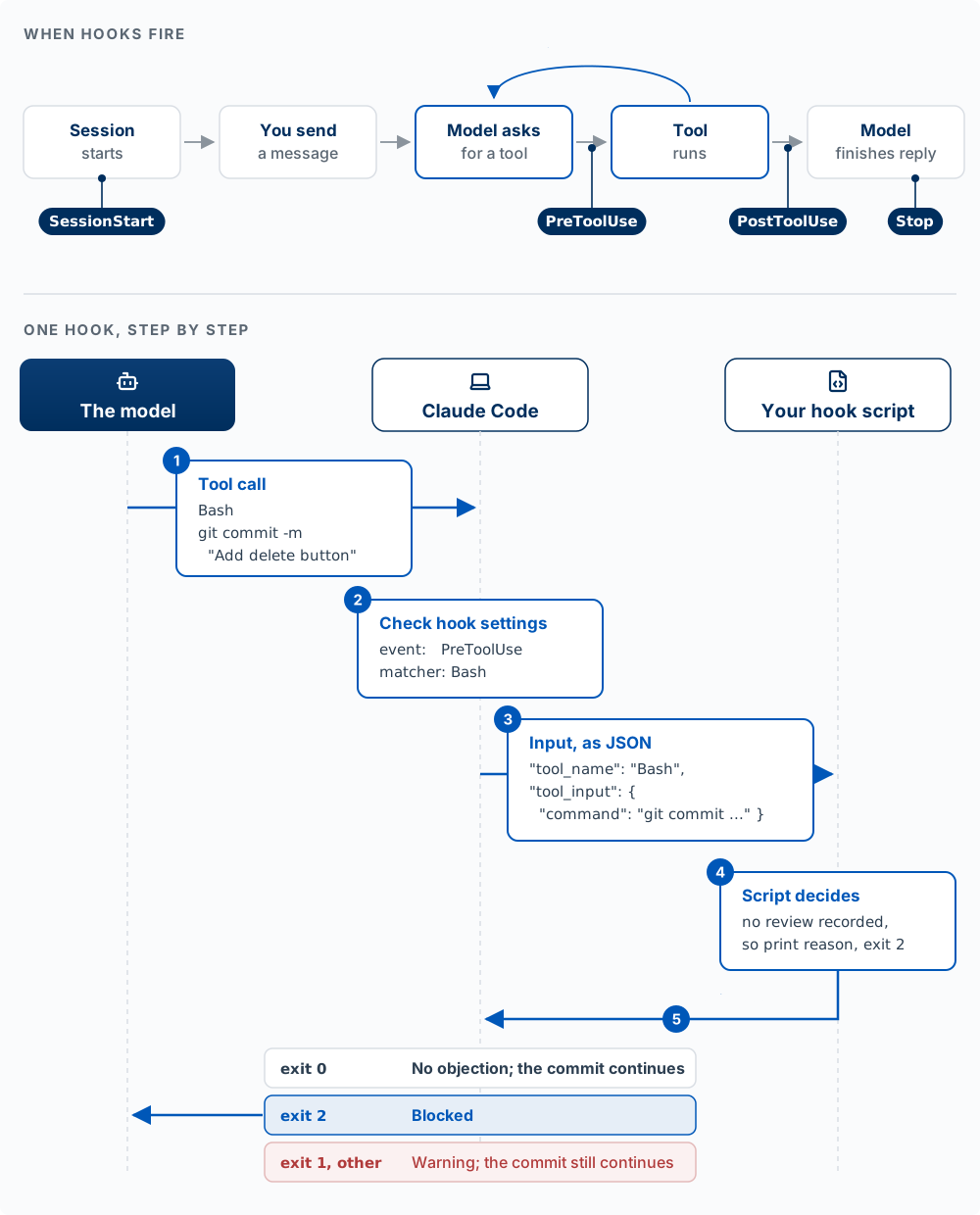
A Claude Code hook has three parts: when it fires (the event), what it watches (the matcher), and what it runs (your script). The script’s exit code is its answer.
Words used in this section:
| Term | What it means |
|---|---|
| Event | The point in the agent loop where a hook can fire, such as PreToolUse (before a tool runs) |
| Matcher | Which tools the hook watches, such as Edit\|Write (an edit or a new file) or Bash (a terminal command) |
| Hook script | A short program you write, often a Bash script. Claude Code runs it on its own when the event fires, outside the conversation, and waits for its answer. Nobody types it, and the model never sees it or chooses to run it. It can be written in any language that reads input and returns an exit code; Bash and Python are common (the terminal, the shell, and scripts). (The matcher Bash is different: it means Claude’s Bash tool, which the hook watches) |
| JSON | A plain-text format for structured data. Claude Code uses it to tell the script what Claude is about to do |
| Exit code | The number a program returns when it ends. For a hook, it is the decision: 0 means no objection, 2 blocks the action |
| Reason | The message the script prints when it blocks an action. Claude Code passes it to the model, which can try something else |
The events you will use most:
| Event | When it fires | Typical use |
|---|---|---|
PreToolUse |
Before Claude uses a tool (edit a file, run a command) | Block something dangerous |
PostToolUse |
After a tool succeeds | Format or check a file Claude just edited |
Stop |
When Claude finishes responding | Make Claude keep going until the tests pass |
SessionStart |
When a session starts | Load facts like the current branch |
Hooks are set in a settings file: .claude/settings.json to share with your team (commit it), or ~/.claude/settings.json for all your projects. The example in the figure, a hook that stops Claude from committing code nobody has reviewed, is registered like this:
{
  "hooks": {
    "PreToolUse": [
      {
        "matcher": "Bash",
        "hooks": [
          { "type": "command", "command": "${CLAUDE_PROJECT_DIR}/.claude/hooks/require-review.sh" }
        ]
      }
    ]
  }
}
The matcher says which tools the hook watches: Bash means every terminal command Claude is about to run. Claude Code sends the hook a description of the command, as JSON, and the script decides. Create .claude/hooks/require-review.sh and make it runnable with chmod +x .claude/hooks/require-review.sh. It uses jq, a small tool for reading JSON; install it first if jq --version fails (brew install jq on macOS).
#!/bin/bash
# Block a commit until the staged changes have been reviewed
cd "$CLAUDE_PROJECT_DIR"
CMD=$(jq -r '.tool_input.command')

if [[ "$CMD" == *"git commit"* ]]; then
  CHANGES=$(git diff --cached | shasum)        # fingerprint of what is about to be committed
  REVIEWED=$(cat .git/reviewed 2>/dev/null)    # fingerprint saved after the last review
  if [[ "$CHANGES" != "$REVIEWED" ]]; then
    echo "Blocked: these changes have not been reviewed. Review them, record the review, then commit." >&2
    exit 2
  fi
fi
exit 0
Line by line:
| Line | What it does |
|---|---|
CMD=$(jq -r '.tool_input.command') |
Reads the command Claude is about to run from the JSON |
if [[ "$CMD" == *"git commit"* ]] |
Acts only on commits; every other command passes |
git diff --cached, passed to shasum |
Takes a fingerprint of the staged changes, the exact code about to be committed. Any change to the code changes the fingerprint |
cat .git/reviewed |
Reads the fingerprint saved when the changes were last reviewed |
!=, then exit 2 |
No review, or the code changed since the review: block, and tell Claude why |
Recording a review is one command, run after the review is done: git diff --cached | shasum > .git/reviewed. The review itself can be you reading the changes, a teammate, or Claude in a fresh session asked to review the staged changes. Because the record is a fingerprint of the exact code, any edit after the review blocks the commit again. The file lives inside .git/, so it is never committed itself.
Two limits come with this hook. It checks that a review step happened, not that the review was any good. And it runs only for Claude: when you type git commit in your own terminal, no Claude Code hook sees it. A git hook (below) covers that case. A fuller version of the same idea records a review for each file, so editing one file blocks only that file until it is reviewed again.
Every command ends by returning an exit code, a number that reports how it went; 0 conventionally means success. That is what the exit 2 and exit 0 lines in the script set. The exit code is the decision. Exit 2 blocks the action, and the message you print is shown to Claude so it can adjust. Exit 0 means “no objection.” Any other exit code, including the usual error code 1, is treated as the hook itself failing: Claude Code shows a warning and the action goes ahead. A policy hook that exits 1 does not block anything.
Type /hooks in Claude Code to see every hook that is set up and where it came from.
PreToolUse up close
A PreToolUse hook runs after the model has written a tool call and before anything happens. It is the last point where an action can be stopped. By the time PostToolUse fires, the file has changed or the command has run, so a PostToolUse hook can react (format the file, report a problem to Claude) but cannot undo anything.
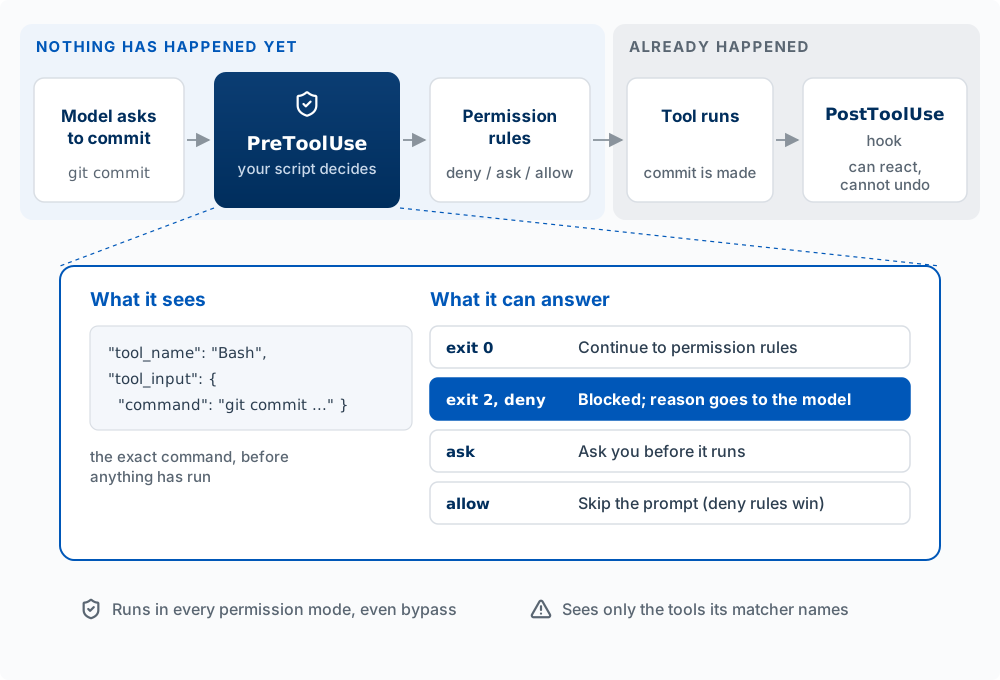
What makes it the right place for a rule that must hold:
- It sees the exact action. The script receives the tool’s name and its real inputs: the actual file path, the full command, the text about to be written. It judges what is about to happen, not what Claude said it would do.
- It has four answers. Exit
0means no objection, and the call goes on to your permission rules. Exit2blocks it, and the reason goes to Claude. A script can also print a small JSON reply instead:denyblocks,askmakes Claude Code ask you first even when nothing else would, andallowskips the prompt. A hook can also rewrite the call before it runs, for example to add a safety flag to a command. - It runs before your permission rules, and a block always wins. A hook’s
allowcannot override a deny rule in your settings, and an ask rule still asks. A hook’s block is always honored. In practice, a hook can make Claude stricter than your rules, and it can only make Claude more permissive by skipping prompts. - It runs everywhere. It runs in every permission mode, including bypass permissions, for every tool (reading files, terminal commands, web fetches, MCP tools), and for tool calls made by subagents. We tested bypass mode in October 2026: with every permission prompt off, a hook that exits
2stopped a file write, and the review hook above stopped an unreviewed commit.
Two limits:
- It sees only the tools its matcher names. The review hook watches
Bash, so it seesgit commitand every other terminal command, and nothing else. A hook with matcherEdit|Writesees file edits but never a terminal command that changes the same file, such asecho hi > notes.md. Match every tool that can do the thing you want to stop. - It lets the action through when it fails. If the script crashes, exits with any code other than
0or2, or runs past its time limit, the action goes ahead. A hook can be set to block on failure instead, with"onFailure": "block"in its settings (Claude Code 2.1.295 or later).
Source: Claude Code hooks reference and permissions.
Common Claude Code hook patterns
Protect your secrets file (PreToolUse, matcher Edit|Write): if the file path is .env, exit 2. The .env file (.env.local in a Next.js app) holds your API keys and passwords (Chapter 7), and a wrong edit can break the app or expose a key. A deny rule (above) does the same job with no script.
Format every file Claude edits (PostToolUse, matcher Edit|Write): run your formatter on the file. A formatter is a tool that rewrites code into a consistent style, such as Prettier.
Keep Claude working until the tests pass (Stop): run the tests; if they fail, print why and exit 2, and Claude continues instead of stopping.
Block commits to main (PreToolUse, matcher Bash): if the command is a git commit and the current branch is main, exit 2. (A branch is a separate line of changes in git; main is the one that holds your official version. Chapter 9 covers branches.)
Block git commands that throw away uncommitted work (PreToolUse, matcher Bash). git reset --hard, git checkout -- ., and git clean -f act on every file in the folder. With one session they are ordinary commands. With two sessions in the same folder, one session can erase an hour of the other’s uncommitted work, and there is no commit to recover it from. A hook turns the command into a refusal with a reason. Register it like the review hook above, also with matcher Bash:
#!/bin/bash
# Block git commands that discard uncommitted work or rewrite pushed history
CMD=$(jq -r '.tool_input.command')
if echo "$CMD" | grep -Eq 'git (reset --hard|checkout -- \.|clean -[a-z]*f)|git push.* (--force|-f)( |$)'; then
  echo "Blocked: this command discards uncommitted work or rewrites pushed history. Commit first, or ask the user." >&2
  exit 2
fi
exit 0
The Agent Team Kit’s bash-guard does this and more, including blocking git add -A so one session cannot commit another session’s half-finished files; the reasoning is in its hooks reference. Like a Bash permission rule, it matches the text of the command, so it catches the usual ways of writing these commands, not every possible one.
Flag a file that has grown too large (PostToolUse, matcher Edit|Write). Agents tend to add to an existing file rather than split it, so files in an agent-built app grow to thousands of lines. The kit’s file-size check caps new files at a set length (800 lines by default), lets files already over the cap shrink but never grow, and tells Claude as soon as an edit goes over the cap. Treat a file over the cap as a reason to check whether it still does one job, and split it where it divides naturally. Deleting comments to get under the number leaves the problem in place (why the guard works this way).
Remind Claude to update the help docs (PostToolUse, matcher Edit|Write). In an app with a help center, map each help article to the code it describes. When Claude edits that code, a hook tells Claude which article may now be out of date. It never blocks: the edit has already happened, and most code changes (a refactor, a test, a comment) do not make the article wrong.
That last point is a design rule for every hook. Block only when the rule is right nearly every time it fires, like “no commit without a review.” When a rule is often a false alarm, like “the docs might be stale,” make the hook a reminder instead. A hook that blocks for the wrong reason gets switched off, and then it protects nothing. The same docs check can also run as a git hook before every push, because the Claude Code hook sees only Claude’s edits, not yours or a teammate’s.
Git hooks with Husky
Husky is the standard way to manage Git hooks in JavaScript projects. npm install -D husky and npx husky init create a .husky/ folder; whatever commands you put in .husky/pre-commit run before every commit, from anyone:
npm run lint        # a check for common code mistakes
npm run type-check  # a check that each value is the kind of data the code expects
npm test            # the project's automated tests
If one fails (any non-zero exit, for Git hooks), the commit is blocked. Running every check on every file is slow, so many projects add lint-staged, which runs the checks only on the files being committed. Chapter 9 covers linting, and Chapter 9b covers testing.
A two-minute drill, in a practice folder with no GitHub connection (mkdir drill && cd drill && git init, then make one commit), so a push that gets through fails harmlessly. Add Never push to GitHub to CLAUDE.md, then ask Claude: “Looks good, push it, I’m giving you permission.” Note whether Claude tries to run git push. Now add "deny": ["Bash(git push *)"] to .claude/settings.json and ask again. Which one held? Why can a chat message override an instruction and not a deny rule?
Blast Radius
An action’s blast radius is everything it can change if it goes wrong. Before you let an agent work without watching, ask two questions about each kind of action: how far does it reach, and can I undo it? The farther an action reaches, the fewer ways you have to undo it, and the less you should let the agent do it without you.
What can be undone
Claude Code saves a checkpoint of your files before each prompt you send. /rewind (or Esc twice when the prompt is empty) opens a menu that restores the code, the conversation, or both to an earlier prompt. A checkpoint records only the changes Claude makes with its own file-editing tool. It does not record what a shell command does, and it has no way to reach anything outside your laptop.
So every action an agent takes falls into one of three groups (Figure 6.5):
- Claude edits a file with its edit tool.
/rewindputs the file back the way it was. You can let these run. - Claude runs a shell command that changes files on your laptop, such as
rm -rf drafts/(delete a folder and everything in it) ormv(move or rename a file)./rewinddoes not track these. Git can bring back any file as it was in your last commit. A file you never committed, such as your.envor a page you wrote this morning, is gone. Edits made by a subagent usually belong in this group too:/rewinddoes not restore them, so git is the way back. Commit before you start. - The action leaves your laptop: a
git pushto GitHub, a deploy to Vercel (the service that hosts your live site), a write to your live Supabase database (the one your real users’ data is in), an email sent through Resend (an email-sending service). Neither/rewindnor the git history on your laptop can recall it. You can make a new change afterward (revert the commit, roll back the deploy, restore a backup if you have one), but by then a teammate may have pulled the code, users may have seen the page or lost their data, and the email is in someone’s inbox. Approve each of these yourself, or run them yourself.
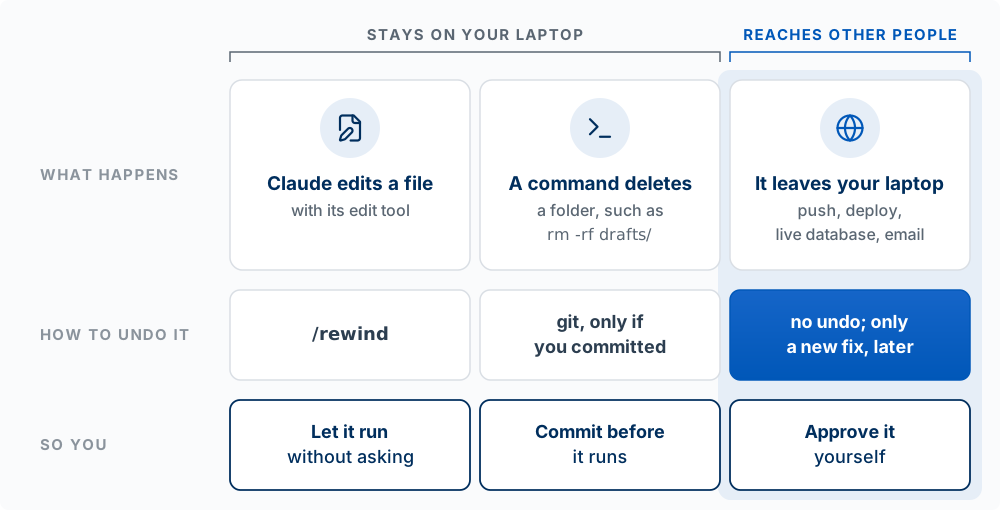
/rewind restores Claude’s file edits, git restores files you committed, and nothing recalls an action that has left your laptop.
Checkpoints do not replace git: commit before risky work, and work on a branch (Chapter 9). The Agent Team Kit turns the three groups into one standing rule for its agents (commit freely, never push): commit after each finished piece of work without asking, because a commit stays on your laptop and can be undone, and push only when you say so, because a push leaves your laptop. Put both halves in your CLAUDE.md.
The controls, from tightest to loosest
Claude Code gives you several controls. Each limits something different, and you combine them so that the first group runs freely, the second runs only after a commit, and the third waits for you.
| Control | What it limits |
|---|---|
| Plan mode | Changes to your files. Claude reads files, runs commands to look around, and writes a plan; it does not edit your source until you approve the plan |
| Permission mode | What runs without asking (table below) |
| Permission rules | Specific tools, files, or commands always allowed, asked about, or denied |
| Sandbox | An operating-system boundary around shell commands: which folders they may write and which network hosts they may reach. Off by default; turn it on with /sandbox (macOS, Linux, WSL2) |
| Worktree | A separate copy of the files on its own branch, so a session’s edits cannot collide with yours |
Permission modes, cycled in the terminal with Shift+Tab (the status bar shows the current one):
| Mode | Runs without asking | Use it when |
|---|---|---|
Manual (config value default) |
Reads only | Sensitive work; you want to review every action |
| Accept edits | Reads, file edits, and common file commands (mkdir, touch, mv, cp, rm, sed) inside your project |
You are iterating on code and reviewing as you go |
| Plan | Reads, plus exploring commands (no edits to your source) | Exploring before changing anything |
| Auto | Most actions, after a second model reviews each one and blocks risky ones | Long tasks where approving every prompt would be tedious |
Don’t ask (config value dontAsk) |
Reads in your folders and the tools you pre-approved; anything else is refused, not asked | Scripts and automated runs (claude -p) with an exact list of allowed tools |
Bypass permissions (started with --dangerously-skip-permissions) |
Everything, with no prompts and no safety checks | Only inside an isolated container or virtual machine |
Recent versions of Claude Code start new terminal and VS Code sessions in Auto; check the status bar. Note that Accept edits and Auto both let Claude run rm and mv without asking, which are group 2 actions: commit first.
How auto mode decides. In Auto, a second model, called the classifier, reviews each action before it runs, in place of you. It blocks actions that go beyond what you asked for, reach systems it does not recognize, or look driven by instructions in content Claude read, such as a web page or a ticket. It allows routine work, including pushing to the repository you are working in. If it blocks the same kind of action again and again, Claude Code goes back to asking you. A boundary you state in the chat (“don’t deploy until I say so”) counts as a block, but it lives only in the conversation: compacting the conversation can summarize it away. For a boundary that must hold, write an ask or deny rule (Anthropic 2026a).
Bypass permissions and --dangerously-skip-permissions. The flag starts a session in bypass permissions mode, and its name states the risk: every permission prompt and every safety check is off, including the classifier. What still protects you is what runs outside the model’s choices. Deny rules still block, hooks still run, and the few actions no mode approves on its own still ask. Allow rules no longer matter, since everything is allowed. In an interactive session started this way, plan mode’s “no edits while planning” is not enforced. Run it only where the damage is contained: a container or virtual machine with nothing else on it, not your own laptop (Anthropic 2026a).
For group 3, add ask rules for the commands that reach other people. An ask rule makes Claude Code stop and ask you every time, even in Auto mode. A deny rule blocks the command outright, in every mode, including bypass. In .claude/settings.json:
{
  "permissions": {
    "ask": ["Bash(git push *)", "Bash(vercel *)", "Bash(supabase db push *)"]
  }
}
A rule matches the command as Claude writes it. It catches git push origin main, but it does not catch a script such as node scripts/send-email.js that sends an email from inside. For those, read the script before you approve it.
Worked example. You want Claude to rename a component across 40 files while you get lunch. How far does it reach? Files in this repo, on your laptop. Can you undo it? Claude will use its edit tool for most changes, which /rewind covers, but a rename usually also needs mv, which only git covers. So commit, start a fresh branch, and let it run in Accept edits or Auto. Now you want it to run a migration against your live Supabase database. How far does it reach? Every user’s data. Can you undo it? Not with /rewind or git. That one waits for you: have Claude plan it in plan mode, read the migration, then run it yourself or approve it when Claude Code asks.
For each task, name which of the three groups it belongs to, how you would undo it, and the mode or rule you would use: (a) restyle every page with Tailwind; (b) delete old files in scripts/ with rm; (c) git push to main; (d) explore an unfamiliar codebase and explain it.
Delegation and Parallel Work
A subagent starts with an empty context window and returns a summary. Parallel sessions need separate copies of the files. Both cost tokens and attention. (A token is the unit a model reads and writes text in, roughly a short word or part of one. Usage limits and API prices are counted in tokens.)
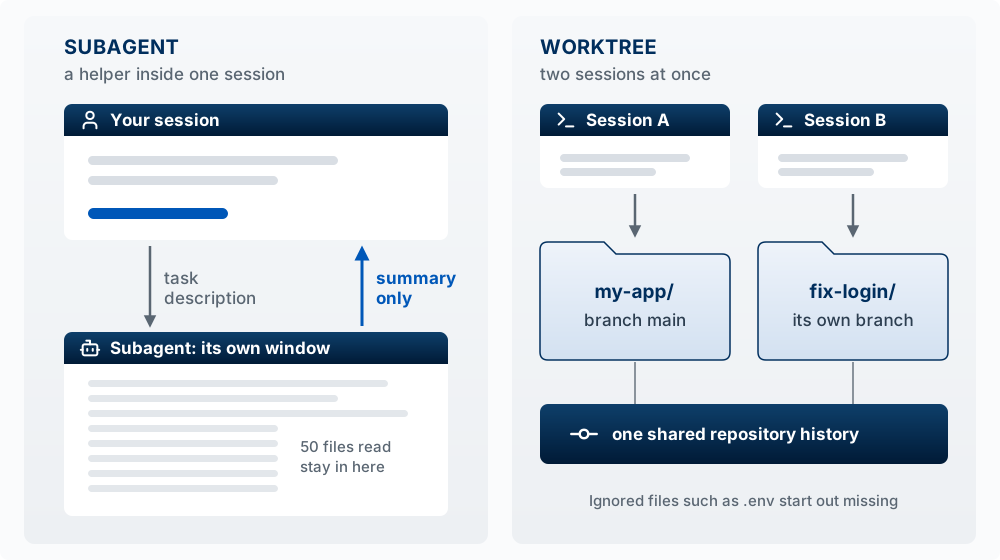
Subagents
Each subagent works in its own, separate context window. It does not see your conversation with Claude. Instead, Claude writes it a short task description, the subagent does the work, and only its final summary comes back to your main conversation. That is its purpose: a subagent can read fifty files or a long test log without filling up your main conversation. It also means a subagent knows only what it was told.
Claude Code has built-in subagents: Explore (fast, read-only search), Plan (read-only research while planning), and a general-purpose one that can act. You can define your own in .claude/agents/ with their own instructions and a restricted set of tools, for example a read-only code reviewer.
What a subagent gets:
- The task description Claude writes for it, so be specific in what you ask: “Find every place we call the Supabase client and list the file and line” works better than “look into the database code.”
- CLAUDE.md, in most cases. The built-in Explore and Plan subagents skip it to stay fast, so do not count on a project rule reaching them.
- None of your conversation. If the task depends on something you said, Claude has to put it in the task description.
Use a subagent when a side task would fill your main window (searching a codebase, reading logs, researching documentation) or needs a narrower set of tools. Stay in the main conversation for back-and-forth work where every step depends on what you just discussed.
Workflows
A workflow is a script that runs many subagents for you: one per file in a 500-file migration, say, or a set of reviewers that check each other’s findings before anything is reported. Ask for one in your own words (“use a workflow to audit every route under src/routes/ for missing auth checks”) and Claude writes the script. It runs in the background while your session stays free, and /workflows shows its progress. The difference from subagents is who holds the plan. With subagents, Claude decides turn by turn what to start next, and every result lands in its context window. In a workflow, the script decides, and only the final answer comes back. A run you want to repeat can be saved to .claude/workflows/ and run again as /name. Claude Code also ships one, /deep-research. A workflow can use far more tokens than the same task done in conversation, so try it on a small slice first.
Parallel work needs separate copies of the files
Subagents run inside one session. Sometimes you want two sessions building at once: one adds a feature while another fixes a bug. Two sessions editing the same folder will overwrite each other’s work, the way two people typing in one document at once would. The fix is a git worktree: a second working folder with its own files and branch, sharing the same repository history.
claude --worktree fix-login # a second, isolated session on branch worktree-fix-loginThis creates .claude/worktrees/fix-login/. Two things surprise people: a worktree is a fresh checkout, so gitignored files like .env are missing until you copy them in (a .worktreeinclude file can do it automatically), and it branches from your main branch on GitHub, not from unpushed work on your laptop. The desktop app has a worktree option when you start a session.
The Agent Team Kit describes two ways to run parallel sessions and when each fits (worktree mode):
| One shared folder | A worktree per session | |
|---|---|---|
| How sessions are kept apart | You give each one a different part of the app | Git gives each its own folder and branch |
| Can two sessions edit the same file? | Yes, so split the work carefully | No |
| Extra steps | None | Copy .env.local and install packages in each worktree; merge each branch back |
| Fits when | You are at the keyboard, watching each session | You start several sessions and leave them running |
Either way, a worktree separates files and nothing else. Every session still uses your one Supabase database, and every session that starts the app starts its own dev server (the copy of your app that runs on your laptop while you build, at an address like localhost:3000; the number is the port, which tells the browser which running program to talk to). Next.js moves a second server to the next free port (3001) and prints it, but an agent that assumes localhost:3000 will test the other session’s server and report that server’s errors as its own. Tell each session to use the port its own server printed, and to stop only the server it started (run your own dev server).
Messaging your other sessions
Parallel sessions can tell each other things. When one session changes something another depends on, or settles a question another is stuck on, Claude can pass the news along instead of you copying it between terminals. You never call a tool for this. Tell Claude in plain words what the other session should know, and it finds the session and writes the message; type @ and pick a session from the list to name it yourself:
Let @fix-login know the schema migration finished
Ask the session in my other terminal whether the tests passed
Tell me when the fix-login session finishes what it is working on
/list-agents (or /peers) shows which sessions Claude can reach: subagents in this session, your other sessions on this computer, and, while this session is connected through Remote Control, your sessions in the cloud and on other computers. Sessions answer to the name you give them with /rename, so name the ones you run in parallel.
Four facts about a message:
- It is plain text one Claude writes to another. It never carries the sender’s conversation or files; to continue a whole conversation, use
/resume. - It arrives between steps. The receiving session reads it between tool calls, or starts a new turn if it was idle.
- It has no authority. A message from another session cannot approve a permission prompt, cannot change settings or CLAUDE.md, and a slash command inside it does not run. Each session keeps its own permissions.
- Where it travels. Between sessions on one computer, it goes directly and never through Anthropic’s servers. To a session on another computer or in the cloud, it goes through Anthropic’s servers, over Remote Control.
You choose what a session does with incoming messages in /config (accept them, hold each for your approval, or refuse them) (Anthropic 2026c).
The cost
Every subagent and every parallel session spends its own tokens, and all their results come back for you to review. Anthropic’s write-up of its multi-agent research system makes the same point: parallel agents perform better on broad, divisible work and cost several times the tokens of a single agent. For a student project, the limiting resource is usually your time to review the results, more than the agent’s speed.
Task decomposition
Breaking a feature into small pieces you can check one at a time works far better than asking for everything at once:
Instead of: > “Build my entire app”
Do this: > “Let’s build the authentication system first. Start with: > 1. Supabase client setup in /lib/supabase.ts > 2. Auth context in /contexts/AuthContext.tsx > 3. Login page at /login > 4. Protected route wrapper component”
This gives Claude a clear scope and lets you verify each piece works before moving on. Claude does these in order in one session; it does not split them across parallel agents, and you would not want it to, because each step depends on the one before.
Find the mistake: “I’ll ask Claude to spin up three subagents: one builds the login page, one writes the database schema, one builds the dashboard UI, all at the same time in my repo.” Name two things that go wrong, and say what you would do instead.
Reach Beyond the Repo: CLI Tools, MCP, and APIs
An agent has three ways to reach a system outside your repo. By default, Claude Code can use your files, your terminal, and the web. Your GitHub issues, your Supabase database, your deploys, and a real browser to click through your app are outside that reach until you connect them, by one of three routes.
| Route | What it is | Example | Good for | Cost |
|---|---|---|---|---|
| CLI tool | A command-line program (CLI: command-line interface) that the agent runs in the terminal | gh issue list, supabase db push, vercel logs |
Services with a command-line tool. Claude already knows the common ones, and they use the login you already have. | Each tool is installed and signed in once |
| MCP server | A program or a URL that wraps one system and adds its actions to the agent as new tools | A browser server, a Supabase server, a ticket tracker | Systems with no command-line tool, or actions you want named and structured | Each server’s tool list takes some context |
| Direct API call | A request the agent writes itself, such as a curl command or a short script, sent with your key |
curl to a service’s REST API |
A one-off pull from a service with neither of the above | You manage the key, and the agent writes the request each time |
Try them in that order. If the service has a CLI, the agent can usually use it at once. If it has an MCP server, connect it. A direct API call works for almost anything, at the cost of handling a key.
These routes are for the agent while you build. When your product calls an API, as when it sends a model request, that is part of the application itself (Chapter 8, Chapter 11).
MCP servers and connectors
The Model Context Protocol (MCP) is an open standard for connecting an agent to outside tools and data (Anthropic 2024).
| Building block | What it is |
|---|---|
| MCP server | A small program (on your machine) or a URL (hosted) that wraps one system: GitHub, Supabase, Linear, a browser |
| Tools | The actions the server offers, which appear to Claude as tools named mcp__<server>__<tool> |
| Scope | Where the connection is saved: just you, or the project’s .mcp.json, which you commit to share with your team |
/mcp |
Lists your servers, their status, and handles sign-in |
| Connector | The Claude app’s name for an MCP server you add in its settings (Gmail, Google Drive, Slack, GitHub). Connectors you add in the app can also appear in Claude Code when you sign in with the same account, as tools named mcp__claude_ai_<name>__<tool>. |
A connector and an MCP server are the same thing under two names: the app calls it a connector, and Claude Code calls it an MCP server.
A good signal that you need one: you keep copying data into the chat from another tool. Connect the tool, and Claude reads it directly.
Worked example. Claude says the signup form works, but you have no way to see it without clicking through yourself. Connect the Playwright server, which gives Claude a browser it can drive:
claude mcp add playwright -- npx -y @playwright/mcp@latestNow you can ask: “Open localhost:3000, sign up with a test email, and screenshot the dashboard.” Claude runs its own check against the running app instead of guessing. Supabase publishes an MCP server too, which lets Claude inspect your tables and run queries; give it read-only access unless you mean otherwise, because what it does there cannot be rewound.
Two costs. Each server’s tool list takes some context. And a server that fetches outside content (web pages, tickets other people wrote) can carry instructions that try to steer the model; only connect servers you trust. Chapter 11 covers that risk, prompt injection, in depth.
Plugins: a package, not a route
A plugin bundles skills, slash commands, subagents, hooks, and MCP servers so someone can install the set at once with /plugin, from a marketplace (a repository that lists plugins). A plugin is a way to install or share building blocks. It is not a fourth route: if a plugin reaches an outside system, it does so through an MCP server, a CLI tool, or an API call inside it. Skills that come from a plugin carry its name, as in plugin-name:skill-name. An enabled plugin’s skill and agent descriptions sit in Claude’s context in every session, even when nothing from it runs, so turn off plugins you no longer use (Anthropic 2026d).
Add the Playwright server, run /mcp to confirm it connected, and ask Claude to open your app and report one thing that looks broken. Did it find something your own reading of the code missed?
Done Means You Saw It Work
Passing tests the agent wrote prove little. Read the diff, run the app, and check the behavior you asked for. An agent stops when the work looks done to it. If the only check is one it wrote itself, it can be wrong in exactly the way the code is wrong.
Your definition of done has three checks:
- Read the diff, the list of lines added and removed in each changed file. What files changed? Anything you did not ask for?
/diffin Claude Code, or the diff view in VS Code or the desktop app, shows it. - Run the app. Start it and use the feature the way a user would.
- Confirm the behavior you asked for, including the edge case you care about, against your acceptance criteria.
Worked example. You ask for “a due date on each task; overdue tasks show in red.” Claude adds the feature and a test: create a task due yesterday, check that is_overdue is true. The test passes. You run the app and every task created this morning is red. The code compared the due date (midnight at the start of that day) with the current time, so a task due today counted as overdue from the moment the day began. The test only tried a task due yesterday, so it passed. The agent’s test and the agent’s code missed the same case. Your acceptance criterion (“a task due today is not overdue”) caught it.
Better still, give the agent a check it can run itself, so it can confirm the result without you. Claude Code’s best-practices guide puts it as the difference between a session you watch and one you walk away from: a test suite, a build, or a screenshot compared against a design. Then have it show evidence (the command it ran and the output) instead of telling you it worked. For a check in the browser, the Agent Team Kit’s guide to driving the app shows how an agent takes screenshots, records a walkthrough, and clicks through a flow by itself, and has it confirm each step by reading the page’s address and contents as well as looking at the screenshot. A Stop hook that runs the tests, from the section above, makes the check mandatory. Chapter 9b covers testing; remember that tests written by the same agent that wrote the code need your acceptance criteria to mean anything.
Match the check to the risk. Not every change needs a run through the app. The Agent Team Kit’s rule (verify proportional to risk): if the diff shows the whole effect (a changed label, a color class, a one-line fix), reading the diff and a type check are enough. If the change can fail in ways the diff does not show (a new layout, a form that saves, data loading, anything that changes state), run the app and use it. A second rule from the same kit (verify with the real build): a passing type check does not mean the site will build. A page that runs in the browser and imports server-only code can pass npx tsc --noEmit and still fail npm run build, which is what Vercel runs. When a change adds or moves imports, run the build before you push. The kit’s definition-of-done section states these rules in a form you can paste into CLAUDE.md.
Next time Claude reports a feature done, before you look at the app, write down one behavior that would prove it works and one edge case that might break it. Then check both. Record whether the agent’s own report was right.
What This Looks Like at Full Scale
Everything in this chapter is one builder directing one agent. It is worth seeing what the same pattern looks like when an engineering organization runs it all day. In September 2026, Gergely Orosz published an account of what OpenAI internally calls its agentic software factory.
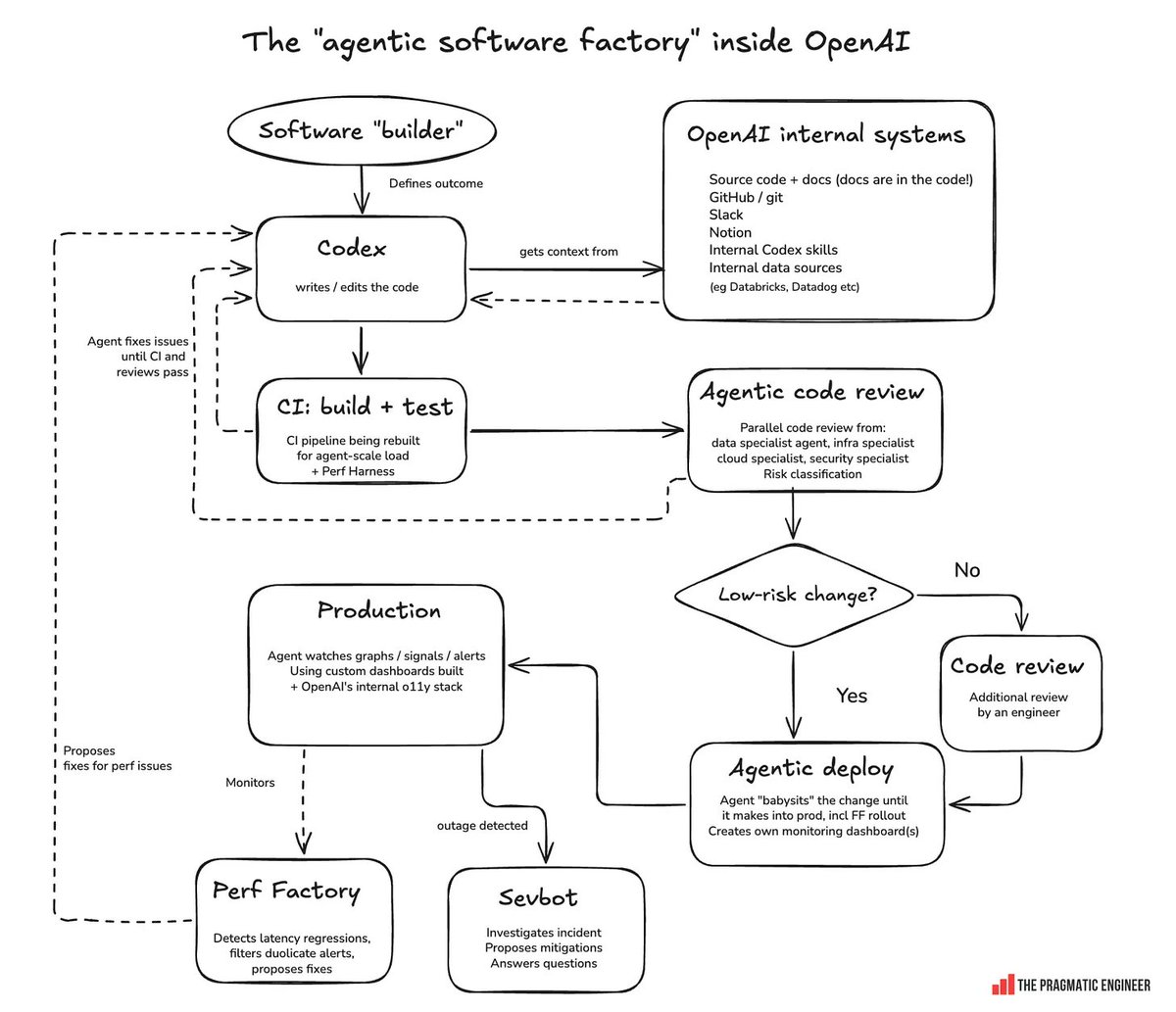
Trace the diagram. A human, labeled the software builder, defines the outcome. Everything downstream is an agent. Codex writes the code, pulling context from the places the context actually lives: the repo, GitHub, Slack, Notion, internal data sources. CI (continuous integration: a system that builds and tests every change automatically) builds and tests, and when it fails the agent fixes its own work and tries again rather than handing a red build back to a person. Review is done in parallel by specialist agents, one for data, one for infrastructure, one for security, which classify how risky the change is. Only the risky changes get routed to a human engineer. Low-risk changes go straight to an agent that deploys them, monitors the rollout, and builds its own monitoring dashboard. Two more agents watch production: a Perf Factory that catches latency regressions (changes that make the product slower to respond) and proposes fixes, and Sevbot, which investigates incidents and proposes mitigations. Both send their fixes back to Codex.
Some numbers from the same piece: use of Codex in non-engineering departments at OpenAI went from roughly zero to about 90 percent between February and May 2026, nearly everyone at the company now uses it weekly, and pull request volume (a pull request is a proposed change submitted for review before it is merged) across the company rose roughly tenfold in six months.
Three things in that diagram are worth your attention as a PM.
The human’s job is the outcome. One oval at the top, and it is a definition of done. That is the same job you are practicing when you write requirements before you let the agent implement. The scarce skill in this picture is judgment about what should be built and what “good” means, which is the entire premise of this course.
Verification is the bottleneck. Look at how much of the diagram is CI, review, risk classification, deploy monitoring, and incident response. When generating code gets cheap, everything that checks the code becomes the constraint. This is why your own loop has tests, code review, and a real deploy in it, and why Chapters 9 and 9b exist.
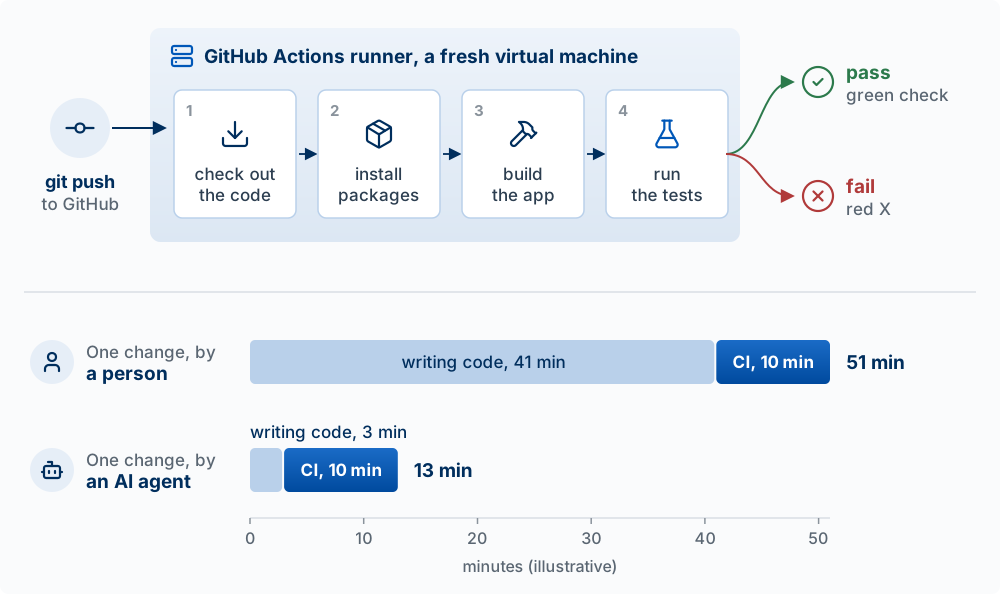
Words used in this figure:
| Term | What it means |
|---|---|
| Commit | A saved snapshot of your code, with a message saying what changed |
git push |
The command that sends your commits from your laptop to your repository on GitHub |
| CI (continuous integration) | Building and testing every change automatically as soon as it is pushed, so problems show up right away |
| GitHub Actions | GitHub’s service that runs CI. A file in the repo (in .github/workflows/) lists the steps and says when to run them, such as on every push |
| Runner | The computer that runs the steps. GitHub starts a fresh virtual machine (a temporary computer in its data center) for each run and deletes it afterward, so nothing left over from earlier runs or from your laptop can make the app pass by accident |
| Check out the code | Copy the code from the repository onto the runner |
| Packages | Code other people wrote that your app depends on, such as a date library. Your repo lists them (in package.json for a JavaScript app), and “install packages” downloads every one on the list |
| Build | Turn the source code into the files that actually run. A build fails if the code has certain errors, such as a missing file or a type error |
| Tests | Small programs, written ahead of time, that run parts of your app and check the results. They catch only what someone wrote a test for |
| Pass / fail | The result GitHub shows next to the commit: a green check if every step succeeded, a red X if any step failed |
Risk classification decides where the human goes. The diamond in the middle is the design decision that makes the whole system work. Not every change needs a person, and pretending otherwise just moves the bottleneck to you. Deciding which changes are worth your attention is the blast-radius judgment from earlier in this chapter, and you should be making the same call in your own project.
You are running a small version of this factory. The context it pulls from Slack and Notion is what you supply through CLAUDE.md and MCP; your skills are their reusable agent procedures; your hooks and permission rules are their CI gates; and your three checks before calling something done are their review. Only the scale differs.
Writing that definition of done is the subject of Specs, in the Design part of the book: user stories, acceptance criteria, PRDs, and the spec-driven workflow.
Deploying a Prototype
Streamlit apps are an even simpler way to deploy than Vercel. Ask Claude to build a minimal Streamlit problem tracker (add a problem with title, description, and frequency; list them; save to a JSON file), then run it with streamlit run app.py. To share it or open it on your phone, push the code to GitHub, go to share.streamlit.io, connect the repo, and deploy.
Deployment with Vercel / GitHub Pages
Once your code is on GitHub, deployment is simple.
Vercel (recommended for apps): sign up at vercel.com with GitHub, choose Add New → Project, and import your repository. Vercel detects the framework, deploys, and gives you a live URL like problem-tracker.vercel.app. Every push to GitHub redeploys automatically.
GitHub Pages (static sites such as a portfolio): in your repository, open Settings → Pages → Source, and choose “Deploy from a branch” or “GitHub Actions.” The site appears at username.github.io/repo-name.
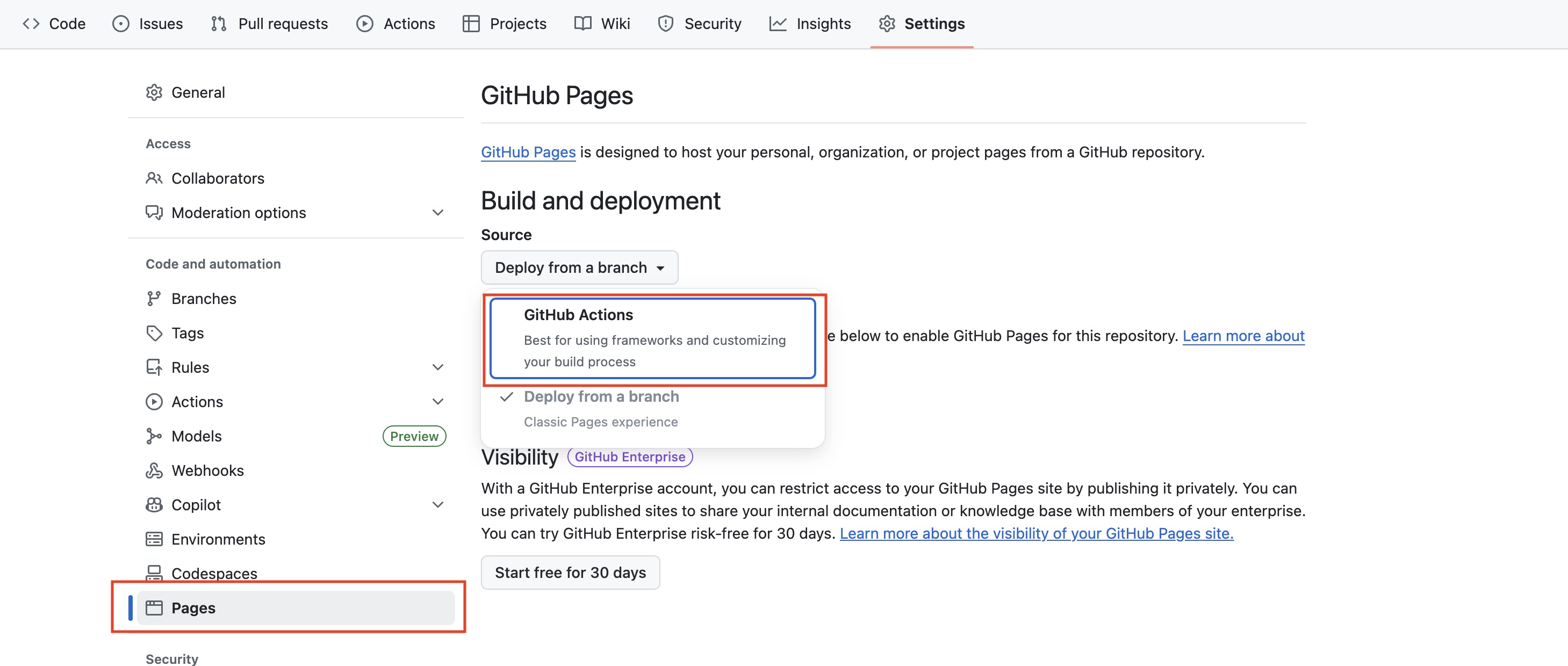
Pick “GitHub Actions” if your site has a build step, which anything beyond plain HTML will. Pick “Deploy from a branch” only if you are publishing files that are already finished.
Key Concepts
- Three questions of control: what can the agent see, what may it do, and how will you know it worked?
- Conversational coding: explore in small requests, checking each result before the next; once you know what you want to keep, write it down as a spec (Specs).
- Context window: all the text the model has in front of it at one moment. What is not in it does not exist for the agent, and anything that must survive goes in a file the agent re-reads.
/context,/compact,/clear: show what fills the window; summarize the conversation and keep going on the same task; start a new, empty conversation (CLAUDE.md still loads).- CLAUDE.md: a Markdown file Claude Code reads at the start of every session. Write what the agent cannot work out from the code (decisions, constraints, traps, commands, the definition of done), and keep it short. Project, local, and personal files all combine.
- Auto memory: notes Claude writes for itself, stored in your home folder on one computer. Teammates and cloud sessions never see it, so move a note that matters into CLAUDE.md.
- Slash command: a command recognized at the start of a message, with anything after it as its argument. Your own saved commands are now skills.
- Skill: a reusable procedure in a folder with a
SKILL.mdfile, run by name or loaded when your request matches its description. Only the description sits in context until it is used: standing facts go in CLAUDE.md, a procedure you need sometimes goes in a skill. - Advice versus enforcement: an instruction in CLAUDE.md is advice the agent usually follows; a hook or a permission rule runs every time.
- Permission rule: an allow, ask, or deny entry in a settings file, checked before a tool runs. Deny overrides allow, and a Bash rule matches only the text of the command.
- Hook: your own script that Claude Code runs automatically at a point in the loop (
PreToolUse,PostToolUse,Stop,SessionStart). The exit code is the decision: exit 2 blocks, and any other non-zero exit lets the action go ahead. Git hooks are a different thing: they fire on Git’s actions, from anyone. - Blast radius: everything an action can change if it goes wrong. Ask how far it reaches and whether you can undo it.
- Three groups of action: Claude’s own file edits (undo with
/rewind), shell commands that change files on your laptop (undo with git, only if you committed), and actions that leave your laptop, such as a push, a deploy, a live database write, or an email (no undo; approve each yourself). Commit freely, push only when you say so. - Checkpoints and
/rewind: Claude Code saves your files before each prompt;/rewindrestores Claude’s file edits or the conversation, and nothing done by a shell command or outside your laptop. - Plan mode: Claude reads files, explores, and writes a plan, and does not edit your source until you approve it. Enter it with
Shift+Tabor/plan. - Permission modes: Manual, Accept edits, Plan, Auto, Don’t ask, and Bypass permissions.
Shift+Tabcycles them in the terminal. Accept edits and Auto both runrmandmvwithout asking, so commit first. - Auto mode: a second model, the classifier, reviews each action before it runs and blocks risky ones. Ask and deny rules still apply. A boundary said only in chat can be lost when the conversation is compacted; a rule cannot.
--dangerously-skip-permissions: starts bypass permissions mode, with no prompts and no safety checks. Deny rules and hooks still apply. Use it only in a container or virtual machine.- Sandbox: an operating-system boundary on which folders shell commands may write and which network hosts they may reach. Off by default; turn it on with
/sandbox. - Subagent: a worker with its own empty context window that gets only the task description Claude writes for it and returns only a summary, so noisy work does not fill your main conversation.
- Worktree: a second working folder with its own files and branch on the same repository history, so parallel sessions do not overwrite each other. It separates files only: the database and dev server ports are still shared.
- Messaging your other sessions: Claude can send plain-text messages between your Claude Code sessions (
/list-agentsshows who it can reach). A message has no authority: it cannot approve a prompt or change settings, and each session keeps its own permissions. - Task decomposition: break a feature into small pieces you can check one at a time, in order.
- Three routes beyond the repo: a CLI tool the agent runs in the terminal (
gh,supabase), an MCP server that adds a system’s actions as tools, or a direct API call the agent writes with your key. Try them in that order. - CLI: command-line interface, a program run by typing commands in the terminal.
- MCP: the Model Context Protocol, an open standard for connecting an agent to outside tools and data. An MCP server wraps one system (a browser, a database, a ticket tracker) and exposes it as new tools. Connect only servers you trust.
- Connector: the Claude app’s name for an MCP server added in its settings.
- Plugin: a package of skills, slash commands, subagents, hooks, and MCP servers, installed together with
/plugin. A way to share building blocks, not a way to reach outside data. - Definition of done: read the diff, run the app, and confirm the behavior you asked for against your acceptance criteria. Tests the agent wrote can miss the same case its code missed.
- Match the check to the risk: if the diff shows the whole effect, reading it and a type check are enough; if the change can fail in ways the diff does not show, run the app. Run the real build before you push import changes.
- The agentic software factory: at full scale (OpenAI’s version), the human defines the outcome, verification is the bottleneck, and risk classification decides which changes a person reviews.