Computer Setup
Plan for about 20 minutes to install the software you need for this course. Complete this on your own before our first class on Mon, Sep 14.
Laptop requirement: You need your own Windows or macOS laptop with at least 4GB of RAM (more is better). Bring a charging cord, and a mouse if you like using one.
If at any point you get stuck or something does not work as expected, take a screenshot or copy the text you see into ChatGPT, Claude, or Gemini and ask for help troubleshooting. If it is still not working, ask in the course Slack channel or email a TA.
1. Sign up for a paid Claude account
Skip if you already have a paid Claude plan.
A paid Claude account is required for this course. You do not have to start at the top. Claude Pro at $20 per month is enough to get going, and it is enough for the early weeks. Once your build work picks up you will start running into usage limits, and that is the signal to upgrade to Claude Max at $100 per month. You can upgrade at any time from your account settings and it takes effect immediately, so there is no reason to pay for Max before you need it.
Either way, you can offset the cost by applying for a Rollins Center Validation Grant, which reimburses up to $500 for customer discovery and validation work on your product.
2. Create a free GitHub account
3. Create a free Supabase account
4. Create a free Vercel account
5. Install Visual Studio Code (VS Code)
6. Start Claude Code within VS Code
-
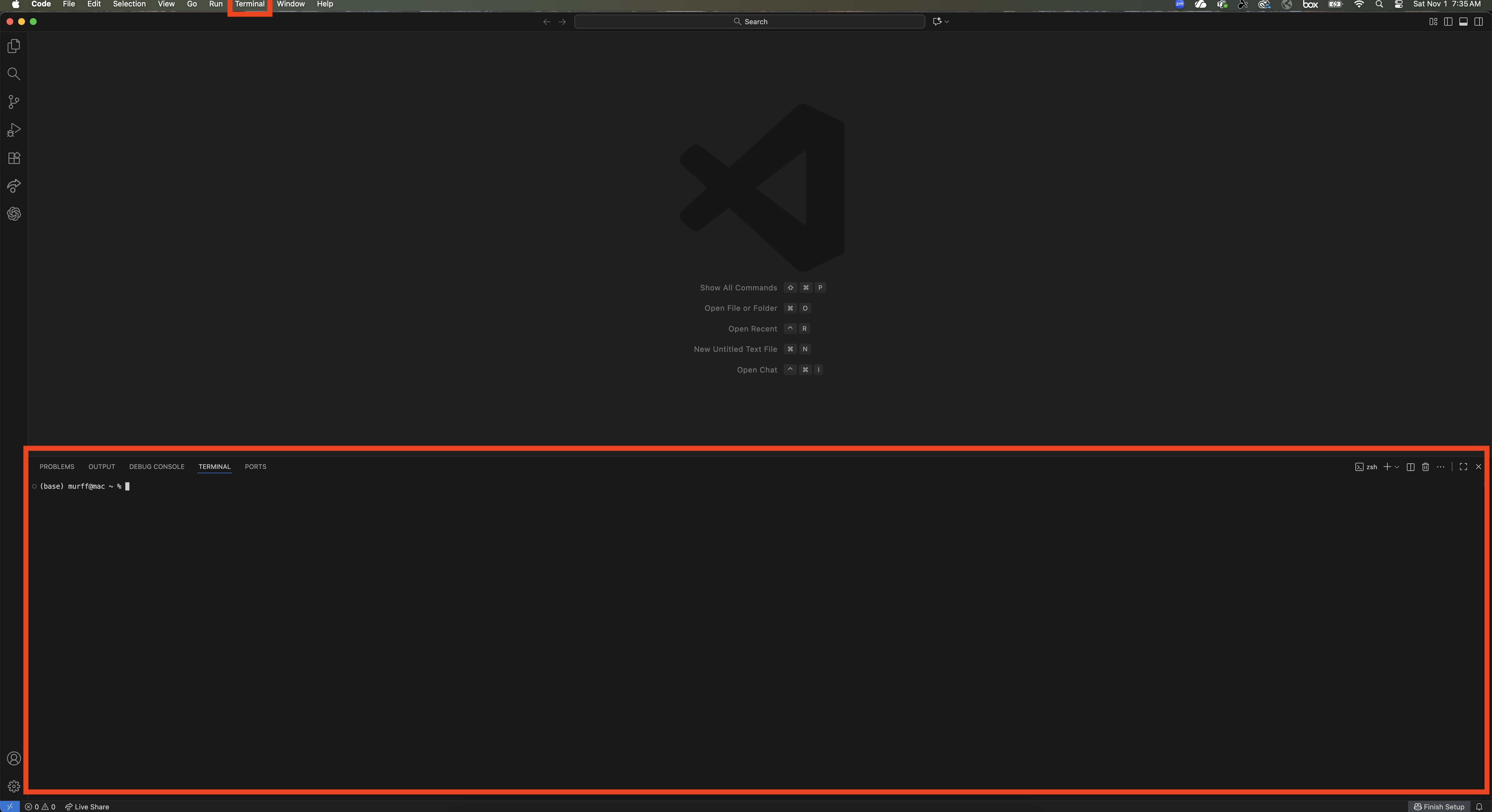
This opens the integrated terminal at the bottom of VS Code
The terminal is where you will run commands. You should see something like:
PS C:\Users\YourName>   ← Windows
or
yourname@MacBook-Pro ~ %   ← macOS
The terminal should appear as a new window pane within VS Code:
Install Claude Code from the terminal
Now you will install the Claude Code CLI (command-line interface). This tool connects VS Code directly to Claude.
Run one of the following commands inside the VS Code terminal, depending on your operating system.
Troubleshooting tip: If at any point you get stuck or something is not working as expected, take a screenshot or copy the error message and surrounding context into ChatGPT, Claude, or Gemini and ask for help troubleshooting. Follow the troubleshooting instructions and within one or two rounds you should be able to continue. When errors arise, it is often because dependencies are not installed, so additional software needs to be installed first. AI chatbots will guide you through how to install these dependencies if needed.
On Windows
irm https://claude.ai/install.ps1 | iexOn macOS
curl -fsSL https://claude.ai/install.sh | bashclaude --version2.0.31 (Claude Code)claudeYou will be prompted to authenticate your Claude account and will be routed to a web browser tab where you sign in. Once complete, return to VS Code and you should see something like:

Claude Code is now installed. We will use it to install the rest of the software you need to build full-stack applications, and to use AI on many other knowledge work tasks.
Paste the following prompt into the terminal where Claude Code is active:
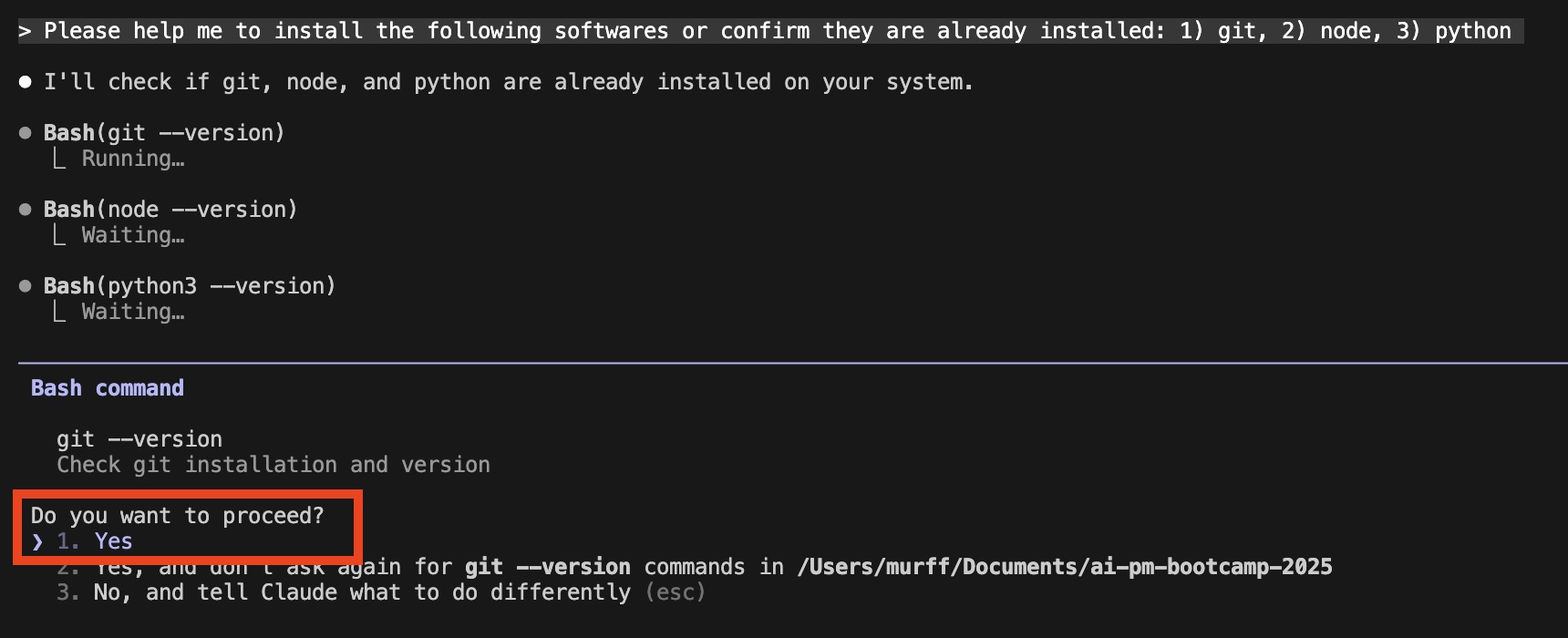
Please help me to install the following softwares or confirm they are already installed: 1) git, 2) node, 3) python
Press Enter to say “Yes” when asked to proceed. Claude Code works much like a normal chat bot and will make the remaining installations with your approval.
Note on using the terminal
The terminal is not quite like a normal text editor. You cannot click anywhere in a line to move your cursor or edit text. Instead, use the arrow keys on your keyboard to move left and right within the command you are typing. If you make a mistake, you can use:
- Backspace (Windows) or Delete (Mac) to erase characters
- ↑ (up arrow) to recall your last command
- ↓ (down arrow) to move forward through your command history
Recommended VS Code extensions
Open the Extensions view (Cmd+Shift+X on macOS, Ctrl+Shift+X on Windows), search for each name, and click Install. All are free.
| Extension | What it does | Why it helps when you build with Claude Code |
|---|---|---|
| ESLint | Flags problems in JavaScript and TypeScript in projects set up with ESLint | Its warnings appear in VS Code’s Problems panel, which Claude can read |
| Prettier - Code formatter | Formats code the same way every time you save, once you set it as your default formatter | Your edits and Claude’s follow one style |
| Tailwind CSS IntelliSense | Autocomplete and checks for Tailwind class names | Flags class names that do not exist |
| GitLens | Shows who changed each line, and when | Helps you review what Claude changed |
| Python (by Microsoft) | Python language support, including Pylance | Only if you write Python; its errors also appear in the Problems panel |
You do not need to install the Claude Code extension yourself. The first time you run claude in VS Code’s terminal, it installs the extension, which lets Claude open its changes in VS Code’s diff viewer and see the text you have selected. Claude Code in the VS Code terminal explains what that connection does.
Next: set up your builder repo and plan Sprint 1 with the setup prompt in Sprint 1.
7. Optional: other AI coding agents
You are now ready for the first class. Instruction in this course is with Claude Code, but we will refer to other AI agents as well and demonstrate how they can be used. If you have accounts with other AI providers, install their agents too.
You may run the following commands from a new terminal window, or from within an active Claude Code session, in which case Claude will ask for permission and then run them for you.
GitHub Copilot CLI (install options). Every GitHub Copilot plan includes it, including Copilot Free and Copilot Student, which is free for verified students through GitHub Education. It reads your CLAUDE.md and your Claude Code skills, so it is the closest free substitute if you ever lose access to Claude.
# macOS
brew install --cask copilot-cli
# Windows
winget install GitHub.CopilotCodex from OpenAI (install options)
# macOS
curl -fsSL https://chatgpt.com/codex/install.sh | sh
# Windows (PowerShell)
powershell -ExecutionPolicy ByPass -c "irm https://chatgpt.com/codex/install.ps1 | iex"Antigravity CLI from Google (install options). It replaced Gemini CLI for personal Google accounts on June 18, 2026, and includes a free weekly quota.
# macOS
curl -fsSL https://antigravity.google/cli/install.sh | bash
# Windows (PowerShell)
irm https://antigravity.google/cli/install.ps1 | iexAfter installation, start each agent from a terminal in your project folder, the same way you started Claude Code: copilot, codex, or agy. The first time, each one asks you to sign in. Claude Code and Other Coding Agents maps the commands you learn in this course to each of them.
copilot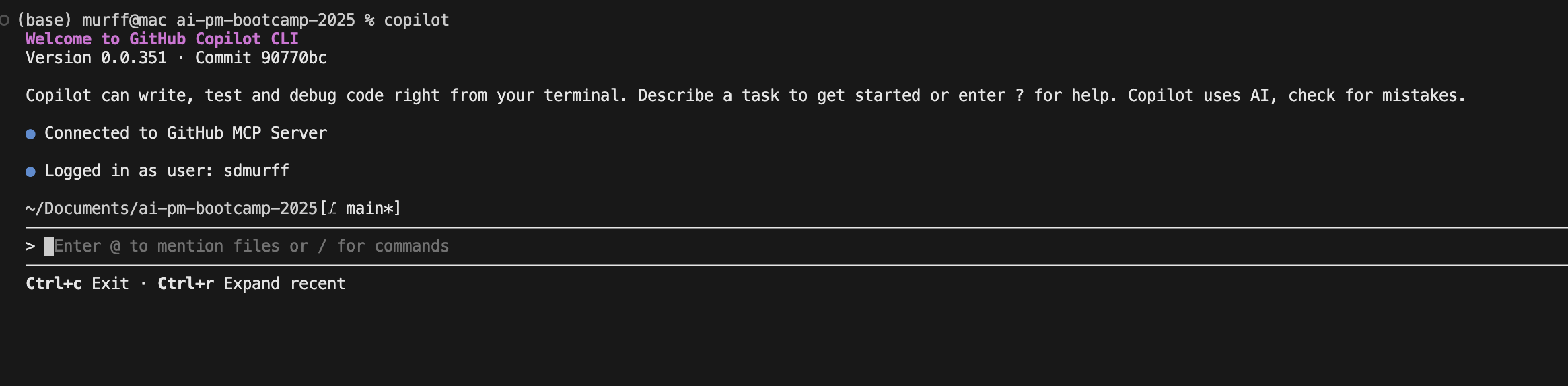
codex