
Antigravity Reference Guide
An agent-first IDE for AI-assisted consulting work
What is Antigravity?
Antigravity is the primary AI agent platform for this course. It is an AI-powered development environment built on VS Code that combines a familiar code editor with an agent-first architecture, meaning AI agents can autonomously plan, execute, and verify tasks across your editor, terminal, and browser.
You interact with Antigravity by describing what you want in plain English, and the agent does the work. It wraps the agent experience in a full visual IDE with a dedicated multi-agent orchestration dashboard, making it more approachable than terminal-only agents.
Why Antigravity for this course: Antigravity is free during the public preview with generous rate limits on Gemini 3 Pro. It requires no subscription, runs on macOS, Windows, and Linux, and provides a visual interface that lowers the barrier to entry for working with AI agents.
What Makes an AI Agent Different from a Chatbot?
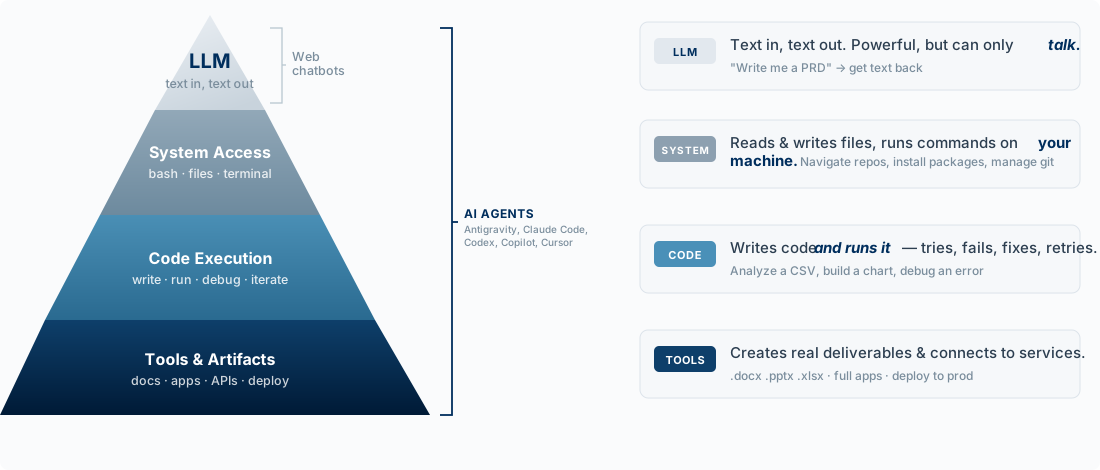
Web chatbots (Claude.ai, ChatGPT, Gemini) operate at the top of the pyramid which means they can generate text but cannot take action. AI agents like Antigravity operate across all four layers: they read your files, execute code, create deliverables, and connect to external services. Same underlying models, radically different capabilities. Overtime, the web chatbots are incorporating some limited agentic capabilities but still far less than those available in Antigravity.
The AI Agent Landscape
Antigravity is one of several AI agent platforms. They all share the same core idea which is to allow an AI that can read your files, run commands, search the web, and take multi-step actions on your behalf, but they differ in interface, model, and workflow:
| Agent Platform | Interface | Primary Model | Notable Strength |
|---|---|---|---|
| Antigravity | Visual IDE (VS Code-based) | Gemini 3 Pro | Multi-agent orchestration, 1M token context, free tier |
| Claude Code | Terminal (CLI) + IDE extensions | Claude (Opus, Sonnet) | Unix composability, document skills |
| GitHub Copilot | VS Code / JetBrains extension | GPT-4.1 + Claude | Deep GitHub integration |
| OpenAI Codex | Terminal (CLI) | GPT-4.1 | OpenAI ecosystem, sandboxed execution |
| Cursor | Custom IDE (VS Code fork) | Multi-model | Inline code generation, tab completions |
All of these platforms support the Agent Skills open standard and MCP (Model Context Protocol), meaning skills, rules, and tool integrations you build for one platform increasingly work across all of them. The skills you develop in this course are portable.
Getting Started
- Download Antigravity and install (macOS, Windows, or Linux)
- Open your project folder
- Create a project rules file at
.agent/rules/project.mdwith your conventions - Set the agent mode to Agent-Assisted or Planning (bottom-right of chat panel)
- Start prompting in the Agent chat panel
The Three Surfaces
Antigravity agents operate across three surfaces simultaneously:
- Editor — A VS Code-based code editor where the agent reads, creates, and edits files
- Terminal — A command line where the agent runs commands (install packages, run scripts, execute code)
- Browser — An integrated browser where the agent can click, type, navigate, and record sessions for testing or research
Agent Tools
These are the specific tools the Antigravity agent has access to:
File Operations
| Tool | What It Does |
|---|---|
view_file |
Read file contents |
replace_file_content |
Edit a single section of a file |
multi_replace_file_content |
Edit multiple sections of a file in one action |
write_to_file |
Create a new file or overwrite an existing one |
list_dir |
List directory contents with file sizes |
view_file_outline |
Show the structure of a file (functions, classes, sections) |
view_code_item |
Jump to a specific function or class definition |
view_content_chunk |
Read a section of a large document by position |
Search
| Tool | What It Does |
|---|---|
codebase_search |
Semantic search — find content relevant to a natural language query |
search_in_file |
Find relevant content within a specific file |
grep_search |
Exact pattern matching across files (regex) |
find_by_name |
Search for files and folders by name pattern |
Terminal
| Tool | What It Does |
|---|---|
run_command |
Execute a terminal command (with your approval) |
command_status |
Check if a previous command finished and see its output |
send_command_input |
Send input to a running interactive process |
read_terminal |
Read terminal output from a specific process |
Web & Browser
| Tool | What It Does |
|---|---|
search_web |
Search the internet with summarized results |
read_url_content |
Fetch a web page and convert it to readable text |
browser_subagent |
Launch a browser session to click, type, navigate, and record |
generate_image |
Create or edit images from a text description |
External Integrations (MCP)
| Tool | What It Does |
|---|---|
list_resources |
List available resources from connected MCP servers |
read_resource |
Read a specific resource from an MCP server |
MCP (Model Context Protocol) lets you connect Antigravity to external tools like Google Drive, Slack, Jira, databases, and custom APIs.
Agent Modes
Antigravity offers four levels of agent autonomy. Choose based on the task and your comfort level:
| Mode | How It Works | Best For |
|---|---|---|
| Agent-Driven | Full autonomy, no interruptions | Routine tasks you trust the agent to handle |
| Agent-Assisted | Agent works but pauses for verification at key steps | Most tasks (recommended default) |
| Review-Driven | You approve every step before the agent proceeds | Sensitive or unfamiliar work |
| Planning | Agent researches and proposes a plan; you approve before execution | Complex tasks requiring strategy |
Toggle between modes in the Agent panel (bottom-right of the chat interface).
Rules, Workflows, and Skills
Antigravity uses three mechanisms to customize agent behavior. Understanding the difference is key to getting consistent, high-quality results:
| Mechanism | When It’s Active | How You Trigger It | Use It For |
|---|---|---|---|
| Rules | Always — injected into every agent response | Automatic | Persistent conventions (“always cite sources”, “use professional tone”) |
| Workflows | On-demand | Type /workflow-name |
Repeatable saved prompts (“create a diagnostic”, “generate unit tests”) |
| Skills | When the agent determines they’re relevant | Automatic or /skill-name |
Specialized knowledge packages (portable across AI tools) |
Rules (Always On)
Rules are persistent instructions injected into the agent’s system prompt every time it responds.
| Scope | File Location | Applies To |
|---|---|---|
| Global | ~/.gemini/GEMINI.md |
All projects on your machine |
| Project | <project>/.agent/rules/*.md |
This project only |
To create rules: Click ... in the Agent chat panel → Customizations → + Global or + Workspace
Or create the files directly:
# Global rules
mkdir -p ~/.gemini
nano ~/.gemini/GEMINI.md

# Project rules
mkdir -p .agent/rules
nano .agent/rules/my-rules.md
Proposed rules file for client work:
Copy this into .agent/rules/consulting-project.md in your project folder and fill in the three [REPLACE] fields. These rules will be injected into every agent response, keeping your work aligned with the Consultant’s OS and the expectations for P1, P2, and the Capstone.
# Consulting Project Rules

You are assisting a BYU management consulting student with client-facing
deliverables. Every output should meet the standard of work you'd present
to a senior partner or client executive.

## My Project

- **Target company**: [REPLACE with your company name]
- **Industry**: [REPLACE with industry]
- **Current project phase**: [REPLACE with P1: Intelligence Brief /
  P2: Point of View / Capstone: Conversation Deck]

## How to Think

Follow the Consultant diamond when approaching any task:

1. **Start with the answer.** Use the Pyramid Principle: lead with the
   recommendation or insight, then support it with evidence. Never build
   up to the conclusion.
2. **Structure everything MECE.** When breaking down a problem, market,
   or argument, make categories mutually exclusive and collectively
   exhaustive. If the structure isn't MECE, flag it.
3. **Be hypothesis-driven.** Don't just gather data — state what you
   expect to find and why, then test it. Frame analyses around "what
   would have to be true" for a hypothesis to hold.
4. **Distinguish "so what" from "what."** Every fact or data point needs
   an implication. "Revenue grew 12%" is a fact. "Revenue grew 12%,
   outpacing the industry by 4x, suggesting pricing power the company
   hasn't fully exploited" is an insight.

## How to Research

- **Outside-in only.** Use publicly available sources: SEC filings
  (10-K, 10-Q, proxy), earnings call transcripts, investor
  presentations, industry reports, news, and expert commentary.
- **Cite everything.** Include the source and date for every factual
  claim. Use footnotes or a sources slide. Never present a number
  without attribution.
- **Prefer primary over secondary sources.** A company's own 10-K filing
  is better than a news article summarizing it. An earnings call
  transcript is better than an analyst's paraphrase.
- **Be current.** Prioritize data from the last 1-2 years. Flag when
  data is older and explain why it's still relevant.
- **Triangulate.** When possible, confirm key facts from multiple
  independent sources before building an argument on them.

## How to Write

- **Executive brevity.** Write for someone who has 5 minutes and will
  skim. Every word earns its place.
- **Action titles on every slide.** Slide titles are complete sentences
  that state the insight, not topic labels. "Lululemon's DTC mix reached
  44%, the highest among athletic apparel peers" not "DTC Channel
  Analysis."
- **No jargon without purpose.** Use precise business language, but
  don't use consulting jargon to sound smart. Say "the company's margins
  are shrinking because input costs rose faster than prices" not "the
  client is experiencing margin compression due to exogenous cost
  pressures."
- **Active voice.** "The company expanded into three new markets" not
  "Three new markets were expanded into by the company."
- **Quantify impact.** Whenever possible, attach a number: dollars,
  percentages, basis points, market share, growth rates. Directional
  claims ("revenue is growing") are weaker than quantified ones ("revenue
  grew 14% YoY to $4.2B").

## How to Build Slides

- **Use the pptx skill.** Always use the `/pptx` skill when creating or
  editing slide decks. This produces real .pptx files with proper
  formatting, layouts, and charts.
- **One insight per slide.** If a slide makes two points, split it into
  two slides.
- **Visual hierarchy.** Action title at top, key visual or data in the
  middle, supporting detail or source notes at the bottom.
- **Charts over tables, tables over paragraphs.** Choose the simplest
  visual that communicates the point. Annotate charts to highlight the
  "so what."
- **Consistent formatting.** Maintain uniform fonts, colors, and layout
  across all slides. Use the same chart style throughout.
- **Appendix for depth.** Put detailed data tables, methodology notes,
  and supplementary analysis in the appendix. The main deck stays tight
  and narrative-driven.

## Project-Specific Guidance

### P1: Intelligence Brief (4-6 slides)

The goal is to surface something non-obvious — a pattern, trend, or
tension the company should be paying attention to. You are delivering an
informed outside perspective as a gift.

- Frame the deck using SCQA: **Situation** (company context) and
  **Complication** (the tension or pattern you noticed)
- The "What I Noticed" slide is the heart of P1. Push beyond
  surface-level observations. Look for: margin trends vs. peers, shifts
  in competitive positioning, mismatches between strategy and execution,
  market timing risks
- The "Why This Matters" slide should create urgency without prescribing
  a solution (that's P2)

### P2: Point of View (5-8 slides)

The goal is to take a real position: "I believe [Company] should [do X]
because [Y]." This extends the SCQA to the **Question** and **Answer**.

- Build directly on P1. Don't restart the research — extend the insight
  into an actionable opportunity
- "What It Would Take" should sketch 2-3 key workstreams or analyses,
  not a full implementation plan
- "What's at Stake" must be quantified: revenue impact, cost savings,
  market share at risk, or competitive window
- "What I'd Want to Discuss" should frame genuine questions, not thinly
  veiled sales pitches

### Capstone: Conversation Deck (6-10 slides + appendix)

The goal is a deck you'd actually attach to a LinkedIn message or cold
email. Every slide earns its place.

- Synthesize P1 + P2 into a single tight narrative using the full SCQA
  arc
- The opening slide should immediately answer: Who are you, why are you
  reaching out, and what are you offering?
- The ask slide should be specific and low-friction: "I'd love 20
  minutes to discuss [2-3 specific questions]"
- The appendix demonstrates rigor — include detailed data, methodology,
  additional analysis
- Polish matters: this is client-ready, not classroom-ready

## What Not to Do

- Don't fabricate data or sources. If you can't find a number, say so
  and suggest where to look or offer a reasonable estimate with stated
  assumptions.
- Don't use generic frameworks as filler. A Porter's Five Forces that
  adds no insight is worse than no framework at all.
- Don't hedge everything. Take a position. "It depends" is not an
  answer.
- Don't over-qualify. One caveat is thoughtful. Three caveats in a row
  signals lack of conviction.
- Don't produce a "book report." Listing facts about a company is not
  analysis. Every section should advance an argument.
Workflows (On-Demand)
Workflows are saved prompts you trigger with /workflow-name.
| Scope | File Location |
|---|---|
| Global | ~/.gemini/antigravity/global_workflows/*.md |
| Project | <project>/.agent/workflows/*.md |
Example workflow (<project>/.agent/workflows/create-diagnostic.md):
Create a strategic diagnostic for the company specified. Include:
1. Current state assessment (financial performance, market position)
2. Key drivers and root causes
3. Strategic options with trade-offs
4. Recommended path forward with rationale
Invoke by typing /create-diagnostic in the Agent chat.
Skills (Open Standard)
Skills follow the Agent Skills open standard — the same SKILL.md format used across Claude Code, Antigravity, Cursor, GitHub Copilot, Codex, and other AI tools. A skill you create for one tool works in all of them.
| Scope | File Location |
|---|---|
| Global | ~/.gemini/antigravity/skills/*/SKILL.md |
| Project | <project>/.agent/skills/*/SKILL.md |
Skills differ from workflows in that the agent can automatically invoke them when your request matches the skill’s description, without you typing /. There are 700+ community-built skills available for common tasks like creating spreadsheets, presentations, PDFs, and more.
The Manager View
The Manager View is Antigravity’s multi-agent orchestration dashboard. It lets you:
- Spawn multiple agents working on different tasks simultaneously
- Track each agent’s progress, artifacts, and status
- Review artifacts (task lists, implementation plans, screenshots, browser recordings)
- Comment on artifacts Google-Doc-style — the agent incorporates your feedback without restarting
Access it from the top-left of the Antigravity window (look for the grid/manager icon).
This is particularly useful for consulting work where you might want one agent researching a company’s financials while another analyzes industry trends and a third drafts a slide structure — all running in parallel.
Knowledge Base
Antigravity maintains a persistent knowledge base at .gemini/antigravity/brain/ within your project. As agents work, they automatically save:
- Project conventions and preferences
- Key insights from previous sessions
- Patterns discovered during analysis
Future agents read this knowledge before starting, so Antigravity improves over time on your project without you repeating instructions. This happens automatically — you don’t need to tell the agent what to remember.
Context Management
Antigravity’s ~1M token context window means your entire project often fits in memory without truncation. When limits are approached, the system manages context automatically through:
- Knowledge Item Distillation — A dedicated subagent extracts key insights into searchable entries
- Checkpoint Truncation — Periodic snapshots; truncates to the most recent when needed
- Trajectory Summaries — Compact overviews of previous conversations loaded at session start
- Code Item Tracking — Avoids re-reading unchanged files
- LRU Cache — Automatically evicts least-relevant context
You generally don’t need to manage context manually — Antigravity handles this behind the scenes.
Resetting Antigravity
To start completely fresh:
# Remove all global config (rules, skills, knowledge base, workflows)
rm -rf ~/.gemini

# Remove project-level config
rm -rf <project>/.agent

# Recreate clean structure
mkdir -p ~/.gemini
touch ~/.gemini/GEMINI.md
mkdir -p <project>/.agent/rules
File Structure Summary
~/.gemini/
├── GEMINI.md                              # Global rules (all projects)
└── antigravity/
    ├── brain/                             # Knowledge base (auto-managed)
    ├── skills/*/SKILL.md                  # Global skills
    └── global_workflows/*.md              # Global workflows

<your-project>/
└── .agent/
    ├── rules/*.md                         # Project rules
    ├── workflows/*.md                     # Project workflows
    └── skills/*/SKILL.md                  # Project skills